Visual edits
Look at your product on Product › Preview, where nothing is edited. Change it on Product › Code editor by pointing at its live preview: edit a text in place (one commit, no task), note a style change, pin a comment, or send a set of changes as one task.
There are two places where you see your product inside the workspace. Product › Preview shows it as visitors see it. Product › Code editor shows a live preview of the code you are working on, with tools to change the page by pointing at it. This guide covers the Preview page and those tools; the rest of the Code editor is in Editor, code and environments.
Product › Preview: your product as visitors see it
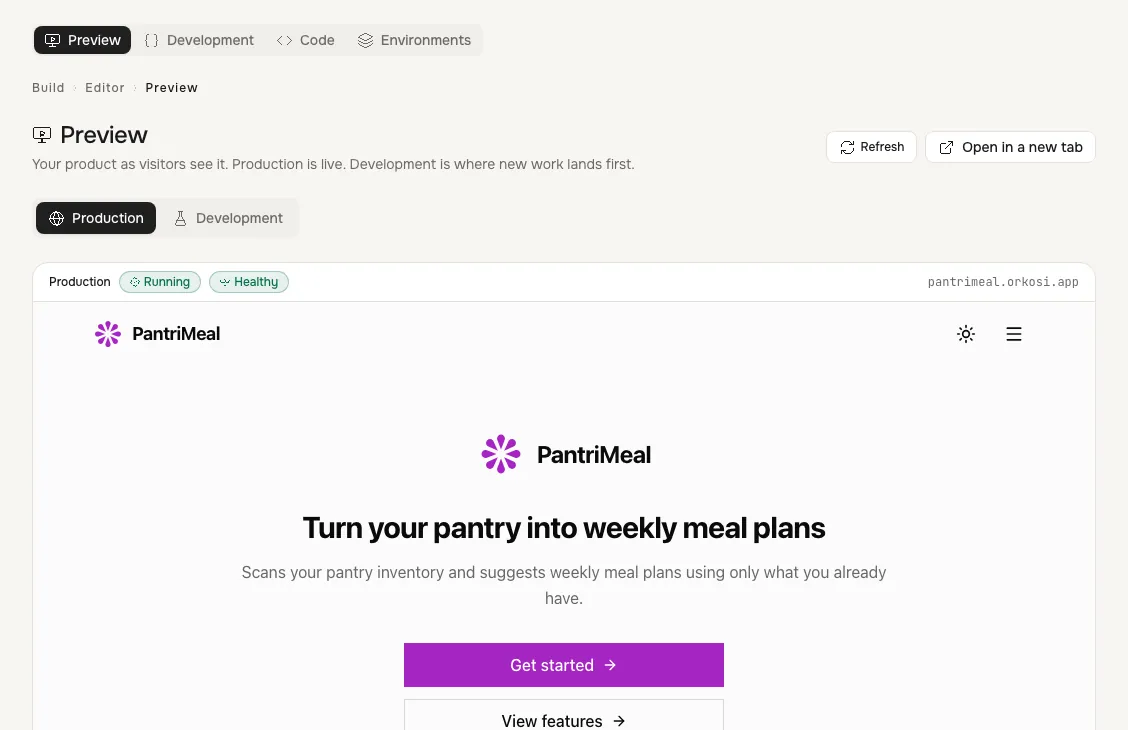
Product › Preview has one tab per environment: Production, which is what visitors see, and Development, where new work lands first. Each tab shows the environment's status, its health and its address, with the page itself below. Refresh reloads it and Open in a new tab opens the address in your browser.
When an environment cannot be shown, the page says why instead of an empty frame: it is still being set up, it is paused, it has no address yet, or its last deploy failed (with a link to the deploy log). A product with no web page, such as an API you brought as code, has nothing to preview, and the page says so.
Nothing is edited on this page. To change what you see, open Product › Code editor.
The edit tools of the live preview
In Product › Code editor, a small toolbar sits under the live preview with four tools. The owner, admins and members can use them; viewers cannot open the Code editor page.
| Tool | What it does |
|---|---|
| Select | Click an element to name it and ask for a change there |
| Text | Click any text and change it in place: one commit, no task |
| Style | Colour, spacing, image: a note on the element becomes a change or a task |
| Comment | Pin a note to an element: it becomes a task or a chat message |
The tools work on the live preview only. When the pane shows the deployed site instead (Show deployed site), a line under the frame says so, and Show live brings the tools back.
Edit text in place: one commit, no task
- Choose Text, click a text in the preview and type the new words.
- The change is applied to exactly that text in the source file and committed to your product's repository, on the development branch or on the working branch you are editing. The live preview shows it within seconds.
- It uses no credits and no task runs. A finished row in your task list records who changed what and when, and Revert this task on that row undoes the commit like any other change.
Production is never changed by a direct edit, and neither is the branch of a task that is still running.
Refusals you may see:
- "This text changed since you opened the page: reload." Someone else, or a task, changed that line after you opened the preview. Reload the preview and edit again.
- Make it a task. The words cannot be changed safely in place: they are computed by code, they appear in more than one place, or they are not in the repository. Make it a task adds the change to the set you send as a task (below).
Select an element and ask for a change
Choose Select and click an element. The toolbar names it in words (a headline, a button, an image), and Ask for a change here sends your request to the editor's assistant with that element as context, so you do not have to describe where it is.
Style notes and comments
Style attaches a note to an element about how it should look: its colour, its spacing, its image. The note becomes a change in your set or a task. Comment pins a note to an element; it becomes a task or a message to the assistant.
More tools: move, resize, draw and send as one task
More tools opens a second bar under the preview:
- Move drags the selected element among its neighbours and Resize drags its size. Both need a mouse: on a phone they are switched off.
- Draw and Select area mark the page itself, for when a change is easier to show than to describe.
- Duplicate and delete act on the selected element; undo and redo step through your changes.
Your changes collect in a list on that bar. Send as task files all of them as one task, with the places in the source that each change points at, so the agent goes straight to the right lines. The task is charged like any other: see Tasks.
Press Esc to leave a tool.