SEO, blog and social
Audit a website and follow its keywords, write and publish blog articles, post to your social accounts from one composer, and see which provider accounts each channel needs. What works on its own and what needs a connection.
This guide covers four pages of the left bar: SEO (audit a website and follow its keywords) and Blog (write and publish articles) in the Organic SEO group, Social (post to your accounts from one composer) in the Communications group, and Connections (the list of outside services these channels run on) in the Paid Ads group. Owners, admins and members can open them; viewers do not see them.
Some parts work with nothing connected, some need an account of yours, and some need an outside data service that Orkosi switches on. Each section says which is which. Actions that use credits show the price on the page before you confirm, and Paid Ads › Connections lists the current prices: see Connections.
SEO
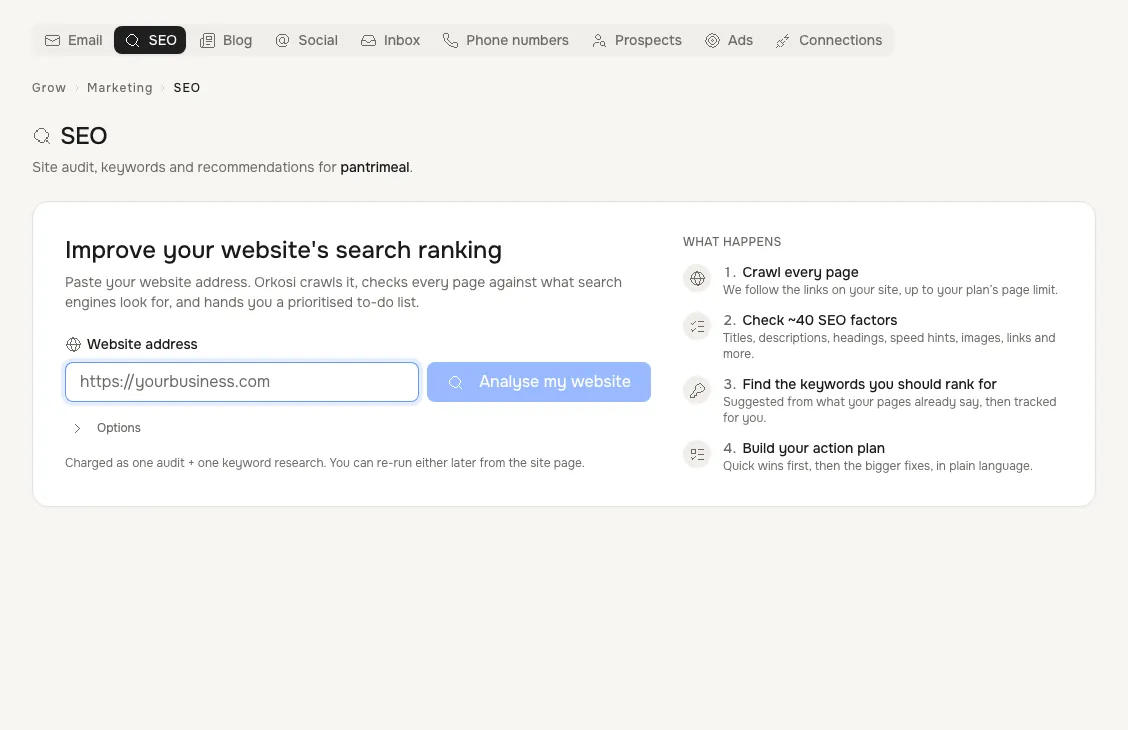
Start: analyse a website
- Open Organic SEO › SEO, paste the Website address and press Analyse my website. Under Options you can set the Country the keywords are measured for, or leave it on Detect from the site.
- Orkosi crawls the site by following its links, up to the page limit of your plan, and checks about forty factors: titles, descriptions, headings, speed hints, images, links and more.
- It suggests the keywords the site should rank for from what the pages already say, and starts tracking them.
- It builds an action plan: quick wins first, then the bigger fixes, in plain language.
The first run is charged as one audit and one keyword research. You can run either again later from the site page. The site does not have to be hosted on Orkosi: any public website can be analysed.
The tabs of a site
| Tab | What it shows | Needs |
|---|---|---|
| Overview | The summary of the site. | An audit |
| Audit | The checks, the score per category and the recommendations with the pages affected. Charged once per audit. | Nothing |
| Plan | The action plan made from the audit. | An audit |
| Pages | Every page that was crawled, with its issues. | An audit |
| Keywords | Tracked keywords with volume, difficulty, intent and position. Refreshing positions is charged per keyword. | Nothing; better with Search Console |
| Opportunities | Quick wins, Losing traffic and Share of voice. | Search Console for real figures |
| Backlinks | Who links to the site. | The outside link data service, and a live domain |
| Competitors | Competing sites and the keywords they rank for that you do not. | The outside link data service, and a live domain |
| AI visibility | Whether AI assistants name your brand and link your site when asked your questions. Each answer uses credits. | The assistants being switched on |
| Meta tags | The title and description per path, with a preview of the search result. Generation is charged per path. | Nothing |
| Sitemap | A sitemap made from the crawled pages and the meta-tag paths, to submit to search engines. | An audit |
| Site files | Whether the live site serves robots.txt and llms.txt, which AI crawlers may read it, and Write the three files. |
Nothing |
| Search Console | Real clicks, impressions and positions from Google, with the top queries of the last 28 days. | Your Google account |
| History | The score over time. | More than one audit |
What needs a connection
- Works with nothing connected: the audit, the plan, the pages list, meta tags, the sitemap, site files and keyword suggestions from your own pages.
- Search Console (your Google account): on the Search Console tab, sign in with the Google account that owns the property. It is free, and it is the most accurate source for positions. Without it, positions come from a search results provider and the Opportunities tab estimates from tracked keywords; Losing traffic stays empty.
- Backlinks and Competitors (outside data service): these read from a link and ranking data provider that Orkosi connects, not you. If it is not connected, the tab says "Not switched on yet". They also need the site to be live on its own domain: otherwise the tab says "This site has no public address".
- AI visibility: if asking the assistants is not available on your workspace, the tab says "Not switched on yet". You can still prepare your questions; nothing is asked and nothing is charged until it is on.
The SEO page reports and recommends; it does not change your pages. To have a fix made on a product built on Orkosi, describe it in a task: see Tasks.
Blog
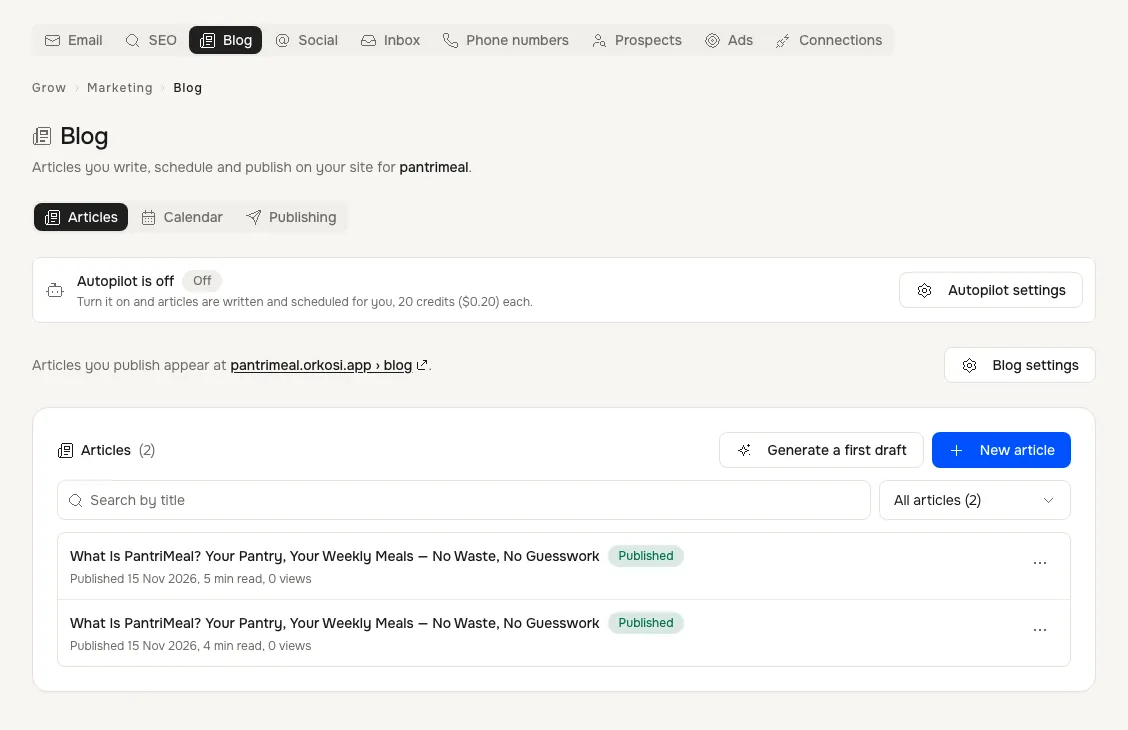
Organic SEO › Blog has four tabs: Articles, Calendar, Publishing and Settings. A line under the tabs says where published articles appear, with a link that opens the blog in a new tab.
Write an article
- Press New article to start empty, or Generate a first draft: say what the article is about, add a Main keyword (optional) and pick a Tone for this one article (it starts on the tone of your Settings). The dialog names the length your Settings ask for and shows what a draft costs in credits, and what its cover picture costs when that is switched on. Writing takes up to a minute, a few minutes for a long article: keep the dialog open and the draft opens when it is ready, with a title, a summary and the search fields filled in, to edit.
- Write the Title and the body.
- Under Details set the Address (made from the title when left empty), the Summary, Tags, the Author and a cover image.
- In the search panel set the Search title, the Search description, the Main keyword, a Sharing image address and, only when the article was first published elsewhere, the Original address. The panel previews the search result and says whether the title contains the keyword.
- Press Save draft, then Publish now, or set Publish later to schedule it. The Calendar tab shows scheduled articles and lets you move them.
A published article can be changed with Save changes, taken back to a draft with Unpublish, or opened with View on your site. The list filters by All articles, Drafts, Scheduled, Published and Archived.
Where articles are published
- A product hosted on Orkosi has its own blog at the address shown under the tabs. Articles are published on your live site. The test copy keeps its own articles, so an article you publish here does not show there (see the two environments).
- Your own website elsewhere: articles appear on the page that carries the blog element. Name that page on the Settings tab so article links point to it. The element is set up under Integrations.
- Other sites: on the Publishing tab press Add a connection to send every published article to WordPress, Ghost, Webflow, Shopify, a site built with an AI builder, or any site through a signed webhook. From then on an article is sent there by itself at the moment you publish it in Orkosi, with no further confirmation; a draft or a scheduled article is not sent before that. A connection shows Connected, Waiting for your site, Needs attention or Switched off.
- One post, on request: if the site is also connected as an app under Integrations › Tools (WordPress, Ghost or Shopify), you can ask the Orkosi assistant in the chat to create a single post there. It shows what it will create and waits for you to confirm. This does not replace a connection on the Publishing tab: only a connection sends every article.
If the message after publishing says "Published here, but it is not on your site yet", your site has not taken the article. It is tried again on its own for a day; you can also publish again after a few minutes.
Settings
The Settings tab decides how every generated article is written and pictured. A draft you ask for with Generate a first draft and an article Autopilot writes both follow it. Press Save settings at the bottom to keep your changes.
- Writing: the Article length (Short, Medium, Long or Pillar, each with its word range), the Tone (Your brand voice or one of the named tones) and the Language (Same as the topic or a language you choose). Your instructions for the writer are followed in every article: words to use or avoid, how to address the reader.
- What an article contains: one switch per part: Cover picture, Tables, Statistics and data, Code examples, Competitor comparison, FAQ section, Conclusion and Mention your business. A part is written only when its switch is on. The competitor comparison uses the competitors you saved under SEO.
- Fact sheet: what is true about your business: prices, figures, guarantees, what you do not offer. The writer may state these as facts and nothing else about you, so keep it up to date.
- Cover picture: choose a Picture style from the examples. The styles come in six families (Photo, Painted, Drawn, Graphic, 3D and Made by hand); press a family to see only its styles, or All to see every one. The style you chose stays named above the examples. Then add Your own description of the style and, if you want, a Background colour and an Accent colour. A picture never contains text. A cover picture is charged on its own, and the switch shows the price; if the picture cannot be made, the article is still written and you are not charged for the picture.
- Your blog: the Blog name, the Description and the Default author. For a website hosted elsewhere, also the Blog page on your website.
- Sharing: the switch Prepare social posts when an article is published creates a draft post per ticked account: nothing is posted until you publish the draft in Social. Share to social on an article does the same for one article.
Autopilot
The Autopilot card is Off until you turn it on. With Write and schedule articles for me on, Autopilot chooses a topic from your SEO data, writes the article and schedules it; you can edit or remove any of them before it goes out.
- Set How often, the Publication time, the sources of topics, the kinds of article and a Tone. Leave the tone empty to use the one of your Settings; the length, the language, what an article contains and its cover picture always come from there.
- Each article is charged, and the card shows the price per article and the most it can cost in a month. My own monthly limit lets you cap it lower than your plan allows.
- If the dialog shows Add this product's site under SEO, do that first: the topics come from your SEO data.
- If the card says Not in your plan, Autopilot belongs to a higher plan: see the pricing page.
When Autopilot is off, nothing is written and nothing is charged.
Social
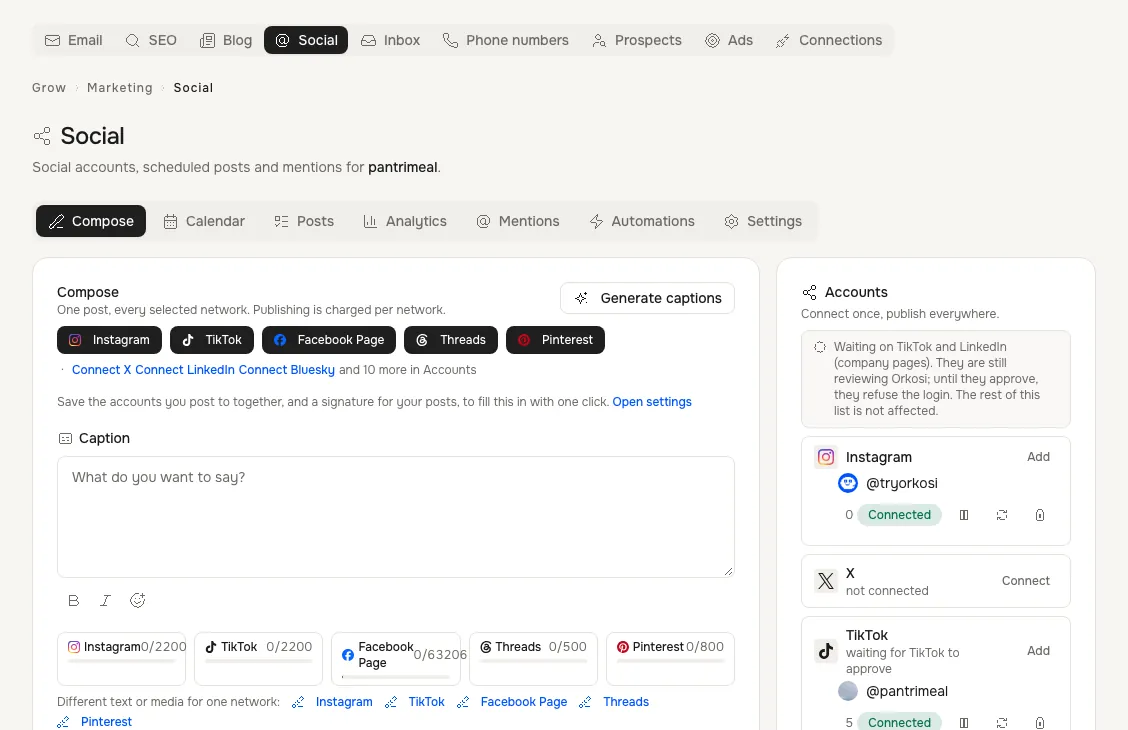
Communications › Social has seven tabs: Compose, Calendar, Posts, Analytics, Mentions, Automations and Settings.
Connect your accounts first
Nothing can be posted without a connected account. In the Accounts card press Connect (or Add for a second account) beside a network:
- Sign in on the network: Instagram, X, TikTok, Facebook Page, LinkedIn, Threads, Pinterest, YouTube, Google Business Profile, Slack, Reddit and Snapchat open the network's own sign-in page. For a Facebook Page, a Google Business Profile, Slack or Reddit you then pick the page, location, channel or community. Some of these also accept an access token you paste instead.
- Paste a key or token you create on the network: Bluesky, Telegram, Discord, Mastodon, DEV Community, Hashnode and Lemmy ask for the value the dialog names, for example an app password, a bot token or an API key.
Two limits to know before you plan:
- Networks still reviewing Orkosi. A network has to approve an app before it lets people sign in through it. While a review is open, the Accounts card names the network ("Waiting on …"), its row says it is waiting for approval and the sign-in is refused by the network. The other networks are not affected. Which networks are waiting changes over time, so trust the card rather than a list here.
- Video-only networks. TikTok and YouTube publish videos only. A post with just text or a picture cannot go there.
- Snapchat. Every post needs one photo or one video. It goes out as a Story, or as a Spotlight when it is a video: the account's settings choose which, and one post can choose another under its network options. Sign in with the Snapchat login that owns the Public Profile.
An account can be paused (it stays connected and nothing is published to it until you resume it), refreshed when its login expires, or disconnected.
Write and publish a post
- On Compose, tick the networks. One post goes to every selected network; each network shows its own character counter.
- Write the Caption. Generate captions drafts captions and hashtags with AI and is charged once per run. Under "Different text or media for one network" you can change the text for a single network.
- Add media with Upload or by pasting a public
https://address, and optionally a Link and Hashtags. - Choose when it goes out: Publish now, Save as draft, Pick a time, or Next posting time, which uses the queue of days and hours you set under Settings. A scheduled post can repeat every chosen number of days.
- Tick Needs approval before it goes out if someone must agree first. Open the saved post and press Make a review link: anyone with the link can see the post, comment and approve it. The link is shown only once, so copy it then.
Publishing is charged per network. X charges for every post, and more for a post with a link; that is added to the price of the post and shown in the composer.
The other tabs
- Calendar and Posts show your drafts, scheduled posts and published posts. Posts filters by status; open a post to see it on each network.
- Analytics shows followers, engagement and reach per account, the best times to post and your top posts. Metrics are collected about hourly, so a new post shows figures about an hour after it is published.
- Mentions searches X and Instagram for your brand terms. Each scan is charged once.
- Automations has feeds (add the feed of your blog or a news source and every new item becomes a draft for your approval or takes the next posting time) and plugs (when a post does well, add a comment under it or repost it from another account).
- Settings holds your posting times, account sets (the accounts you post to together), signatures and saved items.
Connections
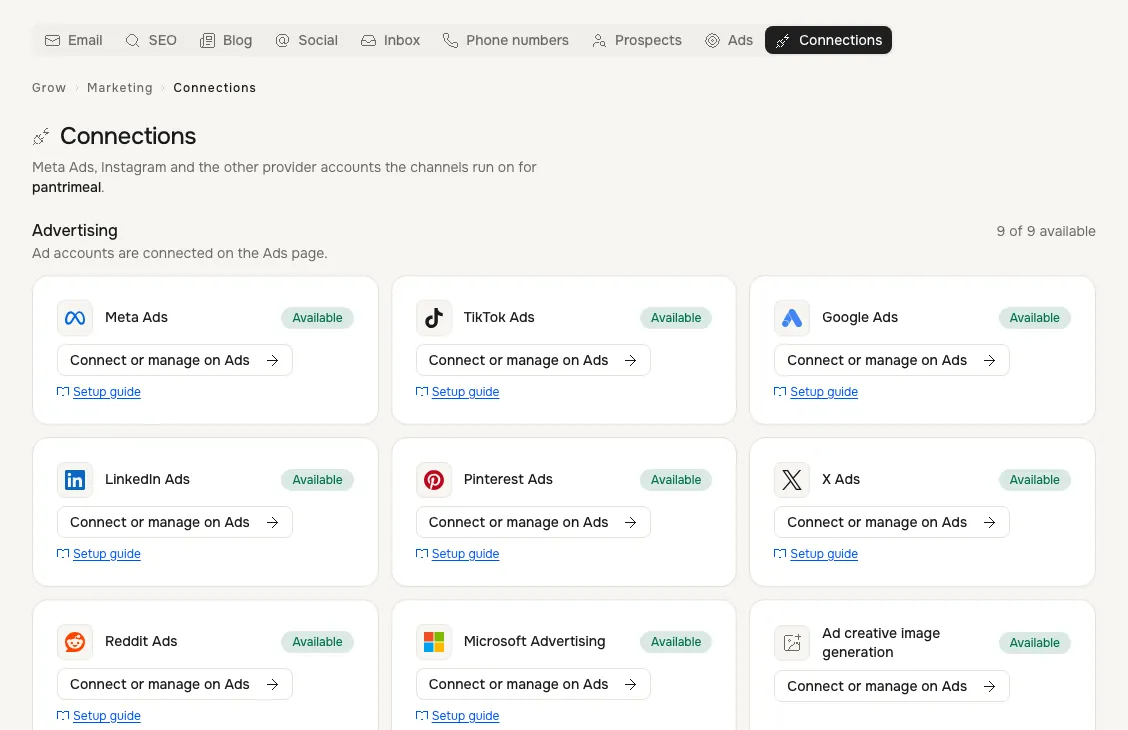
Paid Ads › Connections is the one list of the outside services the marketing channels run on. It does not connect anything itself: each card links to the page where that account is connected.
| Section | Where the account is connected |
|---|---|
| Advertising | Paid Ads › Ads: see Ads and tracking |
| Social networks | Communications › Social |
| Search | Organic SEO › SEO |
| Messaging | Communications › Inbox, the Channels tab |
| Phone | Communications › Phone numbers |
| Prospecting | Email › Prospects |
Each card carries one of three states:
- available: Orkosi's side is ready. Press Connect to open the page where you connect your own account (each section says which page that is). For ad networks, Setup guide opens the step-by-step guide.
- awaiting review: the vendor has not approved Orkosi yet. Until it does, it refuses the login; nothing else is missing and there is nothing for you to do.
- not switched on: the service is not available on Orkosi yet. The card says so and, when the request to switch it on has already reached us, that we have been notified.
The header of each section counts how many of its services are available.
At the bottom, Prices lists what each marketing action costs and Recent charges lists the marketing actions that were charged to your workspace. Use them to check a price before you act and a charge after: the full ledger is on Billing › Credits & usage, explained in Billing and credits.
Related guides
- Ads and tracking and Inbox, phone numbers and prospects for the other marketing pages.
- Images, video and the design canvas: make the pictures and clips you post.
- Start with marketing: using these tools for a website that is not built on Orkosi.