Product health and launch
The Product health page checks your live site about every hour. More than a hundred checks on launch readiness, speed, accessibility, search, security, code, legal and conversion. What each status means, the twenty launch rules, how to read the product health number and how to turn a failing check into a fix task.
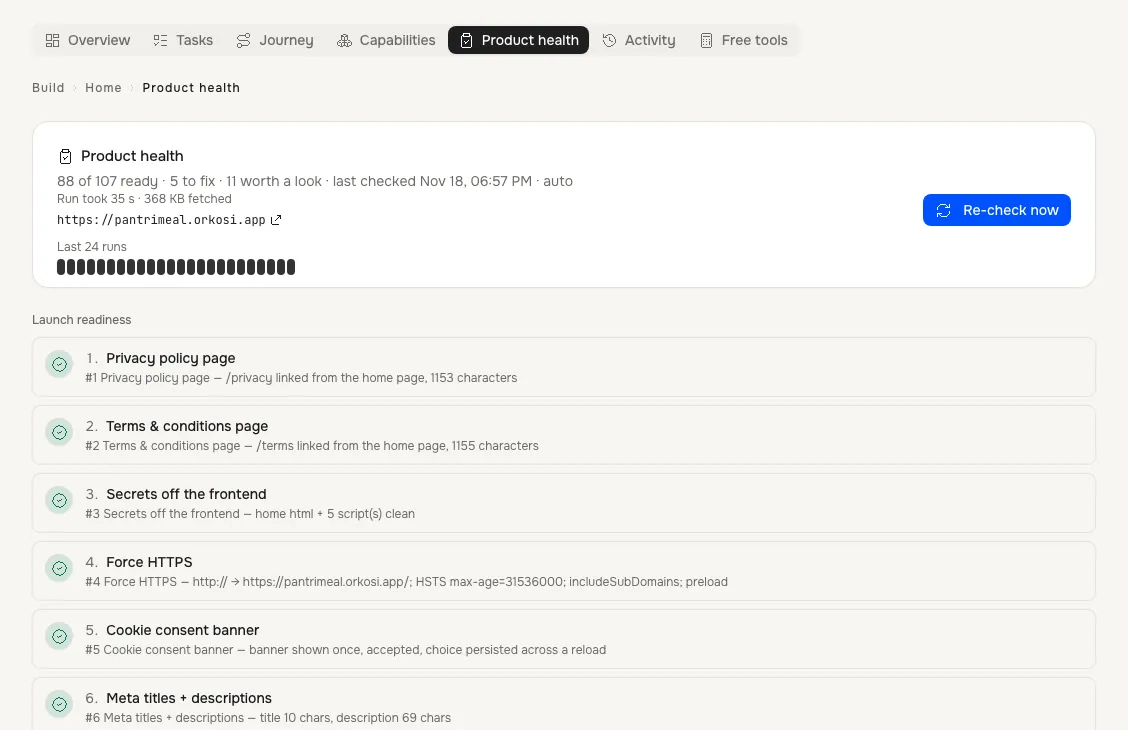
Product › Product health reads your live site the way a visitor, a search engine and a browser do, and lists what it found. A finding you can act on (a row labelled Fix or Worth a look) has a button that turns it into a task; a finding that is ours to fix, or a check that could not run, has none. Every role can open the page.
What is checked and when
- What. More than a hundred checks, grouped in eight sections. The first section, Launch readiness, holds the twenty launch rules. The checks are measurements: no AI is involved in running them, so a run uses no credits.
- Which site. Your production site. If production has no published address yet, your development site is checked instead. The address that was read is shown under the heading, as a link.
- How often. Automatically about once an hour for every product whose site is being served. A new product gets its first run soon after its address goes live. The products are spread over the hour, so the run does not land on the hour exactly.
- On demand. Press Re-check now at any time, for example right after a fix went live.
A product that has not been provisioned, or that has no published address yet, has nothing to check: the page says so instead of listing checks.
Reading the header
| Part | What it tells you |
|---|---|
| N of M checks ready | How many checks pass, out of the checks the last run judged. Under it, every other group with its number: to fix, worth a look, could not run (our side), not checked, and the number of checks in all. The groups add up to that total. |
| last checked, with a date and time | When the last run happened, and auto (the hourly run) or manual (someone pressed Re-check now). |
| Run took | How long the run took and how much it downloaded from your site. |
| The address | The site that was read. It opens in a new tab. |
| The last N runs, oldest first | A strip with one bar per run, oldest on the left, up to the last 24, with the newest run written out in words under it. Green: all ready. Amber: something worth a look. Red: something to fix. Grey: the run itself could not run. Hover a bar for its time and counts. |
The product health percentage
Home › Overview shows the same result as one number, product health, with "N of M checks ready" under it. It is the share of the checks the last run judged that pass, and it links to this page.
Three things follow from how it is counted:
- Checks marked Not checked or Could not run are left out of the percentage: they say nothing about your site. They are still listed, each with its reason, and the header counts them.
- The first run of a new product is a short one: the twenty launch rules. The header says so, and the percentage is the share of those twenty. The full run follows within the hour once the site is live.
- The number moves with every run, automatic or manual. It does not move with your plan.
Product health is not the launch checklist. The launch checklist on Home is the short list of steps to take before you launch ("N of M launch checklist steps are done"). Its steps marked as checked on your live site read the Launch readiness section of this page.
The status of a check
Each row has a number, a title, a line with what was measured and one of five statuses.
| Status | Meaning | What you can do |
|---|---|---|
| Ready | The check passes. | Nothing. |
| Fix | The check fails. The row is red and says what to change, with up to six details: the page, the element, the measured value. | Create task. |
| Worth a look | Not a failure, but below what we recommend. | Create task, at low priority. |
| Not checked | The check does not apply or had nothing to read: for example a site with one language, or a product with no repository linked. | Nothing. |
| Could not run | The checker failed on our side. The row is labelled Check could not run: our side. It is never a task for you, and we are alerted. | Nothing. Re-check later. |
So not every red row has a Create task button. One more label: Ours to fix. A check that Orkosi hosting enforces, not your site code, has no Create task button even when it is red, because there is nothing a task could change. Force HTTPS is such a check.
Fix a failing check
- On a Fix or Worth a look row, press Create task. A row labelled Ours to fix has no such button.
- A dialog, Create a fix task?, says what will be created. The task is paid work like any other task: confirm with Create task, or cancel.
- The task is created for this product and queued at once. The button becomes Task #… created, view, which opens the task.
- Follow it on Home › Tasks: see Tasks. The task carries the rule, what was measured, why it matters and the details, so you do not need to describe the problem.
- When the task is done and its change is live, press Re-check now, or wait for the next hourly run. The row turns to Ready when the live site passes.
Good to know:
- One task per check. If a task for the same check is open, or one was created in the last three days, it is reused: the message reads "A task for this already exists" with its number. Pressing twice does not create two.
- The check reads the live site. A fix that is only on your development copy does not turn the production row green until you promote it: see Deploy guide.
- You can also fix it yourself, in the editor or by asking the chat assistant. The page does not mind how the fix arrives.
- What a task costs is in Billing and credits.
The twenty launch rules
The Launch readiness section is the checklist of a site that is ready for the public. Each failing row shows its own sentence with the exact target and what was measured. Not every failing rule has a Create task button: a row labelled Fix has one, and a row labelled Ours to fix (rule 4, Force HTTPS, is one) has none.
| # | Rule | What passes |
|---|---|---|
| 1 | Privacy policy page | A privacy page that answers, is linked from the home page and is your text, not the template's. |
| 2 | Terms & conditions page | The same for the terms page. |
| 3 | Secrets off the frontend | No API key or secret visible in the pages and scripts your site serves. |
| 4 | Force HTTPS | Plain http redirects to https and the HSTS header is sent. Enforced by hosting: Ours to fix. |
| 5 | Cookie consent banner | A consent banner on the first visit that remembers the choice. |
| 6 | Meta titles + descriptions | The home page has a title and a description of a sensible length. |
| 7 | Social preview image | A preview image for shared links is declared and loads. |
| 8 | Favicon | A favicon is declared and loads. |
| 9 | Sitemap + robots.txt | /robots.txt names the sitemap and /sitemap.xml is valid. |
| 10 | Alt text on images | Every image on the home page has alt text (empty for decorative ones). |
| 11 | Compressed images | The images on the home page are within the size budget. |
| 12 | Page load speed check | The home page loads within the time and size budget. |
| 13 | Contrast AA on every page, both themes | Text and background meet WCAG AA on every public page, in the light and the dark theme. |
| 14 | Mobile friendly | The viewport tag is present and nothing scrolls sideways on a phone. |
| 15 | Custom 404 page | An unknown address answers with your own 404 page. |
| 16 | No broken links | Every link on the home page to your own site answers. |
| 17 | Form validation | Forms validate their fields and the server refuses an empty submission. |
| 18 | Spam protection | Every form has a honeypot or Turnstile, checked on the server. |
| 19 | Analytics set up | The page declares its analytics provider, or that there is none. |
| 20 | One clear call to action | Exactly one primary call to action at the top of the home page. |
Related guides: Custom domains for the certificate, SEO, blog and social for titles, sitemap and search, Brand for colours and contrast.
The other sections
| Section | What it looks at |
|---|---|
| Speed | How fast the server answers, Google's page speed measurements on mobile, page weight, compression, caching, render-blocking resources, fonts. |
| Accessibility | Page language and title, labels of forms, links and buttons, landmarks, heading order, skip link, visible focus, reduced motion, and an automated audit. |
| Search and sharing | Title and description length, canonical link, Open Graph and Twitter tags, structured data, indexability, sitemap, redirects, one main heading, site languages. |
| Security | Security headers, cookie flags, mixed content, files that must not be public (such as .env and .git), source maps, known vulnerabilities in dependencies. |
| Code and repository standards | The repository of the product: README, changelog, licence, lint, typecheck and tests, lockfile, ignored files, large files, whether the template is up to date. |
| Legal and trust | Contact details, company details, copyright notice, what the privacy policy, the terms and the cookie policy say. |
| Conversion basics | The wording of the call to action, the first heading, a way to reach you, the brand in the title, the icons and colours phones use. |
The code checks need a repository linked to the product. Without one those rows read Not checked.
Search signals
Under the checks, the Search signals card shows what Google measures, from the same run:
- Page speed on mobile: Performance out of 100, Largest paint, Layout shift and Interaction, each with the value Google calls good. A badge reads Fast, Needs work or Slow.
- Google Search, for the period named in its heading: Clicks, Impressions, Click rate, Avg position and your top search queries. This part needs Google Search Console connected for the site under Organic SEO › SEO: see What needs a connection. Until then the card says so.
When a measurement is not available yet for your site, the card says that instead of showing empty numbers.
Re-check now
Re-check now runs every check at once and replaces the list. A message reports "Checked: N of M ready".
After a run, manual or automatic, there is a short wait before the next manual one. If you press too early you see "Checked recently" with the time you can try again, and the button counts down (Re-check in …s).
When something goes wrong
| What you see | What it means and what to do |
|---|---|
| Not checked yet | No run has happened. Press Re-check now. |
| "This product has not been provisioned yet" | Setup has not finished, so there is no site. Wait for setup: see Getting started. |
| "This product has no published address yet" | Nothing is published. Publish the product, then re-check. |
| Checks are paused | The product is paused, so its site is not served. The last results stay listed. Resume the product from Hosting. |
| "The last check could not run" | The run itself failed. The message gives the reason when there is one. Check that the site opens, then Re-check now. |
| Check could not run: our side on some rows | Our checker failed for those rows. Nothing for you to do. |
| "We could not find this product in your workspace" | The link points to a product you cannot open. Pick one of your products from the list on the page. |
| A row stays red after the fix task is done | The fix may not be live on the checked address yet. Promote it, then re-check. If it still fails, tell us through /support. |
| Create task answers that a similar task exists | An open task already covers it. Open Home › Tasks and follow that one. |