Support your own users
Answer the people who use your product. The chat inbox for your site's messenger and Help button, the leads from your contact form, and the help articles your users read.
The Communications group of a product holds the pages where you answer the people who use what you built: Chats, Leads, Bookings and Knowledge base. This guide covers Chats, Leads and the Knowledge base; appointments have their own guide, Bookings. The other pages of the group are in Inbox, phone numbers and prospects, SEO, blog and social and WhatsApp and iMessage.
This is support for your users. To reach the Orkosi team yourself, use Support.
| Page | What it is for | Who can open it |
|---|---|---|
| Chats | Conversations from the chat bubble on your site and from its Help button | Every role |
| Leads | Messages sent through the contact form of your site | Owners, admins, members |
| Bookings | Your agenda and the page where clients book by themselves | Owners, admins, members |
| Knowledge base | The help articles your users read | Every role |
Where the messages come from
- The messenger. Every product hosted on Orkosi can show a chat bubble on each page. It is switched on and off under Integrations › Widgets, where Send a test message lets you see the whole path before a real visitor writes. See Widgets.
- The Help button inside your product. What a signed-in user reports there arrives in the same inbox.
- The contact form of your site. Its messages arrive in Leads, not in Chats.
The messenger recognises a returning visitor by a random id kept in their browser. It sets no cookie.
Chats
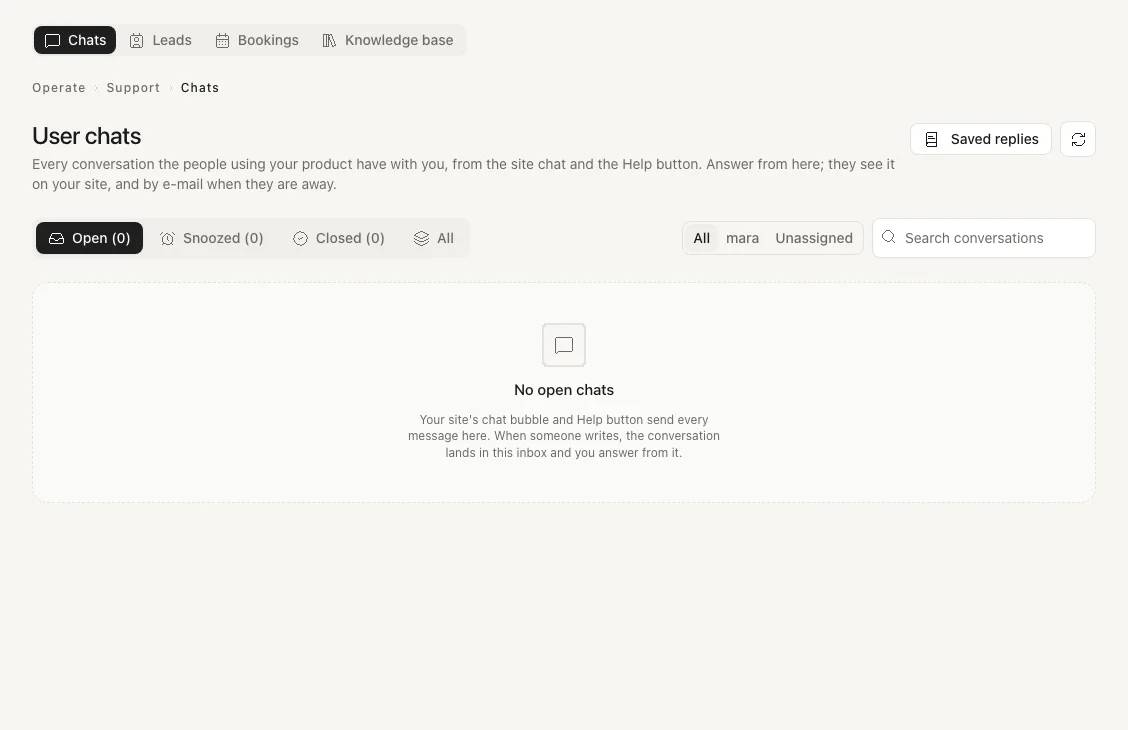
Communications › Chats is the inbox. It has three parts: the list of conversations, the conversation you opened, and the profile of the person who wrote.
Find a conversation
- Open, Snoozed, Closed and All sort the conversations by state. The number beside each is how many there are.
- All, your own name and Unassigned filter by who the conversation is assigned to.
- Search conversations looks through names and messages.
- A conversation marked On your site now belongs to someone who has your site open at this moment.
The list refreshes by itself. While someone on your team has the inbox open, the messenger tells visitors that you are online; otherwise it shows you as away and asks the visitor for an e-mail address.
Answer
Open a conversation and write in the box at the foot.
- Reply sends your answer to the visitor. They see it in the messenger on your site. If they have left and gave an e-mail address, the answer is also sent to them by e-mail.
- Note writes an internal note. Only your team sees notes; the visitor never does.
- Attach a file adds a picture or a document to the reply.
- Type
/to pick a saved reply. Press ⌘ and Enter (Ctrl and Enter on Windows) to send.
Under your last reply, Seen appears once the visitor has read it. While the visitor is writing you see that they are typing.
Saved replies
Saved replies at the top of the page holds the answers you give often. Each has a title, a Shortcut and the text. In a conversation, type / and the start of the shortcut to insert it, then edit it before sending.
Assign, snooze and close
The profile on the right shows who the visitor is: name and e-mail when they gave them, the page they wrote from, the pages of your site they visited, their language and time zone, and when they were last seen.
- Assign the conversation to a member of your team, or leave it Unassigned.
- Snooze hides it for 1 hour, 4 hours, until Tomorrow 9:00 or until Next week. It returns to Open by itself when the time comes.
- Close ends the conversation; Reopen brings it back.
- See full history opens everything your workspace knows about the person, once they have left an e-mail address.
Stripe details of a paying user
When the product has a Stripe account connected (see Product payments) and the visitor's e-mail matches a Stripe customer, the profile shows their subscription, its status, the last invoice and the card on file, with Open in Stripe to see the customer there.
From there you can copy the customer id, send the last invoice again with Resend invoice, pick a coupon and Apply it, or end the subscription with Cancel at period end. Cancelling asks you to confirm first. Each of these actions leaves a note on the conversation, so the team can see who did what.
If the profile reads "No Stripe account connected to this product" or "Not a Stripe customer yet", there is nothing to show.
Leads
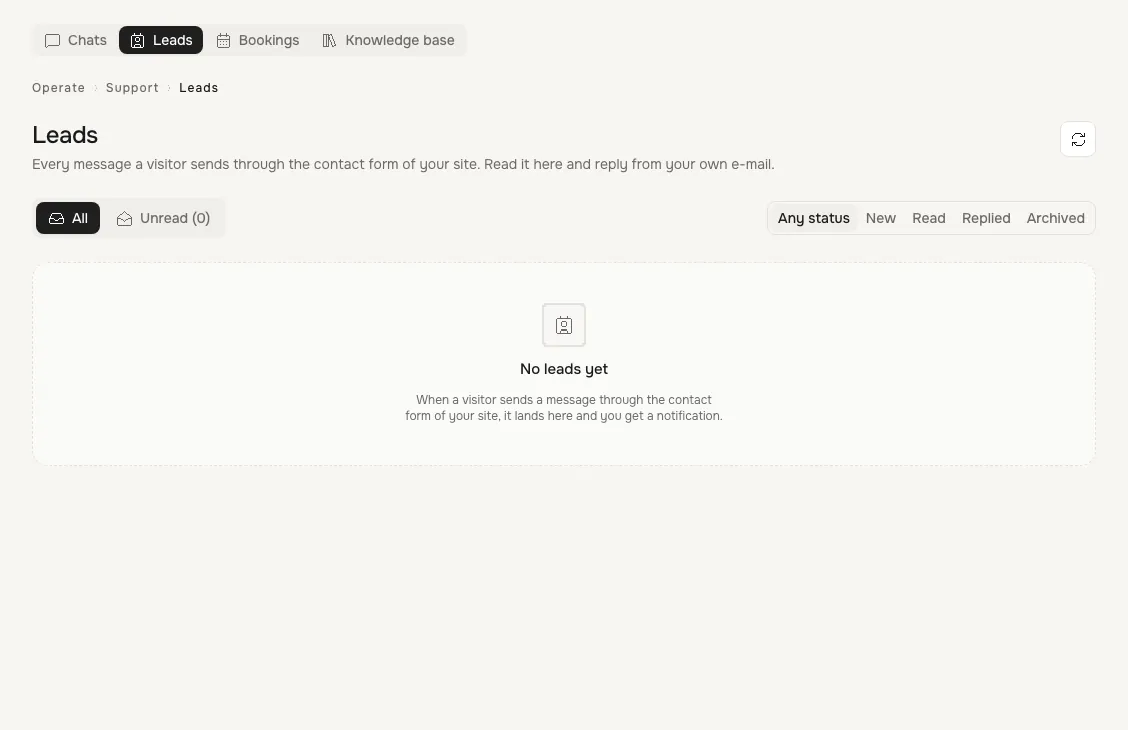
Communications › Leads lists every message a visitor sent through the contact form of your site, newest first. You get a notification when a new one arrives.
- All and Unread switch between every lead and the ones nobody has opened.
- The status filter offers Any status, New, Read, Replied and Archived.
Open a lead to read it in full, with the sender's name and e-mail.
- Reply by e-mail opens your own e-mail program with the address and the subject filled in, and marks the lead Replied. The answer is sent from your mailbox, not from Orkosi. The button is off when the visitor gave no address that can be written to.
- Mark as read and Mark as unread change whether it counts as unread.
- You can set Replied or Archived by hand.
- Delete lead erases the message and the sender's details for good. Only owners and admins can delete.
If the page says your site does not save contact messages yet, or that the contact form needs an update, the product was built on an older version of the template. Update the template and deploy: see Template version.
Knowledge base
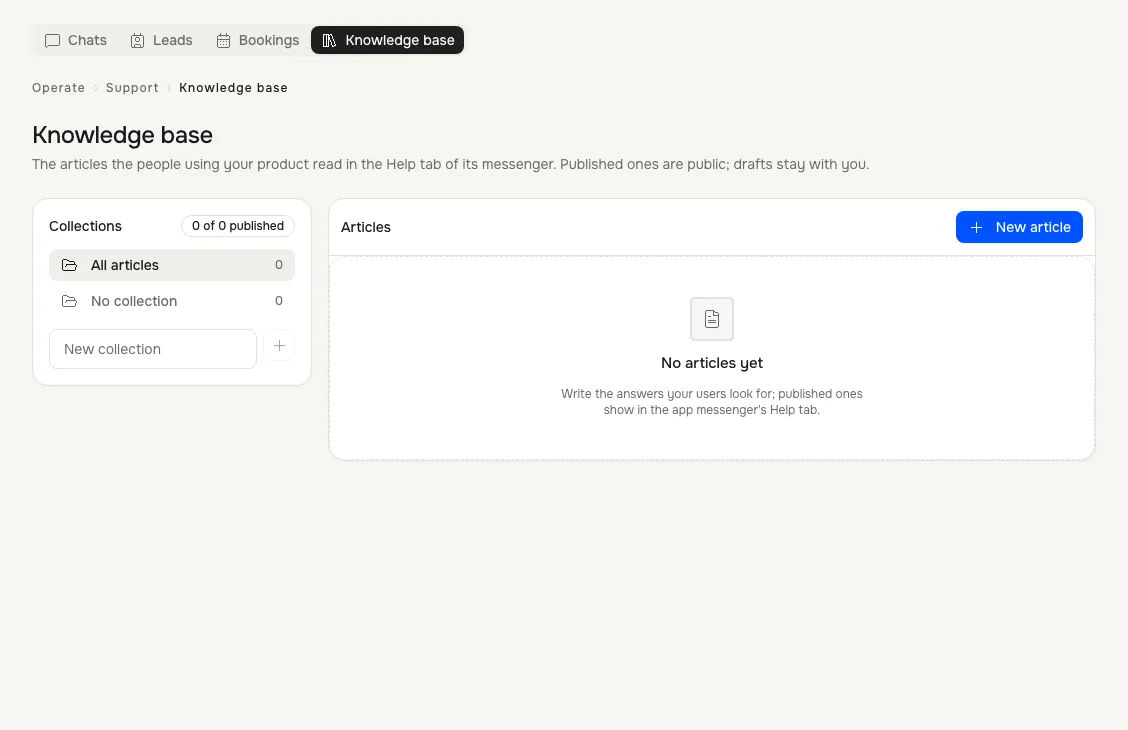
Communications › Knowledge base is where you write the help articles for the people using your product. They read them in the Help tab of the messenger and on the help pages of your product.
Collections
Collections group the articles by subject. Type a title under New collection and press Add collection. All articles shows everything and No collection shows the articles that belong to none. The count beside a collection says how many of its articles are published.
Write and publish an article
Press New article and fill in:
- the title;
- Address (slug): the last part of the article's web address;
- Collection: where it belongs, or No collection;
- Body (markdown): the text, written in Markdown;
- Published: on for a public article, off for a draft.
A Draft stays with you. A Published article is public: anyone who can open your product's help can read it. Use Publish and Unpublish on an article to change that, and the arrows to change the order in which articles are listed.
At the end of an article, readers can say whether it helped. The counts appear beside the article as "helpful" and "not", so you can see which answers need rewriting.
When something goes wrong
| What you see | What it means and what to do |
|---|---|
| No chat bubble on your site | The Messenger is switched off. Switch it on under Integrations › Widgets. |
| No open chats although you expect one | Look under Snoozed, Closed or All, and set the assignee filter back to All. |
| A visitor did not get your answer | They left before you answered and gave no e-mail address. The answer waits in the messenger for their return. |
| Reply by e-mail is off on a lead | The visitor gave no address that can be written to. |
| "Your site does not save contact messages yet" | Update the template and deploy; from then on every message shows in Leads. |
| An article does not show in the messenger | It is still a Draft. Publish it. |
For anything else, write to us through Support with the name of the page and what you saw.
Related guides
- Bookings: the agenda and the page where clients book by themselves.
- Integrations: switch the Messenger and the other widgets on and off.
- Inbox, phone numbers and prospects: messages from social networks and phone numbers.
- Email: write to the contacts who agreed to hear from you.
- Team and roles: who can open which page.