Deploy guide
How a change reaches your visitors. From a finished task to the test copy, promoting to production, rolling back, deploy hooks and what decides how long a deployment takes.
Every product on Orkosi has its own code repository and its own hosted environments. This guide explains how a change travels from a task to a running deployment, and how you control what reaches production.
How deployments work
- Build. Your task is picked up and the change is made on a branch of your product's repository. You can follow the task from Home › Tasks.
- Review. The result is checked automatically. If the check finds a problem, the task goes back to be improved. There is no pull request for you to manage.
- Integrate. The approved change is merged into the
devbranch of your repository. - Deploy to Development. The merge starts a deployment of the test copy (Development).
- Promote. When you are happy with what you see on the test copy, you promote it. Production takes exactly the version you tested.
A deployment goes through these states, shown on Hosting › Deploys:
| State | Meaning |
|---|---|
| Queued | Waiting to start |
| Building | Building the image of your app from the code |
| Pushing | Storing the built image |
| Deploying | Rolling the new version out |
| Verifying | Checking that the new version answers |
| Live | Serving traffic |
| Superseded | An earlier live deployment that a newer one has replaced |
| Failed | The deployment did not complete. The previous version stays live |
| Rolled back | The new version was withdrawn and the previous one restored |
| Cancelled | You cancelled it while it was still queued |
Development and production environments
| Development | Production | |
|---|---|---|
| What it is | The test copy | The live site your visitors see |
| Git branch | dev |
main |
| Address | https://<name>.dev.orkosi.app |
https://<name>.orkosi.app or your custom domain |
| Database | Its own data and its own credentials | Its own data and its own credentials |
| Config vars | Set per environment | Set per environment |
| Updated by | Every finished task, automatically | Promoting |
The two environments never share data. See the Database guide.
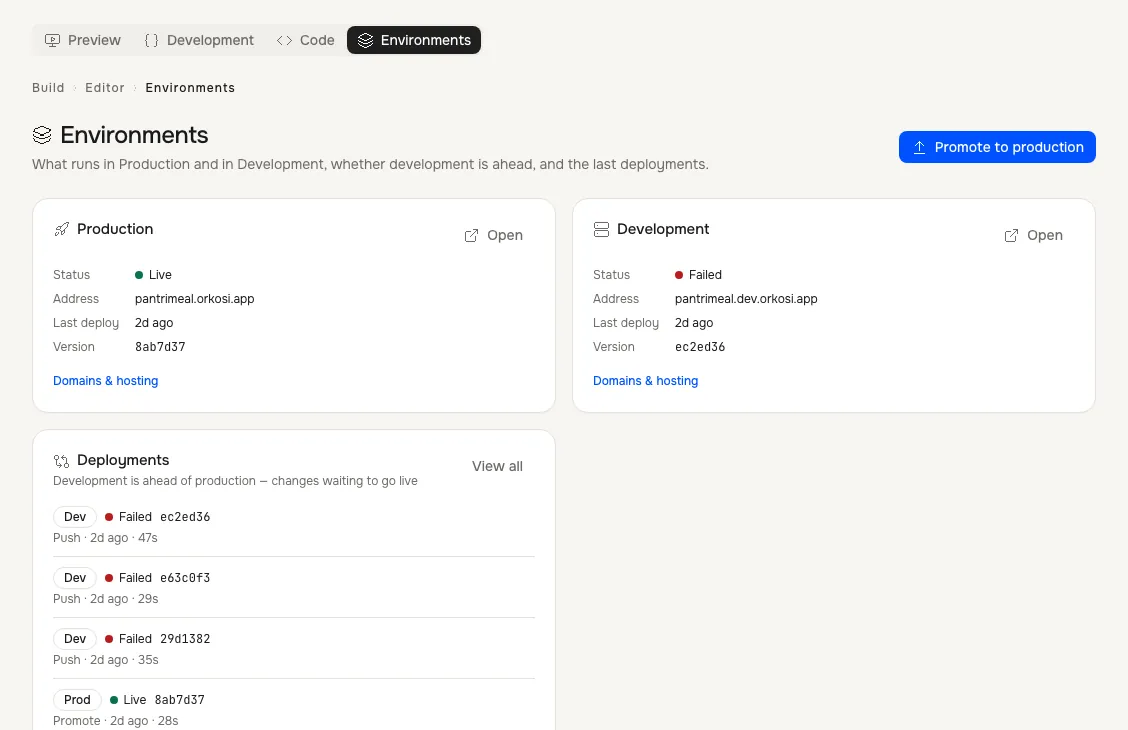
Product › Environments shows what runs in each environment, whether Development is ahead of Production, and the latest deployments.
Every plan, including the free trial, gets both environments: dev and production. A finished task arrives on the development copy first, and you decide when it reaches production.
Promoting to production
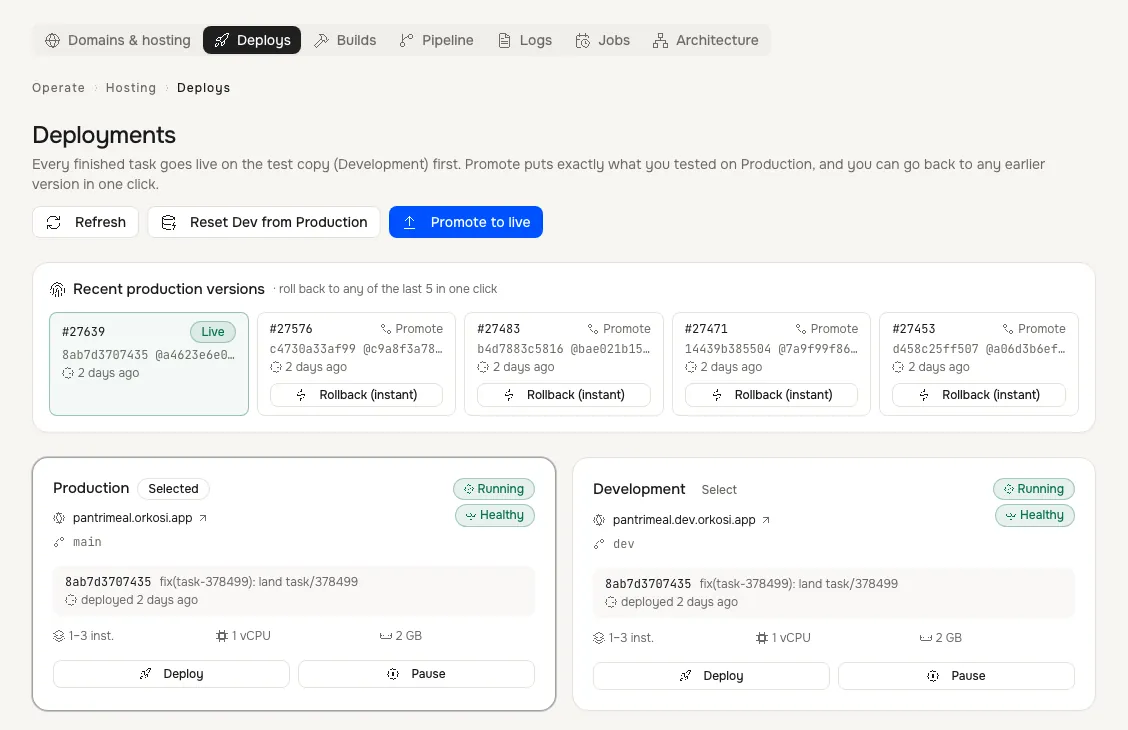
You can promote from two places:
- Hosting › Deploys: press Promote to live and confirm.
- Product › Environments: Promote to production takes you to the same action.
Production takes the exact image Development is running at that moment, with no rebuild, so what goes live is what you tested. The dev branch is merged into main to match. Traffic moves to the new version only once it passes its health check; if it fails, the previous version stays live.
Promote to live is unavailable while Development has no live deployment to promote.
Publishing automatically
At the foot of Hosting › Deploys the switch Publish green changes automatically decides who promotes:
- Off (the default): finished changes wait on the test copy until you promote them. Nothing goes live by itself.
- On: a finished change whose checks are green goes live on your site by itself.
Reset Development from Production
Reset Dev from Production on Hosting › Deploys replaces the Development database with a copy of the Production one and switches Development to the version Production runs. Everything in the Development database at that moment is lost. Production is not touched.
Rolling back
Every deployment is recorded with the commit it shipped and the image it used, so you can roll back a deploy to an earlier version:
- Open Hosting › Deploys.
- Under Recent production versions, or in the Deployment history of an environment, find the version you want and press Rollback.
- Confirm with Roll back.
When the image of that version is still stored, the rollback is instant: the environment is pointed back at that exact image and nothing is rebuilt. Otherwise the version is rebuilt from its commit. The history shows the new entry as a rollback of the earlier deployment.
Warning: A rollback restores code, not data. If the newer version changed the database, the older code runs against the changed database. Check the deployment log if you roll back across such a change.
What affects how long a deployment takes
- Whether the image already exists. A promotion or an instant rollback reuses an image and does not build anything. A new change is built first, which usually takes a few minutes.
- What changed. A change that adds or upgrades packages takes longer to build than a change to a single page.
- Queueing. A deployment that is requested while another is still running for the same environment waits as Queued.
- Verification. A new version has to answer its health check before it takes traffic. A version that never answers is marked Failed and the previous one stays live.
Deploy hooks
A deploy hook is a secret address that starts a deployment when it receives a POST request. Use it from your own build pipeline, a content system or a scheduler.
- Create one per environment under Deploy hook at the foot of Hosting › Deploys. An owner or admin of the workspace can create, regenerate or delete a hook.
- The full address is shown once, when the hook is created or regenerated. Copy it then. Regenerating or deleting a hook makes the old address stop working at once.
- The Development hook deploys the newest changes to the test copy. The Production hook rebuilds Production from what is already published; new changes still reach Production through Promote to live.
To work with tasks and products from code, use the Public API.
Following a deployment
- Deployment history on Hosting › Deploys lists each deployment with its status, trigger (for example Push, Promote or Rollback), commit, time and duration. Press View log on a row to read its build output.
- Cancel is available while a deployment is still queued. A build that has already started finishes and can be rolled back afterwards.
- Pause stops an environment serving traffic until you Resume it. Data and configuration are kept.
- Hosting › Builds, Pipeline, Logs and Jobs are described in Hosting operations.
- On Telegram,
/deployreturns the deployment status. See Telegram operations.
What hosting and builds cost is explained in Billing and credits.