Inbox, phone numbers and prospects
Answer messages, comments and reviews from every connected channel in one inbox, get a phone number for texts and calls, and find and write to prospects from your own mailbox. Also the rest of Phone numbers, which are SIP trunks, branded calling, the US texting registration (10DLC), sender IDs and RCS agents. Which channels work, what each needs, and what you see when something is not available.
This guide covers three pages of the left bar: Inbox (every message, comment and review in one place) and Phone numbers (numbers for texts and calls) in the Communications group, and Prospects (finding people who have never written to you and writing to them first) in the Email group. Owners, admins and members can open them; viewers do not see them.
Every channel here belongs to an outside service with its own rules. Orkosi shows what the service allows and says so when the service refuses something.
Inbox
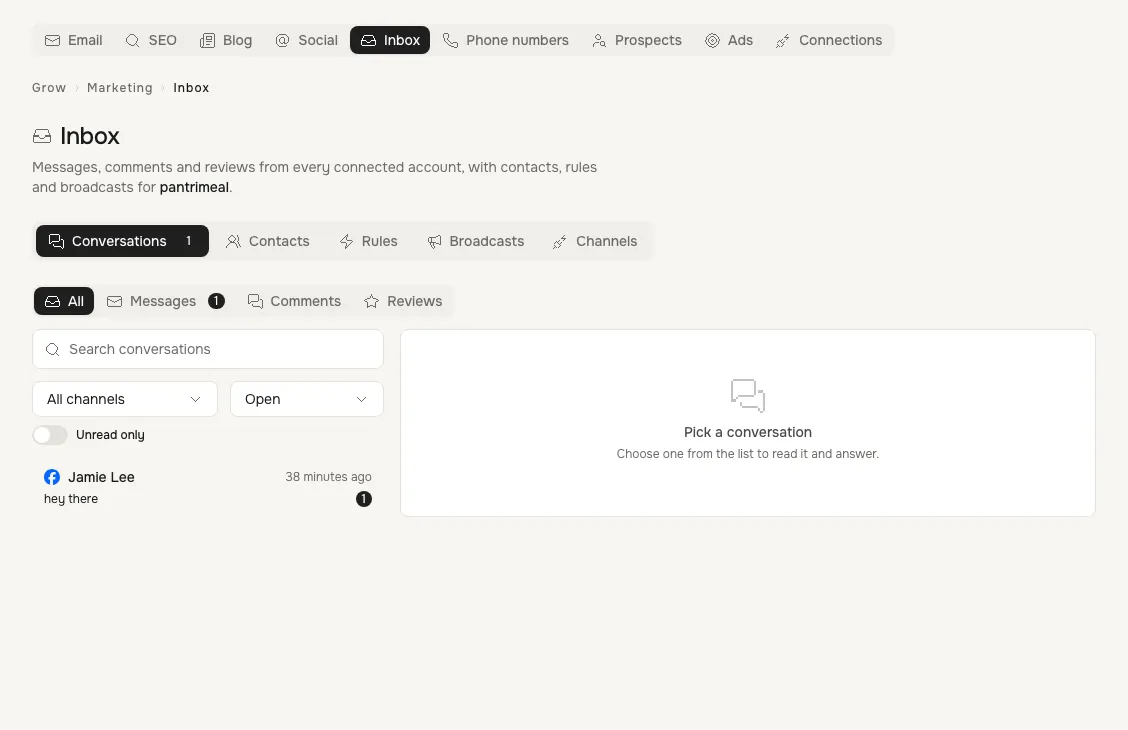
Communications › Inbox has five tabs: Conversations, Contacts, Rules, Broadcasts and Channels.
Which channels arrive in the inbox
Nothing arrives until a channel is connected. An empty inbox says Connect an account to see your messages here and offers three ways to start: Go to Social, Add a messaging channel and Get a phone number.
| Channel | What arrives | How you connect it |
|---|---|---|
| Private messages and comments on your posts. | The account on Communications › Social. | |
| Messenger messages and comments on your Page. | The Page on Communications › Social. | |
| X | Private messages, mentions and replies. | The account on Communications › Social. |
| Comments on the posts of a company page. | The company page on Communications › Social. | |
| Threads | Replies to your posts and mentions. | The account on Communications › Social. |
| YouTube | Comments on your videos. | The channel on Communications › Social. |
| Google Business Profile | Reviews of your locations. | The profile on Communications › Social. |
| Reddit, Mastodon, Bluesky | Private messages, replies and mentions. | The account on Communications › Social. |
| Telegram | Messages people send to your bot. | The bot on Communications › Social. |
| Messages to your WhatsApp Business number. | Communications › WhatsApp, or Inbox › Channels with your own Meta account. | |
| LINE | Messages to your LINE Official Account. | Inbox › Channels, with your own LINE channel. |
| Messages to your WeChat Official Account. | Inbox › Channels, with your own Official Account. | |
| iMessage | Messages to your iMessage line or number. | A line on Communications › iMessage, or Inbox › Channels with your own Sendblue account. |
| Text messages | Texts to your phone numbers. | A number on Communications › Phone numbers. |
| Answers to the e-mails of a Prospects sequence. | A mailbox on Prospects › Mailboxes. |
What does not arrive:
- LinkedIn private messages, and comments on a personal LinkedIn profile. Only the comments on a company page are read.
- Private messages on Threads, YouTube and Google Business Profile. These channels bring comments or reviews only.
- TikTok, Pinterest, Discord and Slack. You can post to them from Social, but their messages and comments do not come to the inbox.
- The rest of your mailbox. A connected mailbox brings in only the answers to a prospecting sequence. You cannot start an e-mail conversation from the inbox.
A social account you connect for posting also brings its messages, comments and reviews. There is nothing more to set up. A network can only be connected when Orkosi's side of it is ready; see Connections.
Reading and answering on X is charged to your credits, because X charges for each request. When your credits run out, X is not read until you add credits; nothing is lost in between.
Connect WhatsApp, LINE, WeChat or iMessage
Open Inbox › Channels. Under Messaging channels choose Connect WhatsApp, Connect LINE, Connect WeChat or Connect iMessage. You connect your own number or account, with values you copy from your own account at the provider. The dialog lists where to find each one and links to the right console.
- WhatsApp asks for the Phone number ID, the WhatsApp Business Account ID, an Access token of a system user and the App secret of your Meta app. Use a token that never expires, or the number stops working when it does.
- LINE asks for the Channel ID and the Channel secret of the Messaging API channel of your LINE Official Account.
- WeChat asks for the AppID and the AppSecret of your WeChat Official Account. It has to be a verified Service Account: WeChat does not let other accounts answer through an outside service. You can also type the Token you want to use, and the EncodingAESKey when the account encrypts its messages (safe mode or compatible mode).
- iMessage works through Sendblue, the service that provides iMessage numbers for businesses. It asks for the API key ID and the API secret key of your own Sendblue account, and for the Sendblue number when the account has more than one.
Orkosi checks the values with the provider, points the messages of the number to your inbox and shows the result of each check. If a check asks for it, copy the Webhook address (and for WhatsApp the Verify token) shown in the dialog and paste it at the provider yourself.
WeChat has two steps that only you can do, both in the Official Accounts Platform under Settings and development › Basic configuration:
- IP whitelist. WeChat only answers servers on the whitelist of your account. If the first check is refused for this reason, the dialog names the address to add. Add it and connect again.
- Server configuration. After the account is saved, the dialog shows a Webhook address and a Token. Paste both under Server configuration, choose Submit, then choose Check again in the dialog. Until WeChat has accepted the address, the account shows Finish setup and no message arrives.
For iMessage there is nothing to paste: Orkosi adds the webhook address to your Sendblue account for you and removes it when you disconnect the number. No message is sent to check a number.
WhatsApp also has a page of its own, Communications › WhatsApp. It connects a number in more ways, including a sign-in with Facebook that needs no values to copy, and it holds the templates, flows and groups of your numbers. A number connected in either place is the same connection. See WhatsApp and iMessage.
Read and answer
Conversations lists what came in. Filter by kind (All, Messages, Comments, Reviews), by channel, by Open or Closed, or search. Select a conversation to read it and answer in the reply box. Close removes it from the open list and Reopen brings it back. Labels you add at the top stay with the conversation.
- A reply to a comment or a review is public. The reply box says so.
- On a comment you can also Like, Hide and Delete, where the network allows it. A review cannot be changed; you can only delete your own answer to it.
- Start a conversation writes first from one of your numbers, to any phone number or to one of your contacts.
Each message you send shows its state: Waiting to send, Sending, Sent, Delivered, Seen or Not sent. A message that was not sent stays in the conversation with the reason under it.
Some channels limit when you may answer:
- Instagram and Messenger allow a normal reply for 24 hours after the person last wrote. On Messenger a person may still answer by hand for some days after that; the reply box says when this applies, and that answer must not be an advert.
- WhatsApp has a reply window too. Once it has closed you can only send a template that WhatsApp approved. A normal reply opens again when the person writes back.
- LINE lets you reply to anyone who added your account.
- WeChat allows a reply for 48 hours after the person last wrote, and only a few replies to each message. A reply can be text, a picture (PNG, JPEG or GIF) or a voice message (MP3 or AMR), one file per message; send a video as a link. At any other time you can send one of the template messages of your account: choose Send a template instead, pick the template and fill in its values. WeChat allows templates for service notices such as an order or a booking, never for advertising. A person who follows your account gets a conversation in the inbox, so you can send them a template before they ever write.
- iMessage has no reply window, and you can write first. Sendblue limits what you may send to someone who has never answered: a short message with no link or file, and only a few of them. When the person has no iMessage, Sendblue delivers the message as a text. A group your number is in shows as one conversation named after the group, and your answer goes to everyone in it. On a message a person sent you can choose React to leave one of the six iMessage reactions, and take it back later; a reaction somebody leaves on your message shows in the conversation. Groups and reactions work on a number of your own Sendblue account; a line Orkosi provides (Communications › iMessage) holds conversations with one person and has no reactions yet.
When the reply box is replaced by a note, it says why: the account needs reconnecting (Reconnect on the Social page), the number is not active, the person asked not to be contacted on that channel, or answering on that channel is not available.
Contacts
People who write to you are added to Contacts on their own. You can also add someone by hand with a phone number or an e-mail address. A contact has a name, labels and notes.
Under Do not contact each channel has a switch. While it is on, nothing is sent to that person on that channel: no replies, no rules, no broadcasts. Someone who answers a text with STOP is switched off for texts automatically.
Deleting a contact removes its labels and notes. The conversations with that person stay in the inbox.
Rules
A rule acts for you at any hour. It has one trigger and one or more steps.
| A rule can start when | Its steps can |
|---|---|
| Someone comments on a post, sends a message with a keyword, writes for the first time or leaves a review. | Reply, send a private message, like or hide the comment, add a label, close the conversation, wait. |
| You miss a call. | Text them back. |
| A contact form message arrives, a visitor starts a chat, a blog post goes live, someone signs up or pays. | Tell you, add the person to your contacts, create a task, run an action in a connected app, send them an e-mail, wait. |
Ready-made rules switches a common rule on in one step. You can change or stop it at any time. History on a rule shows each time it ran.
The step Send them an e-mail depends on a switch on Orkosi's side. While it is off, the editor says "sending an e-mail from a rule is not available yet" and the rule cannot be saved with that step.
Broadcasts
A broadcast is one message to many contacts, sent from a texting number, a WhatsApp number or an iMessage number. Without a connected, active number the tab says Connect a number to send a broadcast.
- Give it a name (only you see it) and choose Send from.
- Under Who gets it choose Every contact with a phone number or Contacts with one of these labels.
- Write the message. On WhatsApp a broadcast can only be an approved template.
- Choose Save and choose when to send. The next step counts who will get it and lets you send now or At a time I choose.
People who asked not to be contacted on that channel are always left out. Each message that goes out is charged to your credits. Stopping a broadcast skips everyone still waiting; messages already sent stay sent.
Phone numbers
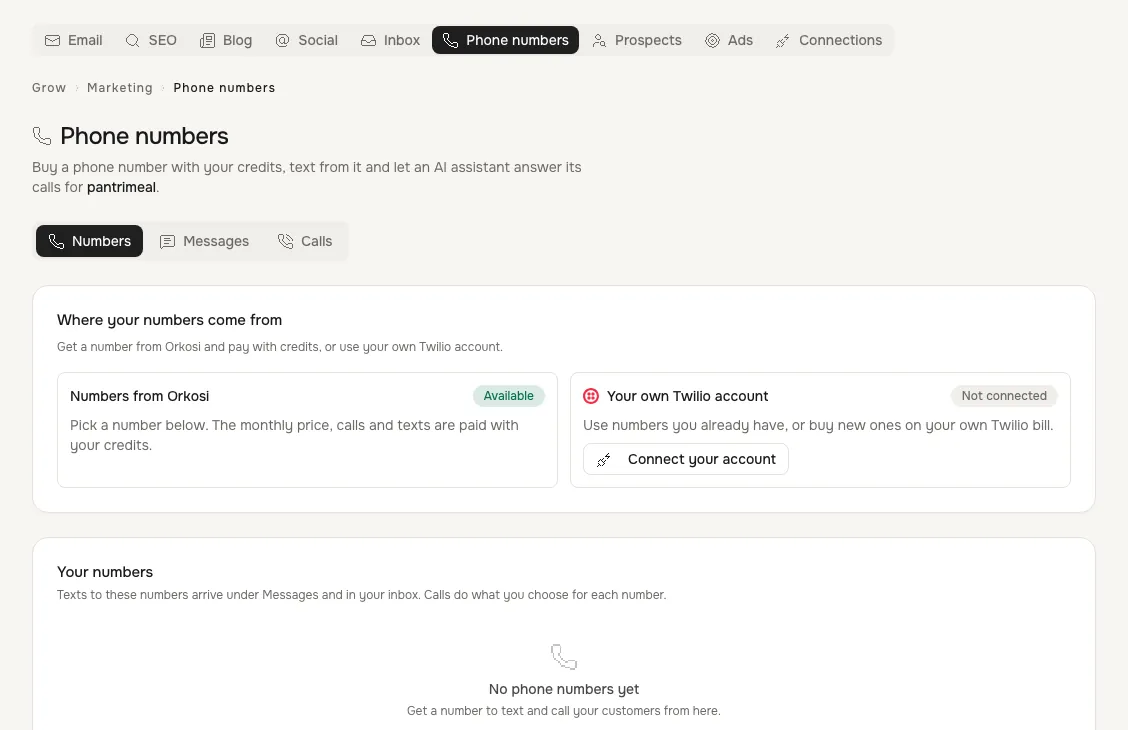
Communications › Phone numbers has eight parts:
| Part | What it is for |
|---|---|
| Numbers | Your numbers, where they come from, getting one, and what calls and texts to each one do. |
| Messages | The text conversations of your numbers. |
| Calls | Every call to and from your numbers, with voicemails and what was said. |
| SIP | Connecting a phone system of your own to your numbers. |
| Branded calling | The business name, logo and reason for the call that a called phone shows. |
| 10DLC | The registration the US mobile networks ask for before a US local number may text. |
| Sender IDs | Texts that arrive under your brand name instead of a phone number. |
| RCS | Verified messages with your name, logo, cards and buttons. |
Numbers, texts and calls go through phone carriers, and the carriers check businesses, names and documents themselves. Orkosi files what you answer and shows what the carrier said. Nobody can promise or speed up a carrier's answer.
Nothing here works without a carrier behind your numbers. Either Orkosi has a carrier set up, or you connect your own Twilio account; see Where your numbers come from. Where a part is not available yet, the page says so.
Every price is shown on the page before anything is charged, and it is paid with your credits. See Billing and credits.
Your numbers
Numbers opens on the list Your numbers. Search it by number, country or status. Switch on Show numbers you gave back to list those too. The line under the list counts your numbers, how many are active and what they cost a month from your balance.
| Column | What it shows |
|---|---|
| Number | The number, its country and its kind: Local, Mobile, Toll-free or National. |
| Channels | One chip for each channel the number is live on today: Texts, Calls, WhatsApp, iMessage or RCS. None yet when it is on none. |
| Status | Where the number stands. When something blocks it, the row says that one thing in a sentence, with a link to where it is fixed. |
| Monthly price | What the number costs a month, or Billed by Twilio for a number of your own Twilio account. |
| Actions | The menu of the number. |
| Status | What it means |
|---|---|
| Active | Calls and texts run on the number. |
| Setting up | The carrier is still confirming the number. It switches on by itself when it is ready. |
| Waiting for documents | The country asks for documents. The row says whether they were not sent yet, are being checked or were not accepted. See your documents takes you to them. |
| Waiting for texting registration | The number cannot text yet: it needs a registration, the carrier is reviewing it, or it was rejected. Calls already work. Texting registration opens it. |
| Payment due | The monthly price could not be paid. Add credits within the number of days shown, or the number is given back. |
| Suspended | Calls and texts are stopped. Either the number is switched off at the carrier, or your own phone account does not answer and must be connected again (Check your phone account). |
| Given back | You no longer hold the number. Calls and texts to it have stopped. |
The menu of a number has Calls and texts, Texting registration (only on a number that needs one), Call someone (only on a number that can call) and Give back. A number that is still being set up, or that was given back, has no menu.
Select a number to open its panel:
- What this number can do: Calls, Texts and Picture messages.
- Channels: where each channel stands. Live means it works. Otherwise the line says what is missing, for example Needs a texting registration, Registration in review at the carrier, Registration rejected, Being connected, Connection problem, Not connected (with a link to the page where that channel is connected), This number cannot text or This number cannot call. Not connected to your inbox yet means texts to the number are not arriving in your inbox: choose Contact support.
- Calls and texts: what the number does today, with Change what calls and texts do.
- Monthly cost: the price and the day of the next payment. A number of your own phone account takes nothing from your balance.
- The use of the last days: how many calls and texts, and when the last one was.
- Call someone and Give back.
Give back asks first. You stop paying for the number, it goes back to the carrier and may be given to someone else, and calls and texts to it stop. The price of the month already paid is not returned. Past calls and conversations stay. A number you bought here on your own Twilio account is removed from that account. A number that was already in your Twilio account shows Disconnect instead: it stops being used here and stays in your Twilio account.
Under the list are the cards Where your numbers come from and Waiting on the carrier, and what texts and calls cost in the countries of the numbers you pay for with credits.
Where your numbers come from
The card Where your numbers come from shows two ways to get a number:
- Numbers from Orkosi. You pick a number and pay its monthly price, calls and texts with your credits. This depends on Orkosi having a carrier set up. The card shows Available when it has. When it has not, the card shows Not available yet and says that Orkosi cannot provide numbers yet. You can still connect your own Twilio account.
- Your own Twilio account. Choose Connect your account and paste the Account SID and the Auth token from your Twilio console. You can then use numbers you already have or buy new ones on your own Twilio bill. Twilio bills you directly and Orkosi charges no credits for those numbers.
The Get a number button appears only when one of the two is possible. With neither, the list says "Connect your own Twilio account below to add a number".
Disconnecting your Twilio account stops its numbers here: calls are no longer routed and texts no longer arrive in your inbox. The numbers stay in your Twilio account, and past calls and conversations stay here.
Get a number
Get a number opens a panel that asks one thing at a time. You can go back a step at any point, and nothing is bought until the last step.
- Choose a country. Search the list, or sort it by Country or Price. The filters narrow it by A number that can do (WhatsApp, Texts, Calls, iMessage, RCS), by Kind of number and by Identity documents (Documents required or No documents). Each country shows its price.
- Choose a kind of number, when the country has more than one. Each kind does different things and shows its monthly price.
- Choose an area, where the kind has areas, or take Any area. An area shows how many numbers are in stock. Some carriers show one page of numbers for an area, so "50+" means at least 50.
- Choose a number. Pick the one you like, or take Any number and Orkosi gets a free one for you. Search digits finds numbers that contain the digits you type. Each number says Can text right away, Needs a registration before it can text or Calls only.
- Check and buy. The last step lists the Number, Country, Kind, what it Can do, its Texting state, what is charged Every month and what is Taken today. The button repeats the amount. If the carrier refuses a number that Orkosi picked for you, its credits go back and the next one is tried.
If you have both sources, the first step asks where the number comes from: From Orkosi or On my Twilio account. On your Twilio account there are no filters, every price reads Billed by Twilio, the last button is Buy on my Twilio account, and Connect a number already in your Twilio account lists the numbers of that account that are not used here yet. A number that is used somewhere else today says so: connecting it sends its calls and texts here instead.
If the panel says No numbers are on sale yet, phone numbers are not set up on the platform yet. Nothing was charged.
A new number can show Setting up while the carrier confirms it. It is charged once and becomes active when it is ready.
Documents. Some countries only rent a number to someone who proved who and where they are. The panel says so and offers Send documents. You send them once for a country and a kind of number, as a PDF, a JPEG or a PNG of at most 10 MB each. The carrier usually checks them within a few working days, and you can get any of those numbers once they are approved. What you sent is in the card Waiting on the carrier, with its state: Documents needed, Documents in review, Documents approved or Documents refused. A refused set offers Correct and send again. A number that needs a registered address you cannot give here says that it cannot be bought here.
Texting registration. In some countries carriers only deliver business texts from a registered number. Calls work without it. Texting registration on the number opens Texting from that number, which lists the steps of the registration, who does each one (You or The carrier) and where it stands. Check again with the carrier asks for the latest answer.
- A toll-free number is registered from that dialog. The form has three parts, Your business, Who the carrier can contact and Your messages, and ends with Send for review. A rejected form can be corrected and sent again.
- A US local number needs the US texting registration. See 10DLC.
Payment due. If the monthly price cannot be paid, the number shows Payment due. Add credits within the number of days shown, or the number is given back.
Move a number here
Move a number here keeps the number your customers know. The button appears only when the carrier Orkosi uses for this is set up.
- Give the number with its country code and its kind, then choose Check this number.
- Say who the number is registered to today, exactly as on the invoice of your current carrier. A difference is the usual reason a move is refused. You also name the person allowed to move it and the address the number is registered at. The account number, the transfer PIN and the tax number are optional.
- Add a Signed letter of authorisation and A recent invoice of your current carrier.
- The button repeats what is charged now and every month.
The number keeps working at your current carrier until the day it moves, which takes from a few days to a few weeks. The move appears in the card Waiting on the carrier with its state: In review at the carriers, Date agreed, Needs a correction, Moved here or Cancelled. Check again asks the carrier where it stands. Cancel the move stops it and returns the credits for as long as the carrier still allows a cancellation.
What a call does
Choose Calls and texts on a number. What a call does has four choices:
| Choice | What happens |
|---|---|
| Take a message | The caller hears your greeting and leaves a voicemail. |
| Ring another phone | The call rings a phone of yours. If nobody answers, the caller can leave a voicemail. |
| Let the AI assistant answer | An AI assistant answers in the name of your business from what you tell it, takes messages and can hand the call to you. |
| Hand to your own voice agent | The call is connected to a voice agent you run yourself, by audio stream, text relay or SIP address. |
- Do something else outside business hours sets opening hours by day, in a time zone, and a second choice for the rest of the time.
- Write voicemails out as text works for English only. In another language the voicemail is kept as a recording, without its text.
- The AI assistant tells callers it is an AI when asked. Every conversation is written out in the call log. You set its language, what it should know, the first sentence, a phone to hand calls to and the longest conversation.
- Under Texts to this number you can switch on Let the AI assistant answer texts. Each answer is a text you pay for. The assistant stays quiet for an hour after you write in a conversation, never writes to someone who said STOP, and passes the conversation to you when it cannot help. With the switch off, texts wait for you under Messages.
- A number you put on a SIP trunk sends its calls to your own phone system instead. See SIP.
Messages
Messages shows the text conversations of all your numbers. They are the same conversations as in the inbox, and you read and answer them the same way; see Read and answer. New text message writes first, to any phone number.
- With no number the part says Get a number to send and receive texts.
- With a number and no texts it says No text conversations yet.
- When your number may not text yet, a note says "Your number cannot text yet" and Open Numbers takes you to its texting registration. Texts work as soon as the carrier approves it.
Rules and broadcasts for texts are in the Inbox.
Calls
Calls lists every call to and from your numbers, with voicemails and what was said. Each row shows when it Started, the Contact, the Status, the Duration and the Cost.
Filter the list by a phone number or a name, by Direction (Incoming or Outgoing), by Status, by Number when you have more than one, and by day (From day, To day).
| Status | What it means |
|---|---|
| Answered | Someone, or the AI assistant, answered. |
| Missed | Nobody answered. |
| Voicemail | The caller left a voicemail. |
| Did not connect | The call could not be placed. |
| Busy | The line was busy. |
| In progress | The call is still going on. |
Select a call to open its panel:
- What the AI assistant was told, when the assistant answered.
- Voicemail: the recording and its text. Delete voicemail deletes both for good. The call stays in the list.
- What happened: the call step by step, for example who was rung first, a forward to another phone, a hand-over from the assistant to your team, and what was charged.
- Cost: what the call cost, line by line. Each started minute counts as a whole one, and the total is rounded up to a whole credit. A call on a number of your own phone account is billed by your carrier and nothing is charged here.
- Call ID, to quote when you write to Support, and Call back.
New call on this part, or Call someone on a number, places a call from one of your numbers:
- Under Call from pick the number. The other person sees that number, not your own phone.
- Give the Number to call and Your phone, both with the country code.
- Under Who rings first choose Your phone first (answer it and Orkosi calls the other number) or Their phone first (your phone rings when they answer).
The dialog shows what a minute costs before you call. If your balance does not cover one minute, it says so and the call cannot be placed until you add credits.
SIP
A SIP trunk connects a phone system of your own, such as an office phone system (PBX), a contact centre or a voice AI platform, to the numbers you have here. Your platform places and answers the calls. The numbers stay in this workspace. This part is for the person who runs that phone system.
A trunk carries the calls of your numbers, so with no number the part says Get a number first. The top of the part says what calls through a trunk cost and whether a trunk has a monthly price. On your own carrier account the carrier bills the calls and nothing is charged here. A workspace may hold a limited number of trunks; at the limit the part says so and you delete one to make another.
New trunk asks seven things:
- Name the trunk. Only you see the name. If your numbers come from more than one place, you also pick which numbers it will use: a trunk lives with one carrier.
- How your platform proves itself. User name and password, Allowed addresses (only calls from the public addresses you list are taken) or Both, which is the safest. Some carriers take one or the other, not both together.
- Transport and encryption. UDP or TCP, where nothing is encrypted, or TLS, where the call setup is encrypted. Encrypted audio (SRTP) needs TLS.
- Where calls to your numbers go. The SIP address of your platform, like sip:pbx.example.com. With several addresses, the one with the lowest priority is tried first, and addresses with the same priority share the calls by weight. Where your platform registers with the carrier there is nothing to fill in: calls arrive where it registered.
- Where it may call. A trunk only calls the countries you pick, each with its price a minute. With no country it only receives calls. The daily spending limit pauses the trunk until the next day (UTC) when the calls of a day reach it, so a leaked password cannot empty your balance.
- Put numbers on it. Only numbers that are active and take calls are listed. You can add them later.
- Check and create. Nothing is created until you confirm.
Then Your trunk is ready shows the Host, the User name and the Password. This is the only time the password is shown. Copy it, then choose I have saved the password. Anyone who has it can place calls that are charged to your workspace.
| Status | What it means |
|---|---|
| Active | The trunk carries calls. |
| Paused | It carries no calls. The row says why: paused by your team, out of credits, today's spending limit reached, or a call went to a country that is not allowed. |
| Setting up | The carrier is creating it. |
| Setup did not finish | Something stopped half way. Open the trunk and choose Finish the setup. Nothing is made twice. |
| Being removed | It is being deleted. |
Select a trunk to open its panel:
- Set up your platform: the host, the port and the user name to put into your platform. New password makes a new one. The old password stops working right away, and calls are refused until your platform has the new one.
- Allowed addresses, Where calls to the numbers go and Calling out: the same answers as in the walk, to change at any time.
- Numbers: Put a number on it or Take off. Calls to a number on a trunk go to your platform instead of the routing set on Numbers. Taking the number off brings that routing back as it was. Its texts are not touched. A number can be on one trunk only.
- The calls that went through the trunk, with what each cost. A finished call shows a few minutes after it ends. Every call is also on Calls.
- Pause or delete: Pause the trunk keeps everything as it is and carries no calls until Resume the trunk. Delete trunk takes its numbers off first and cannot be undone.
Branded calling
Branded calling shows your business name, your logo and the reason for the call on the phone of the person you call, instead of an unknown number. You register a caller identity once and attach your numbers to it.
What the carriers require:
- The business must be registered in the United States or Canada. It needs a federal tax number (EIN) or a Canadian business number (BN). A business in another country cannot register, and its calls keep showing the number.
- Only US numbers bought through Orkosi can show the identity. It shows on calls to US mobiles on the networks that take part.
- The carriers check every business. Neither Orkosi nor the carrier can promise that every phone shows the name.
The top of the part says what an identity costs. If it says that branded calling has no price set yet, an identity can be prepared but not filed.
Set up caller identity asks one thing a step and saves each answer, so you can stop and continue later. A picture of a ringing phone shows how the call will arrive.
- Whose business is it. It is my business or It is a client's business. The carriers still need someone at that business to be the authorised person.
- Legal business name, exactly as it is registered.
- Where the business is registered. United States or Canada. For a Canadian business the name and logo on US mobiles are filed by hand by Orkosi, so they take longer.
- Tax number. The EIN or the business number, nine digits. It goes to the carrier and is shown to nobody else.
- Registered address.
- About the business. Its website, the kind of business, the industry and how many people work there.
- Authorised person. A name, a role, an e-mail address and a phone number. The carrier may call or text that phone to confirm.
- Name on the phone. The Name shown on the phone, at most 35 characters, and the Plain caller name, at most 15 characters, for phones and landlines that show text only.
- Logo. Optional. A square PNG or JPEG. Without one, phones show the name and the reason only.
- Reasons for calling. Up to 10 short lines of at most 64 characters each. Put the most common one first: it is the one most phones show.
- How you call. What the calls are for, a description, how people agreed to be called, and the number of calls on a normal business day.
- Numbers. The US numbers that show the identity. You can also attach them after it is verified.
- Authorisation. Your full name as your signature, to confirm that you may act for the business.
- Check and send. Send for review sends it to Orkosi, which reviews it and files it with the carrier. Verification usually takes several business days.
The business fills it in itself. If the business is a client's, Send to the business (or Send them the form instead in the first step) e-mails a link to a person there. They answer the same questions and sign on a page of their own, without an Orkosi account, and see nothing of your workspace but its name. The link works once and for a limited time. If the e-mail cannot be sent, the dialog shows the link for you to copy. On the identity, Send the form again makes a new link and stops the old one, and Take the form back withdraws it. The panel says when the form was sent and whether it was opened. A person who opens a link that was used, expired or replaced is told so, and nothing is changed.
| Status | What it means |
|---|---|
| Draft | Not sent yet. Open it and choose Continue. |
| Waiting for the business | The form was sent to the business and has not come back yet. |
| In review at Orkosi | Orkosi is checking it before it goes to the carrier. |
| Filed with the carrier | The carrier is verifying the business. Ask the carrier again fetches its latest answer. |
| Verified | Attached numbers show the identity. |
| Rejected | The reason is shown. Choose Correct and send again. |
| Paused | Calls show your number only. Nothing is charged while it is paused. |
The panel of an identity shows the preview of the call and, once it is filed, what the carrier holds: Business profile, Call signing (SHAKEN/STIR), Plain caller name (CNAM), Protection from spam labels and Name, logo and reason. From there you can:
- Attach more of your US numbers, or Detach one.
- Change name, logo or reasons on a verified identity. The change is reviewed and filed again. Calls keep showing the current identity until it is approved, and the price stays the same. Drop the change withdraws it.
- Delete this identity. Its numbers stop showing the name, the filing is withdrawn at the carrier and nothing more is charged. A month that is already paid is not returned.
10DLC
The US mobile networks only deliver texts from local numbers whose business is registered with them. They call this 10DLC. On this part, US texting registration, you answer the questions once, Orkosi files them with the carrier registry, and your US numbers can text as soon as it is approved.
The registry usually answers about the business within a few days. The carriers' review of what you text can take one to three weeks. A company outside the United States can register too; its check takes a little longer.
Register a brand asks 17 things, one a step. A draft is kept, so you can stop and continue later.
- Who's texting? The kind of business.
- Country where the company is legally registered.
- Company name. The legal name exactly as on your tax records. Even a small difference, like a missing "LLC", can leave the brand unverified for good.
- Brand name. The name your customers know you by.
- Business tax ID.
- Legal form. A publicly traded company also gives its stock symbol and exchange.
- Industry.
- Website. It must open, show the business name and have a privacy policy.
- Street address, as on the tax records.
- City and postal code.
- Who is responsible? A person at the business the carriers may contact.
- Contact e-mail. The carriers may send a message to confirm it.
- Contact phone, with the country code.
- What will you text? The carriers approve one purpose for each registration. Describe who receives the texts and why. A vague description is the most common reason for a refusal.
- Two example texts, written as your customers would receive them. Start with the brand name and say how to stop, for example "Reply STOP to stop".
- How people agree and how they stop. Where people sign up and what they are told there, the words that stop the texts and the words that ask for help, with your reply to each.
- Check and send. The step shows what is taken today (the setup and the first month) and what is charged every month after. Ask for higher sending limits adds a deeper check of the business for a one-time price; without it a new brand starts on the carriers' lowest limits. You tick that the details are correct and that you accept the carrier terms. The registry does not refund a brand it has already checked.
If the last step says that US texting registration is not available yet because its price is not set, nothing can be sent for now.
The list shows each Brand with its Status, Trust score, Throughput (how much it may send), Monthly price and Numbers.
| Status | What it means |
|---|---|
| Draft | Not sent yet. Open it and choose Continue the registration. |
| Sent | On its way to the carrier registry. |
| In review | The registry is checking the business. This usually takes a few days. |
| Verified | The business is confirmed. What you text is reviewed next; if the carriers refuse it, choose Correct what you text and send again. |
| Unverified | The registry could not confirm the business. Choose Correct and send again. |
| Rejected | The registration was refused. The reason is shown. |
| Cancelled | You cancelled it. |
The panel of a brand shows:
- What you text: the purpose you registered, with its own state: Waiting for the brand, Sent, In review, Approved, Rejected or Ended.
- The trust score, the sending limits (known once the carriers approve) and the monthly fee.
- Numbers: add a US local number of yours to the registration, or Remove one. A number shows Waiting, Can text or Not attached. Adding a number costs nothing extra. Get another number opens Numbers.
- Ask the carrier again, to fetch the latest answer.
- Discard draft, for a registration that was not sent: nothing was charged. Cancel registration, for one that was: the monthly fee stops and its numbers can no longer text people in the US. To text again the business has to be registered anew and pays again.
On a number, Texting registration shows where the registration of that number stands. For a number from Orkosi, register the brand on this part and add the number to it. For a number of your own Twilio account, the dialog says that you do the first steps in your Twilio console; when they are done, choose Check again with the carrier.
Sender IDs
A sender ID is the name a text arrives under instead of a phone number, for example your brand. People cannot reply to it, so it is for one-way texts such as broadcasts and notifications. Conversations that expect an answer keep your number.
- It does not work in every country. The United States and Canada do not allow it. Some countries ask for a registration first.
- A sender name is included: texts under it cost the normal price of a text. Where the local operators bill for a registered name, that fee is passed on and the part names those countries.
- If texting is not switched on for your workspace yet, the part says so and a sender name cannot be created for now.
New sender ID asks four things:
- Choose the name. Up to 11 characters: letters, digits and spaces, with at least one letter. The name is checked as you type, and a preview shows how a text arrives. Operators refuse names that read like a bank, a carrier, a public authority or another company.
- Where will you text. Pick every country you want to text under this name. Each country says Works right away, Needs registration first (with what is asked and how long it takes), Not allowed or Not available yet.
- What the operators ask for, only when a country you picked registers names first. For example the legal name of the company, its website, what the texts are for, a sample text, and a registration document or a signed letter saying the name is yours (PDF, JPEG or PNG, at most 10 MB). Each thing is asked once and sent to every country that asks for it.
- Check and create. Countries that work right away are ready as soon as the name is created. For the others Orkosi files the registration with the local operators. Until it is approved, texts to those countries go out under your number.
The list shows the Name, its Countries, its Status and when it was Added. In the panel of a name, each country has its own state:
| Status | What it means |
|---|---|
| Ready | One-way texts to that country can go out under the name. |
| Waiting for registration | The local operators are reviewing it. Ask the carrier again fetches the latest answer. |
| More is asked | The operators want something more. Choose Answer again. |
| Rejected | The operators refused the name there. The reason is shown, and Answer again lets you correct. |
| Paused | The name is not used in that country for now. |
- The switch Send one-way texts to a country under this name decides whether broadcasts and notifications to that country use the name. With it off they go out under your number.
- In some countries local operators replace the name with a number. The panel says where.
- Nobody can answer a name. So where a country asks for it, a person who never wrote to you also gets a short line with a link to stop these texts. That line counts toward the length of the text.
- Add countries runs the walk again for the same name.
- Remove on a country stops using the name there. A registration that is still waiting is withdrawn and its fee comes back.
- Delete sender ID stops the name in every country. This cannot be undone, and a registered name has to be registered anew if you want it back.
RCS
An RCS agent is a verified sender. Its messages arrive in the phone's own messages app under your name and logo, with cards and buttons. Where a phone cannot receive them, a normal text is sent from your number instead.
An agent is reviewed by the carrier and then by the mobile operators of each country. The part shows every price before anything is charged. If it says the prices could not be read just now, they are still shown before you pay.
New RCS agent asks one thing a step, with the agent drawn beside the question as a phone shows it. The first step creates a draft and every step saves its answer, so closing the walk loses nothing.
- Where will it message. The countries of the people the agent writes to. Each country has its own operators and its own review. A country can say that RCS agents are not available there yet.
- The name people see.
- One line about it.
- Logo and banner. The operators accept one exact size of each; the step states it.
- Brand colour. The operators draw white text on it, so it has to be dark enough. The step tells you when to choose a darker one.
- How people reach you. A phone number, an e-mail address or a website. Give at least one.
- Privacy policy and terms. Both pages must be public and answer over https.
- The company behind it. The legal name, the tax ID, the kind of company, the registered address and a responsible person the carrier may write to.
- What it will send. One-time codes, Account notices, Promotions or A mix. This decides how the messages are billed and how the agent is reviewed.
- How people agreed. Where people agree to be messaged, what they see there, a screenshot of that place, the first message after someone agrees, and the answers to HELP and STOP.
- Two sample messages.
- Test phones. The numbers that may receive from the agent before it is live. An agent takes a limited number of them.
- Check and send. The step shows every price and the terms. Send for review sends the agent and pays the setup, when there is one.
| Status | What it means |
|---|---|
| Draft | Not sent for review yet. Open it and choose Continue the draft. |
| Sent | Waiting to be filed with the carrier. |
| In review at the carrier | The carrier is checking the business. |
| In review at the mobile operators | The operators are reviewing the agent. |
| Approved | Approved. It is being switched on. |
| Live | The agent sends. |
| Rejected | The reason and what to correct are shown. Choose Correct and send again. |
| Paused | It sends nothing while it is paused. Switch on again resumes it. |
The list shows each Agent with its Country, Status, Company, Account ID and Price. The panel of an agent shows:
- What happened: every state the agent went through, newest first.
- The mobile operators: what each operator answered, where the carrier reports them one by one.
- Test phones: add or remove a number, and Send a test message or Send a test card to one. A phone shows Not invited yet, Invited, waiting for the phone to accept, Ready or Declined on the phone. A test is charged like any message.
- The carrier approved the business, when it has. The operators then ask for a short video of the agent on one of your test phones: someone agreeing to receive messages, a message arriving, and the answers to HELP and STOP. Upload it somewhere public, paste the link and choose Send to the mobile operators. Sending it charges the approval fee and the first month, where the part lists them.
- Ask the carrier again, Pause on a live agent, and Delete agent. Deleting a draft charges nothing. Deleting an agent that was sent withdraws it from the carrier, and the setup goes back to your balance if the carrier has not billed its review yet. To have it back it must be registered and reviewed again.
Prospects
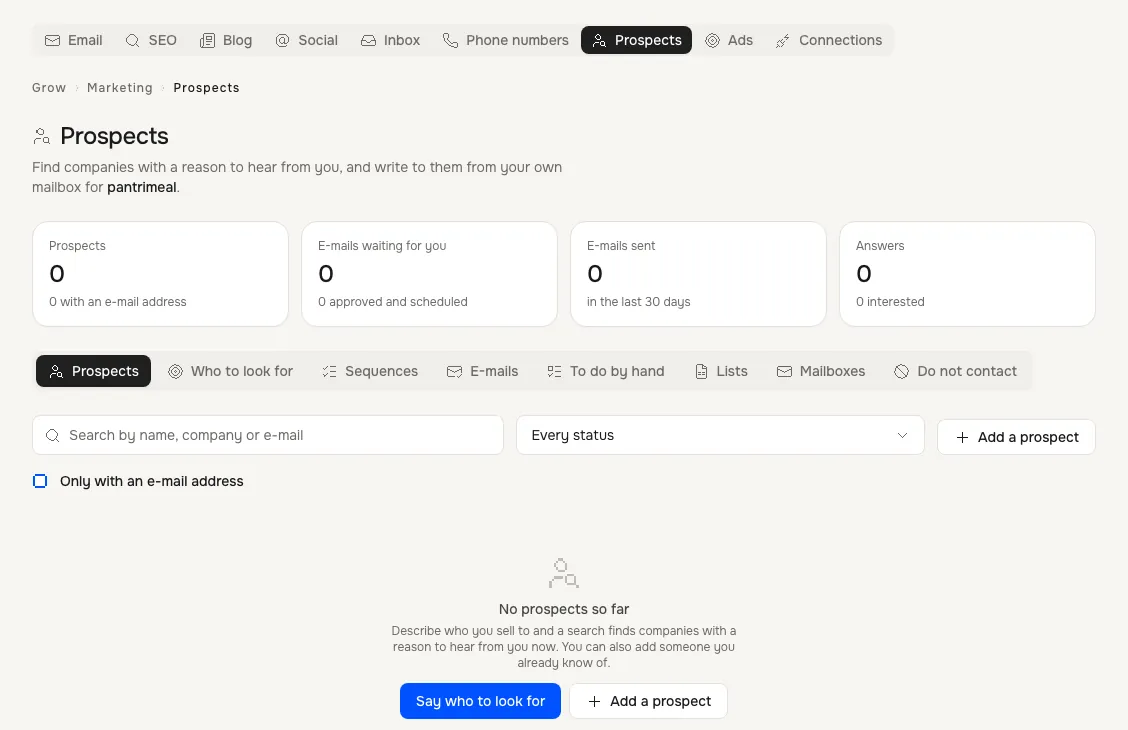
Email › Prospects finds people who have never written to you, looks up their work e-mail address and writes them a short sequence from your own mailbox. The answers arrive in the Inbox. It has eight tabs: Prospects, Who to look for, Sequences, E-mails, To do by hand, Lists, Mailboxes and Do not contact.
If the page shows Prospecting is switched off, the feature is not available in your workspace at the moment. Write to us through Support to ask about it.
Find prospects
- On Who to look for, create a profile. Describe who you sell to: Kinds of company, Who to write to, Where, Words they would use, Competitors, Customers you already have, company size and Never contact these websites.
- Choose Find prospects now. A search reads the public web for companies that fit and have a reason to hear from you now: they are hiring, raised money, use a competitor, describe the problem, launched something or resemble your customers. Every prospect links to the page it was found on. No logged-in session of any network is used.
- Switch on Look every day to add new prospects once a day, and Also find their e-mail address to look the address up as they are added.
A search is charged to your credits only when it finds someone. The price is shown next to the button.
Finding an address reads the site of the company first, which is free. If nothing is there and a paid lookup is switched on for your workspace, it is charged only when it finds an address, at the price shown on the page.
You can also add someone you already know on Prospects, or bring in a CSV file on Lists: make a list, then import the file, one person per row. Someone you already have is completed, never added twice.
Write to them
- On Mailboxes, choose Connect a mailbox. Pick the provider (Gmail or Google Workspace, Fastmail, iCloud Mail, Yahoo Mail or Another provider) and give the address and its app password. For another provider you also give the outgoing (SMTP) and incoming (IMAP) servers. E-mails go out from your own address, so answers come back to you.
- On Sequences, create a sequence. Say what you offer and what you ask of the reader, your name, your signature and Your business postal address, which is printed above the unsubscribe link of every e-mail. Add follow-ups with the days to wait between them. Choose the sending days and hours and the number of E-mails per day.
- Under Before an e-mail goes out choose I read and approve each one or Send them as written, without asking me.
- On Prospects, select people and add them to the sequence. Their e-mails are written within a few minutes. The dialog shows the price for each prospect before you confirm.
- On E-mails, read what was written. Approve, edit or skip each e-mail. Approved e-mails wait for their sending hours.
When a prospect answers, the rest of their sequence stops and the answer opens in the inbox. Their status changes to Answered; you can set Interested or Not interested yourself.
To do by hand
Orkosi does not send LinkedIn invitations or messages and does not place prospecting calls for you. A plan on To do by hand writes your to-dos instead: a LinkedIn invitation, a LinkedIn message or a Phone call, for a few people a day. Each to-do opens the person's profile or dials their number, with your note in front of you. Mark it Done, They answered, Skip this step, Not interested or Do not contact again.
Who may be written to
- Lists shows the table Where a first e-mail may be written: one rule per country for an e-mail to a company address and to a named person. Nobody is put in an e-mail sequence against this table. A person with no country is treated under the row for every other country. The table is a working summary kept by Orkosi, not legal advice. You remain responsible for the e-mails you send.
- On a prospect you can record the country they work in and, where it applies, their consent to be e-mailed, with when and how they gave it.
- Do not contact lists addresses and whole websites that no sequence writes to. Anyone who unsubscribes, or whose address does not exist, is added on their own. You can add an address or a website yourself.
When something goes wrong
| What you see | What it means and what to do |
|---|---|
| "Reconnect the account, then send it again." | The network ended the access. Reconnect the account on Communications › Social and send the message again. |
| "Add credits, then send it again." | The message is paid for with credits and there were not enough. See Billing and credits. |
| "You can answer when this person writes to you again." | The reply window of the channel has closed. |
| "This person asked not to be contacted here." | The contact opted out of that channel. The switch is on their contact card. |
| "You can read this here, but answering ... is not available yet" | Orkosi can read that channel but cannot send on it. |
| Not available yet on Numbers from Orkosi | Orkosi has no carrier set up to sell numbers. Connect your own Twilio account. |
| No Move a number here button | Moving a number is not available at the moment. |
| No numbers are on sale yet in Get a number | Phone numbers are not set up on the platform yet. Nothing was charged. |
| "Your number cannot text yet" on Messages | The number waits for its texting registration. Calls already work. |
| Payment due on a number | The monthly price could not be paid. Add credits within the days shown, or the number is given back. |
| Setup did not finish on a SIP trunk | Open the trunk and choose Finish the setup. Nothing is made twice. |
| A SIP trunk shows Paused | The row says why: your team, credits, the daily spending limit or a country that is not allowed. |
| "Branded calling has no price set yet" | A caller identity can be prepared but not filed for now. |
| "US texting registration is not available yet" | Its price is not set, so a brand cannot be sent for now. Your draft is kept. |
| "Texting is not switched on for this workspace yet" | A sender name cannot be created for now. |
| Rejected on a registration, an identity, a name or an agent | The carrier's reason is shown with it. Correct what it names and send it again. |
| "The paid lookup is not switched on for this workspace." | Only the free reading of the company site is used to find addresses. |
| "Web search is not answering right now." | The search for prospects could not run. Try again in a few minutes. Nothing was charged. |
| Address does not exist on a prospect | A mail server refused the address. It is added to Do not contact. |
For anything else, write to us through Support with the channel or the number and the message you saw. For a call, add its Call ID.
Related guides
- SEO, blog and social: connect the social accounts the inbox reads.
- WhatsApp and iMessage: WhatsApp numbers, templates, flows and groups, and iMessage lines.
- Webhooks and white label: tell your own server when something happens.
- Email: campaigns to people who agreed to hear from you.
- Brand radar: what is written about your business elsewhere.
- Ads and tracking: campaigns on the ad networks.
- Billing and credits: how credits are bought and spent.