Tasks
How to ask for work with a task, read its estimated cost, follow it, answer it when it needs you, and what the status words on the Tasks page mean.
A task is one piece of work you ask Orkosi to do on your product: a new page, a bug fix, a piece of copy, an image, a report. You describe it in plain words, an AI agent does it, and the change goes through a review before it reaches your product. This guide covers the Home › Tasks page from creating a task to reading its result.
Every role can open the Tasks page. Creating a task and controlling one (pause, cancel, retry, answer) is for owners, admins and members. Viewers read only.
The Tasks page
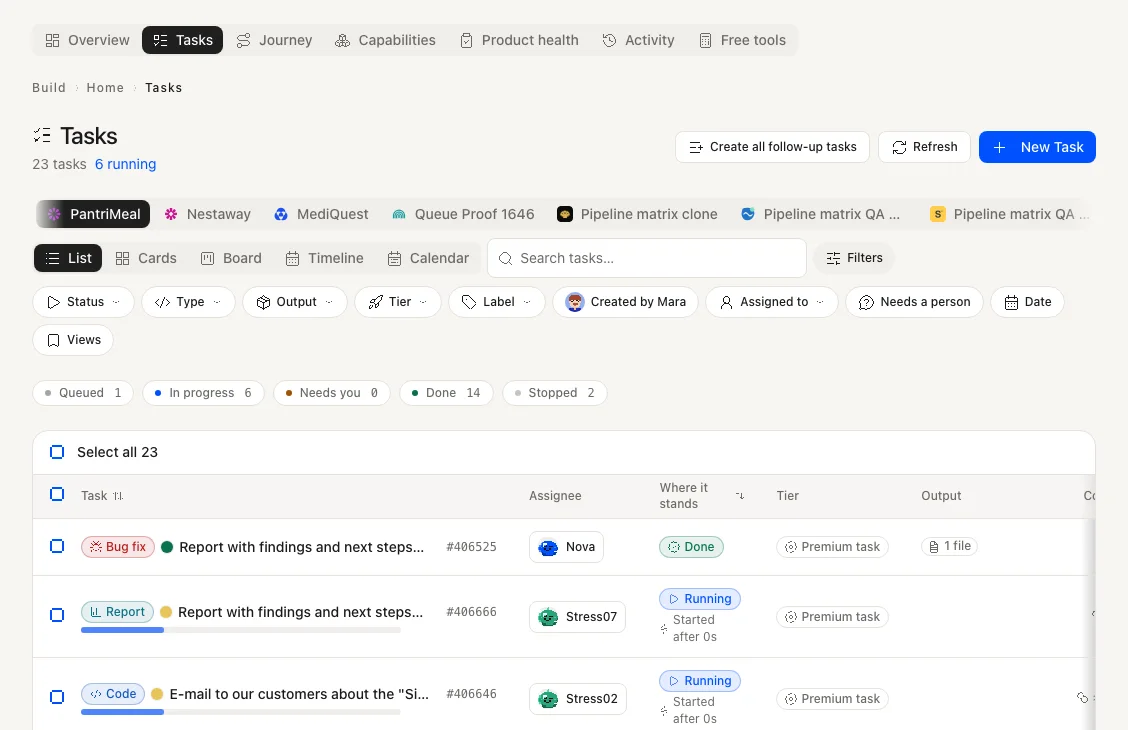
The page shows every task of the product you have open. Across the top:
- New Task opens the form described below. Refresh reads the list again.
- Five counters sum up where the work stands: Queued, In progress, Needs you, Done and Stopped.
- The view switch, the search box and the filters.
The five views
| View | What it shows |
|---|---|
| List | A table: task, assignee, where it stands, tier, output, cost, comments and when it was last updated. |
| Cards | A grid of full task cards. This is the view a phone opens on. |
| Board | Columns by state, like a Kanban board. This is the view a computer opens on. Group by changes the columns. |
| Timeline | The tasks along a time axis. |
| Calendar | The tasks on a calendar. |
The page remembers the view you picked last.
Search and filters
- Search tasks… finds tasks by their words.
- Status, Type, Output, Tier and Label each let you tick several values.
- Assigned to narrows to the tasks of one person, of Orkosi AI, or of no one.
- Created by, followed by your name, keeps only the tasks you created.
- Needs a person keeps only the tasks that wait on someone in your account: a question, an approval or something to do by hand.
- Date sets a from and to date.
- Views saves the current combination of filters under a name. Tick Save for everyone to share a saved view with your team.
Create a task
Press New Task on the Tasks page, New task on Home › Overview, or choose New task in the search (⌘K or Ctrl+K). The New task form has these fields:
| Field | What to put there |
|---|---|
| What needs to be done? | The task in one sentence. This is the only required field. Start from a template fills the form from a ready-made task. |
| Details (optional) | Anything the agent should know: the page, the wording, an example, what must not change. |
| Type | The kind of work, detected from your text: Code, Design, Content, Image, Video, PDF, Report, Email, Data, Migration, Infra, Bug fix, Research or Task. Change it when the detection is wrong. |
| Who does it | Orkosi AI (does it now) by default. You can also give the task to yourself or to a person in your team, or choose No one (waits in the list). |
| Tier | The AI tier for this task. It starts on the default tier of the product. See the four tiers. |
| Max budget (credits) | Optional. The most this task may use. Left empty, the default of your plan applies. |
| Retry limit (attempts) | Optional. How many attempts the task gets. Left empty, the platform default applies. |
| Attachments | Files for the agent: PDF, images and documents. The form states the size and the number of files it accepts. |
Under the fields, What will happen shows the card you are about to create: its type, product and tier, and what the result will be.
Then press Submit task. Three things can stop a task at this point, and the form tells you which:
- A task with the same title is already open. The task is not created twice. The message links to the open one. Change the title if this is different work.
- The tier is not part of the plan of this product. The message has an Upgrade to unlock link.
- The request was refused by a safety check. When the request can be reworded, Use the safe version puts the reworded title in the form.
Good task descriptions
One task, one outcome. "Add a pricing page with our three plans and a monthly and yearly switch" works better than "improve the site". Name the page, say what you expect to see when it is done, and attach a screenshot or a file when it helps. Large pieces of work are best split into several tasks.
The estimate, shown before the task starts
As soon as you type a title, the bottom of the form shows the estimate for that text and tier: what a task of this kind usually costs, and the range. A task is billed on what it actually uses, so the estimate is a guide, not a fixed price. The small information icon explains what the estimate is based on.
Compare tiers, under the Tier field, shows the estimate of the same task on each tier.
If your balance is too low when you submit, the task is still created. It waits, and starts by itself once credits are added. How credits and plans work is in Billing and credits. Prices are on /pricing.
The four AI tiers
The tier decides which AI models work on the task.
| Tier | Use it for |
|---|---|
| Quick | Copy, styling and small fixes. |
| Standard | Most features and bug fixes. |
| Quality | Complex features and larger changes. |
| Premium | The hardest problems and changes across the app. |
A higher tier uses stronger models and costs more for the same work. Which tiers you can choose depends on the plan of the product: a tier outside it is locked and names the plan that unlocks it. See Billing and credits.
The tier you choose in the form applies to that task only. To change the tier of a task that has not started or that has stopped, use Change tier and re-queue in its menu.
What the status words mean
Each task carries one status word. The counters at the top group them into five states.
| State | Status word | Meaning |
|---|---|---|
| Queued | Queued | In line. It starts by itself. |
| Queued | Parked | Not scheduled yet. Resume starts it. |
| In progress | Starting, Running | An agent picked it up and is working on it. |
| In progress | In review, Approved | The change is being checked again before it ships. |
| In progress | Improving | The review found things to improve and the next pass is queued. |
| In progress | Verified | Reviewed and verified. Your part of the wait ends here. What follows is on us. |
| In progress | Integrating | The verified change is being merged into your product. |
| In progress | Going live | The change is being deployed. |
| Needs you | Question for you | The agent has a question and waits for your answer. |
| Needs you | Needs approval | The task waits for your approval before it starts. |
| Needs you | Needs you | The agent could not continue without something from you. The card says what. |
| Needs you | On hold | The task was paused with everything kept. Resume it or cancel it. |
| Needs you | Did not complete | The work stopped without a result. The card gives the reason. Retry gives it another go. |
| Needs you | Paused | You paused it. It holds until you press Resume. |
| Done | On the test copy | The change is on the test copy of your site. Press Promote to live to publish it. |
| Done | Done | Finished. For a change to your product, it is live. |
| Done | Rewritten | The work continued in a new task, named on the card. |
| Stopped | Cancelled | Stopped by you, or closed by Orkosi with the reason on the card. |
| Stopped | Rejected | Refused by a safety check before any work started. |
| Stopped | Orkosi is fixing this | Something on our side stopped the task. Every credit it used was returned. There is nothing for you to do. |
| Stopped | Archived | Closed and kept for the record. |
Follow a task
Click a task to open it. The header shows the title, the status word and the assignee. Under it are the action buttons and the tabs:
| Tab | What it holds |
|---|---|
| Info | What is happening now, the progress and credits so far, and every field of the task. |
| Live steps | The steps of the work as they happen. |
| Comments | The thread between you and the agent. Write here to add or correct something. |
| Files in | What you attached. |
| Files out | The result: the code changes as a diff, or the delivered file, picture, report or clip. |
| Runs | Every run, with its AI calls and review rounds. |
| Credits | What the task was charged, line by line. |
| Logs | The full log. |
| Changelog | Every event on the task, in order. |
While a task runs you can:
- Pause it and Resume it later.
- Ask for a checkpoint to get a summary of where it stands.
- Comment for the agent. The agent reads the comment and answers in the thread.
From the menu of a task you can also Duplicate it, Copy link, Open the change and Open the deployment. All activity of all tasks is also on Settings › Activity.
Answer a task that needs you
A task that waits on you shows one line that says what is needed, and one button.
- Open the Needs you counter or switch on Needs a person to see only these tasks.
- Read the line on the card. For a question, press Answer: pick one of the offered options or write your own answer.
- For Needs approval, press Review and approve. For On hold, choose Resume or cancel.
The task continues by itself after your answer. A message that says the problem is on our side needs no answer and is not charged.
Cancel or retry a task
- Cancel task is in the menu of a task, and the header of an open task has the same action. Use it for work you no longer want. A task that has already ended cannot be cancelled. A cancelled task can be started again with Run again.
- Retry on a task that did not complete puts it back in the queue. It first shows what the retry is expected to cost and asks you to confirm.
- Revert this task appears on the page of a finished task whose change can be undone. It asks you to confirm, warns when later tasks changed the product too, and does the undo as a new task that the page links to.
When a task does not complete
A task is charged for what it used. When a task is cancelled or ends without completing, Orkosi looks up everything that was charged for it and returns it, less the cost of the AI work already done before it stopped. A task that had done no work is returned in full.
When the cause was on our side, the task reads Orkosi is fixing this and every credit it used is returned.
The Credits tab of the task shows each charge and each refund. Your balance and the full history are on Billing › Credits & usage.
Create tasks from chat
You do not have to open the form. Ask the assistant in the panel on the right, or on a channel you connected such as Telegram, to do something on your product. It creates the task for you and asks you to confirm first unless your request was explicit. The task appears on the Tasks page like any other. See Chat assistant.