Bookings
Take appointments with your product. Set up the booking page, your working hours, services and team, run the daily agenda, keep the client list and decide the rules clients book under.
Communications › Bookings is the appointment book of a product: an agenda for your team, the list of what you offer, and a public page where clients book by themselves without an account. It suits a barber, a salon, a clinic, a trainer or any business that works by appointment.
Owners, admins and members can open Bookings; viewers do not see it. Reading is open to all three; changing anything (appointments, services, the team, the settings) needs the owner or an admin. A member who tries reads "Only an admin of this product can change this."
Bookings does not take payments. A price on a service is shown to the client for information and counted in your statistics; the client pays you as they always did. The e-mails sent to your clients are the only part that uses credits: see Messages to clients.
Set up your bookings
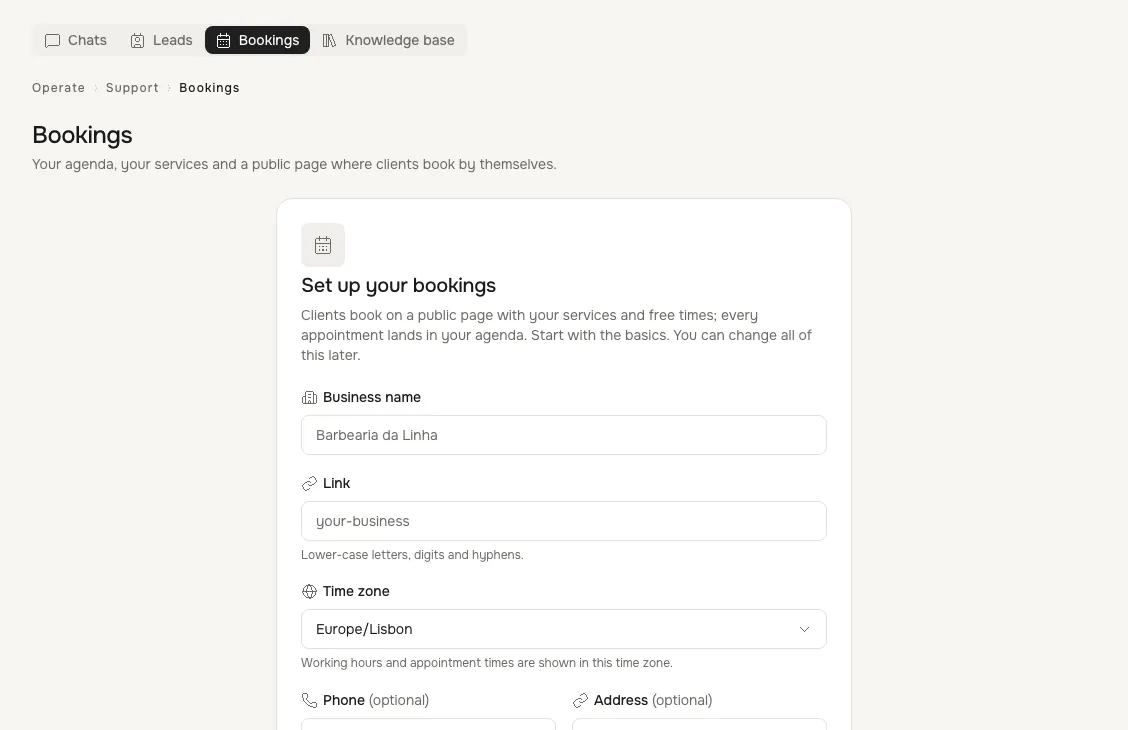
The first time you open the page it shows Set up your bookings. Fill in:
- Business name: what clients read at the top of your booking page.
- Link: the last part of the page's address, in lower-case letters, digits and hyphens. If another business already uses it, the form says so and you choose another.
- Time zone: working hours and appointment times are shown in it.
- Phone and Address: optional.
You can change all of this later. After that, Finish the setup lists what is still missing before a client can book:
- Create the booking page (done by the form above).
- Set your working hours: clients can only book inside the hours you are open.
- Add a service: its name, how long it takes and its price.
- Add your team: each person who takes appointments gets a column in the agenda. If you work alone, add yourself.
When all four are done the page opens on the agenda, with six tabs: Agenda, Services, Team, Clients, Settings and Statistics.
Agenda
The agenda shows one day with a column for each person, or one week for a single person. Use the toolbar to go to a date, switch between day and week, and choose whose agenda you see.
- Add an appointment: click a free time. Choose the person, the service and the client, change the duration if you need to, and press Book. Notify the client sends them the confirmation.
- Move an appointment: drag it to another time or another person.
- A time that is not free: the form says why (there is already an appointment, the time is blocked as time off, or it is outside the working hours). Book anyway lets you put it there all the same.
- Internal note: a note on the appointment that only your team sees.
Open an appointment to see the client, the service, the duration, the price and any message the client left. An appointment says whether it was Booked online or Added by you.
Status of an appointment
| Status | Meaning |
|---|---|
| Confirmed | Booked and expected. |
| Arrived | The client is here. |
| Completed | The appointment took place. |
| No-show | The client did not come. It counts in their record. |
| Cancelled | The appointment was cancelled, by you or the client. |
Change the status from the appointment. When you cancel one, Notify the client tells them it was cancelled.
Services
A service is what clients book. Press the button to add one and fill in:
- the name and an optional Description;
- Category: services with the same category are listed together on the booking page;
- Duration and Pause after (time kept free after the appointment, for example to clean up);
- the price, or No price, and Show the price to decide whether clients see it;
- Colour in the agenda;
- Bookable online: when it is off, only you can book the service, from the agenda.
Team
Each person who takes appointments is a person on the Team tab, with a name clients see on the booking page, a colour in the agenda, an optional Location and the services they do.
- Bookable online decides whether clients can pick the person themselves. A person who is not is marked Not online.
- Hours: a person follows the Hours of the business unless you give them a week of their own (Own hours).
- Deactivate hides a person who no longer takes appointments without losing their past ones; Activate brings them back.
These are the people in your agenda. They do not need an Orkosi account, and adding one here does not invite anyone to your workspace. To give someone access to the workspace, see Team and roles.
Time off
Time off blocks a period for one person or for everyone: a holiday, a lunch break, a day the shop is closed. Nobody can book inside it. Delete the block and the time becomes bookable again.
To block time, open the Team tab and choose Add time off on the Time off card. Fill in:
- Who: everyone, or one person of the team;
- Whole days for a holiday or a closed day, or switch it off and set a Start and an End time for a break;
- From and Until: the first and the last day;
- an optional Note, for example the name of the holiday.
The card lists the time off that is still ahead, with who it is for and a button to delete it.
Clients
A client is added when they book online or when you book for them; New client adds one by hand. The list shows each client's phone, e-mail, number of visits, no-shows and last visit, and you can search by name, phone or e-mail.
Open a client to see their appointments and whether they agreed to receive marketing.
- Block stops a client from booking online. You can still book them yourself. Unblock lifts it. Blocked only filters the list.
- Deleting a client removes the record for good. Their appointments stay in the agenda, without a client.
The booking page
The public page is where clients choose a service, a person and a free time, and leave their name and phone. They need no account. Its address is on Settings, under Booking page, with Copy link and Open. Put that link on your site, your social profiles and your messages.
- Clients can book online switches the page on and off. When it is off the page stops answering and nobody books online; your agenda keeps working.
- A client who booked gets a private link to their appointment. With it they can move or cancel the appointment themselves until the deadline you set.
Messages to clients
Clients who gave an e-mail address are written to when an appointment is confirmed, moved or cancelled, and before it starts if you set a reminder. The e-mails are in the language of the booking page: Portuguese, English or Spanish.
- The e-mails are sent from the address of your product (see Sender).
- Each one is charged in credits like any other e-mail your product sends: see what e-mail costs.
- A client who booked with a name and a phone only receives no e-mail. Text messages and WhatsApp are not sent.
You are told too: when a client books, moves or cancels on the public page, you get a notification, by the channels you chose under Settings › Notifications. What your own team does in the agenda sends you nothing.
Settings
| Card | What you set |
|---|---|
| Booking page | Whether the page is online, and its link. |
| Business details | Name, link, time zone, Language of the page, phone, address, a description and a note at the foot of the page. |
| Working hours | The week of the business. |
| Locations | The places where your team takes appointments, if you have more than one. |
| Look of the page | Logo, cover photo, your colour, and links to your Instagram, Facebook and website. A preview shows the top of the page. |
| Booking rules | How clients may book: see below. |
Booking rules
- Times offered every: the step between the times a client can choose. It is also the height of one row of the agenda.
- Minimum notice: how long before the start a client can still book.
- How far ahead, in days: clients see free times up to this many days from today.
- Clients can cancel until: how long before the start a client can still cancel or move the appointment by themselves. After that they must phone you.
- Reminder: a message to the client before the appointment, or no reminder.
- Clients choose the person: when it is off, the client picks a service and a time, and you decide who does it.
- Offer "Any available": the client can leave the person open and sees the free times of everyone.
- Ask for the e-mail: when it is off, a name and a phone are enough to book.
Statistics
Statistics shows, for the period you choose: the number of Appointments, Revenue (from the prices of the services), New clients, No-shows and the share Booked online. Below are the appointments per day, how they ended, where they came from, the top services and the figures per person.
When something goes wrong
| What you see | What it means and what to do |
|---|---|
| "Another business already uses this link." | The link is taken. Choose another one. |
| "This word is reserved. Choose another one." | The link is a word the platform keeps for itself. |
| "Only an admin of this product can change this." | Your role can read Bookings but not change it. Ask the owner or an admin. |
| Clients see no free times | Check the working hours, that the service and the person are Bookable online, and the booking rules. |
| "There is already an appointment at this time." | Pick another time, or Book anyway if you mean to overlap. |
| "This time is outside the working hours." | Change the working hours, or Book anyway. |
| The booking page does not open | Clients can book online is off, or the page has no link yet. |
| A client says they got no confirmation | They booked without an e-mail address. Switch Ask for the e-mail on if you want every client to get one. |
For anything else, write to us through Support with the name of the tab and what you saw.
Related guides
- Support your own users: chats, leads and help articles.
- Email: write to the contacts who agreed to hear from you.
- Team and roles: who can open which page of the workspace.