Images, video and the design canvas
Make pictures and short clips in your brand from a description, edit them on a board with an assistant, and write ad angles from your brand kit. What each tool needs, what it produces, where the results are kept and when you are charged.
The five pages of the Creative group make new creative for your product: Create for my brand, Creative that converts, Image generation, Video generation and Design canvas. All five read your logo, colours, type and tone from the brand kit, so you do not describe your brand each time. They are open to owners, admins and members of the workspace; viewers do not see them.
Which tool makes what
Four of the pages make something; the same four lines sit at the top of each of them, with the page you are on marked.
- Image generation gives you a picture. Pick it when you need an image: a hero, a post, an ad, a mockup. You pick a goal and a look.
- Video generation gives you one finished clip. Pick it when you know what the clip is for: a reel, an explainer, a showcase. You pick a goal and a look.
- Creative that converts gives you a video ad, written 8 ways. Pick it when you will run the result as an ad. You pick the platform, the structure and the length, read the eight angles and render the one you like. The rendered clip is then listed under Your clips in Video generation.
- Design canvas gives you a free board. Pick it when you want to work by hand: place, edit and combine pictures and clips, or ask the assistant.
Create for my brand makes nothing itself: it is the menu that opens the right one of the four with the format already set.
What you pay and when
Generating pictures and clips uses credits. The price depends on what you make (the goal, the size, the length, the quality and the engine), so it is not fixed in this guide:
- Every goal, row and idea shows its price beside it before you start.
- The last step of a generation is one button that carries the price: Generate followed by the amount.
- While a piece is being made its card shows the estimate. When it is finished the card shows what was charged.
- Some goals and engines belong to higher plans. They are listed under On a higher plan or marked "Not on your plan", with a link to the plans.
Your balance and every charge are on Billing › Credits & usage: see Billing and credits. Plan prices are on the pricing page.
Image generation
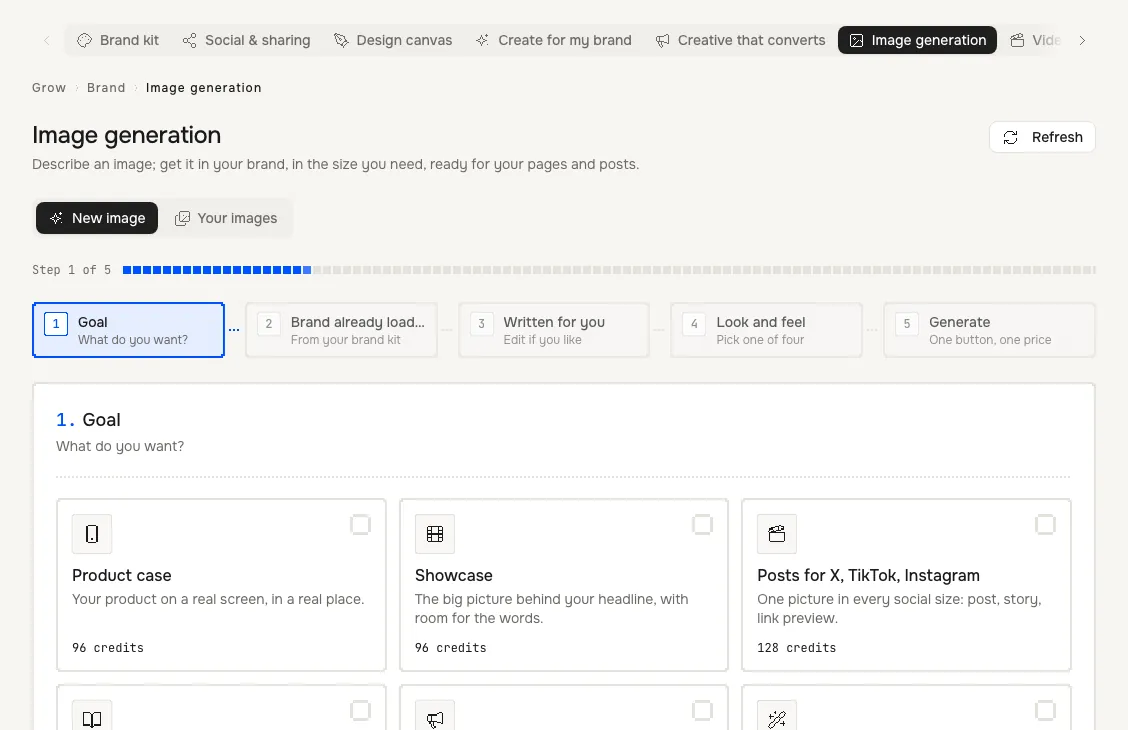
Creative › Image generation makes pictures from a short description, in your brand and in the size the place needs. The page has two tabs: New image and Your images.
Make an image
The New image tab is five steps. Most are filled in for you.
- Goal: What do you want? Pick a tile, for example a product case (your product on a real screen, in a real place), a showcase picture for behind a headline, or one picture in every social size. Custom starts from your own words.
- Brand already loaded. A list of what was read from your brand kit: Name, Colours, Type, Tone and Product shots. There is nothing to fill in. If the product has no brand kit yet, the step says so and offers Make my brand kit; you can still generate, and the result uses the platform look until the kit exists.
- Written for you. The words for the picture are written from your brand kit. Change any line or leave it. With Custom, write the brief yourself: a few words are enough to start.
- Look and feel. Pick one of four, side by side: Clean, Bold, Cinematic or Playful. Each tile shows a real result: the picture Orkosi made for itself with the goal you picked, in that look. The look decides the background, the light and how much of your colour fills the picture; your logo, colours and words stay the same. If you are not sure, keep Clean: you can make the picture again in another look.
- Generate. What to expect shows the real picture of your goal in the look you picked, made for Orkosi; yours shows your own subject in your brand colours. Under it is one button with the price. Nothing is charged until you press it, and the page answers "Queued".
An image is usually ready in under two minutes. You can leave the page: the work continues and the result is waiting under Your images.
Your images
Each generation is a card with its status, its size and quality, and its price. On a finished picture you can:
- Download it.
- Keep it. You are asked for an alt text (the description read by screen readers and search engines). A kept picture is saved to the media library of your product: it is listed in Files and on the Brand kit page, and the editor and the marketing pages can use it.
- Use as reference: attach the picture to your next images and videos as the style to match.
- Use on my site: choose Where (for example Hero image, About section or Link preview (Open Graph)), say where exactly, check the Alt text and press Send to my site team. This creates a task with the picture and its place; follow it under Tasks.
- Read and edit the words: the captions written for each social network, with a button to copy each one, Post now and Add to calendar. Posting needs a connected account: see Social.
While a picture is queued or being made you can cancel it. If one fails, the card offers to try again or to put your prompt back in the form so you can change the wording.
Video generation
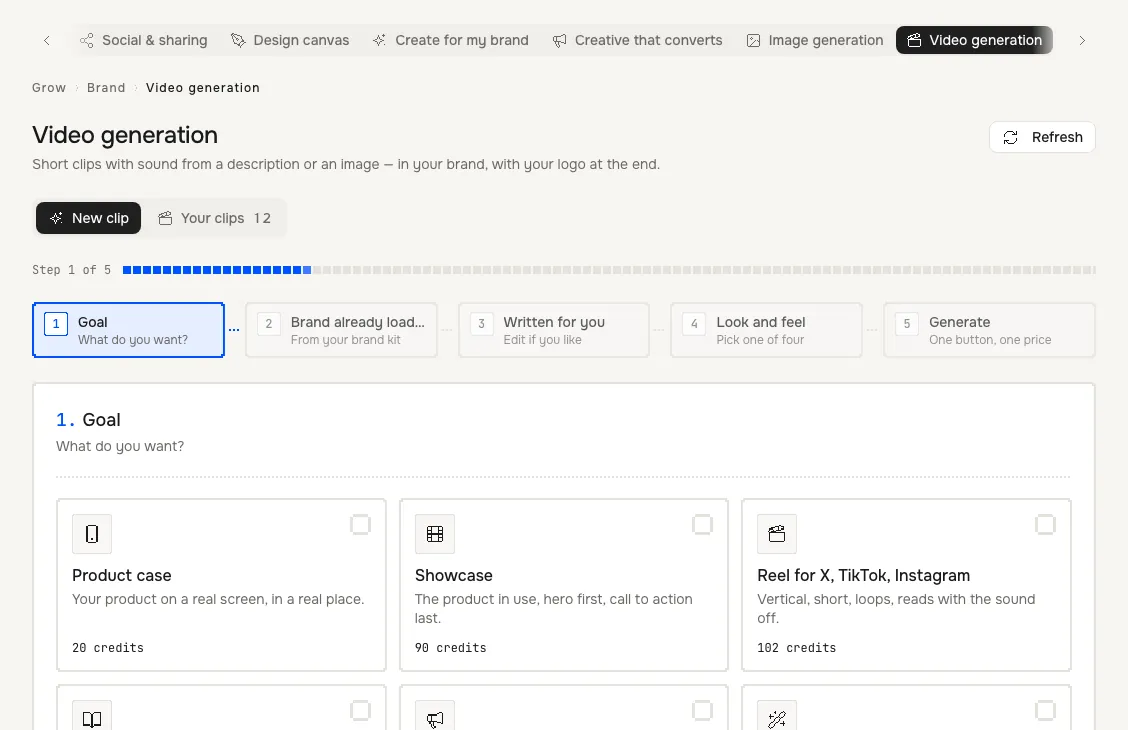
Creative › Video generation makes short clips with sound from a description or from a picture, with your logo on the end card. The tabs are New clip and Your clips.
Make a clip
The steps are the same five as for an image, with two differences:
- In Brand already loaded the list also has Voice and Language.
- In Written for you you can read and edit the Title, the Script, the Caption and the Hashtags before anything is rendered.
- In Look and feel each tile shows a frame of a real clip in that look, and What to expect on the last step plays that clip. A video made from your own site, or one that shows your product's own screen, has no look to pick: the step says so, and the last step plays the example of that goal instead.
Goals include a product case, a showcase (the product in use, with a call to action at the end) and a vertical reel for social networks. Press Generate with its price to start.
A clip takes from one to a few minutes. You can leave the page; it keeps going.
Your clips
- Every finished clip is stored in Files and in the media library of your product.
- A clip made from a storyboard lists its shots. Redo this shot renders only that shot again: the other shots are kept and only the redone seconds are charged.
- Try again on a failed clip starts a new one. The failed card stays in the list for reference.
- The captions, Post now and Add to calendar work as for images. TikTok and YouTube accept video only, so a clip is what you need to post there.
Product videos and actor ads
Two more cards can appear on the page:
- Product videos are made from fresh screenshots of your live site and your brand kit, in a wide and a vertical cut. Narration, music and captions are added where your plan has them.
- Actor ad: a presenter says your script to the camera, like a customer filming a recommendation, in a vertical clip with captions and your end card. Press Create an actor ad, choose the presenter and write the script; the voice is recorded first, then the presenter speaks it, which takes a few minutes. If the card says "Actor ads are not on your plan", the feature belongs to a higher plan.
Design canvas
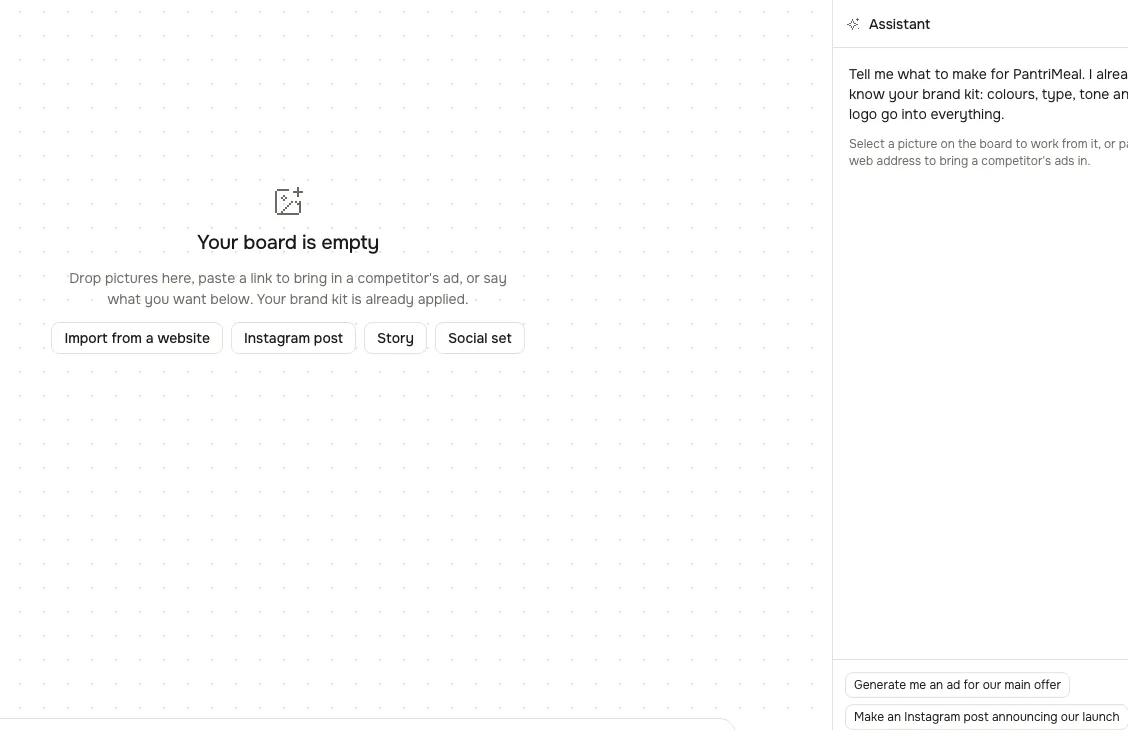
Creative › Design canvas is a white board with an assistant. You put pictures on it, edit them, and make new pictures and clips beside them. Your brand kit is applied on its own: the badge at the top shows it, and Set your brand kit appears instead when the product has none.
Put things on the board
An empty board says "Your board is empty" and offers starting frames such as Instagram post, Story and Social set. To add your own material:
- Drop pictures on the board, or press Upload pictures or clips.
- Import from a website or a link: paste the address of a page or of one picture (a competitor's site, an ad, a product page), tick the pictures that were found and press Add to the board. Some sites only show their pictures inside the browser; the dialog says so and suggests taking a screenshot instead.
- Add from your library: what you already made and saved.
- Add text, Add a note and Add a frame in a format from the tool rail.
On the Files page, Open on canvas is offered on generated pictures and clips only. A picture you uploaded yourself goes on the board by dropping it or with Upload pictures or clips.
Make something
- In the bar at the bottom choose Picture or Clip.
- Describe what you want. If a picture is selected on the board, the new piece is made from it.
- Leave the engine on Auto or pick one. An engine that cannot be used says why: "Not set up on this workspace yet", "Not on your plan", or that it needs a picture selected first.
- Set the format, how many and, for a clip, the length.
- Press Generate. The price is on the button before anything is charged.
You can also talk to the Assistant in the side panel, for example "Remove the background", "Make it twice as sharp" or "Turn this into an ad set". The Skills menu lists the ready-made jobs; some of them work from a picture and ask you to select one first.
Work on a selection
Select one or more things on the board to get a toolbar: remove the background, upscale, split into layers or repaint one part of a picture, Duplicate, Delete, Bring to front, Send to back, Turn a quarter, Lock in place, Download, and Export this frame as one picture. Make e-mail template builds an e-mail around the selected picture: see Email. A tool that is not available says "This tool is not set up on this workspace yet."
Boards are saved as you work, and the Boards menu at the top switches between them. If the top bar says "Not saved", the board tries again with your next change. If it says the board was changed in another tab, reload the page before you continue.
Create for my brand
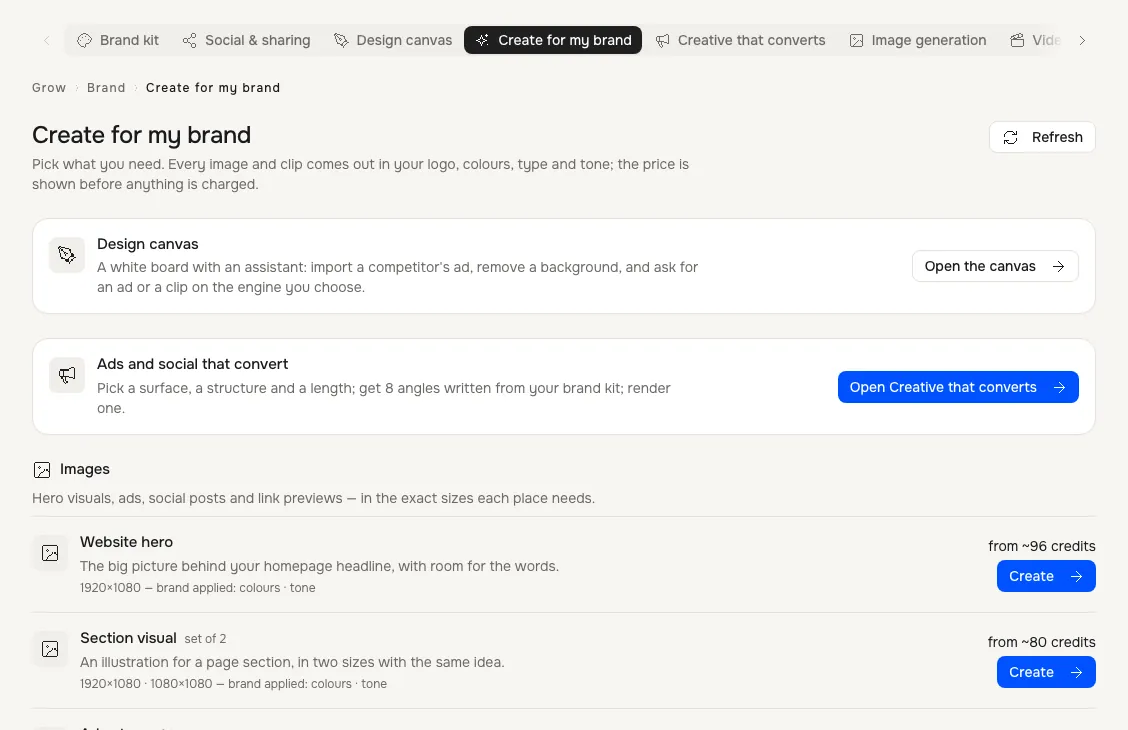
Creative › Create for my brand is the menu of everything you can make, for when you know what you need but not which tool makes it.
- Design canvas and Creative that converts open the two tools described in this guide.
- Images and Videos list ready presets, for example a website hero, a section visual or an ad set. Each row shows the sizes it produces, that the brand is applied, and a price that starts from the amount shown. Press Create to open the right tool with the format already set; you can still edit the words before you generate.
- Already in your brand kit (no credits) lists what does not need generating: Link preview cards (open Social & sharing), Favicons and app icons and Logo variants (open the Brand kit).
If the page says "Nothing to create yet", the generation tools are not available for the workspace at the moment.
Creative that converts
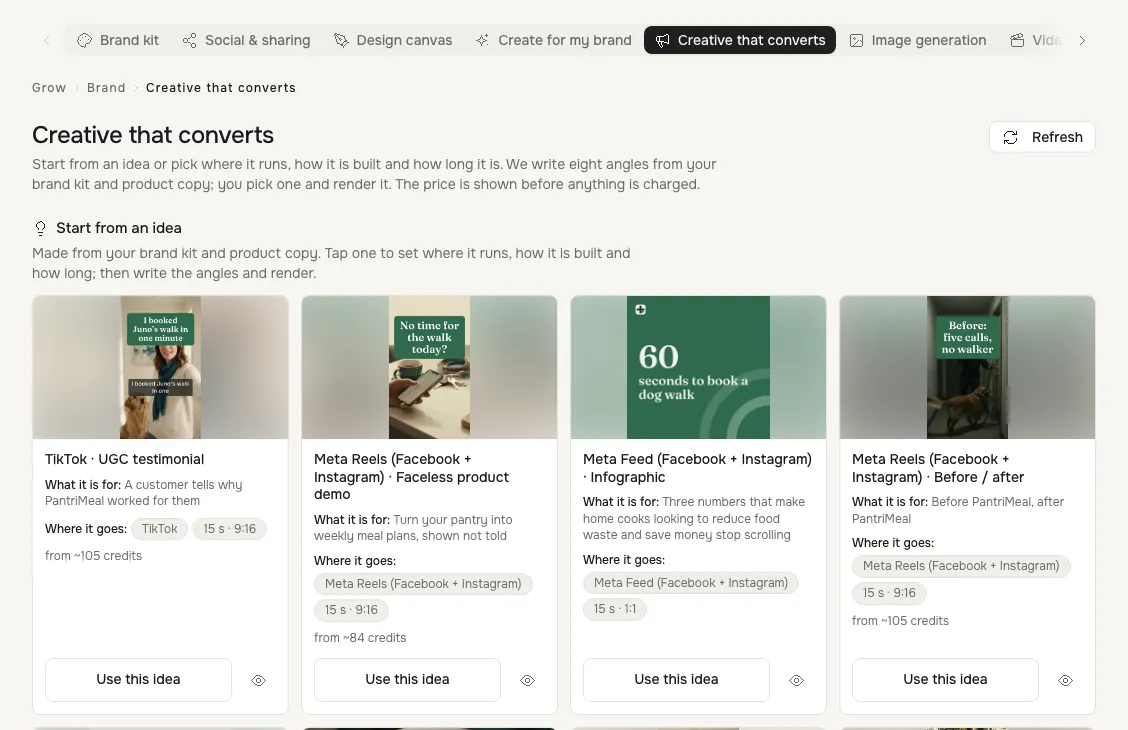
Creative › Creative that converts writes short ads and social clips before it renders them, so you choose the idea first and pay only for the one you render.
- Start from an idea: the cards at the top are made from your brand kit and product copy. Each says what it is for, where it goes, its length and shape. Press Use this idea. Or set the three choices yourself: Where will it run?, How is it built? and How long?
- Press Write 8 angles. The angles are written in the background; this usually takes under two minutes. Each one is scored on hook, product, proof, call to action and brand fit. 8 more angles writes another batch. How many batches you can write in a day depends on your plan.
- Open an angle. Edit the Hook (first line), the Call to action and the Script, second by second (what is seen, the spoken line and the on-screen text). Save your edits: the render uses the saved text.
- Under Render, choose Preview · Fast or Final · 1080p. Each shows its price. Press Render.
- When the clip is ready, the Use it card offers Download MP4, Open Video generation (the clip is listed there under Your clips), Use on my site, Open on canvas and Use in marketing.
If the page says "The angles are taking longer than usual", try again in a minute: nothing was rendered, so nothing was charged for a render.
Where results are stored
| Made in | Where you find it |
|---|---|
| Image generation | Your images; pictures you Keep are also in Files and in the media library. |
| Video generation | Your clips; every finished clip is also in Files and in the media library. |
| Creative that converts | On the angle you rendered, and under Your clips in Video generation. |
| Design canvas | On the board. Download or export a frame to get a file. |
| Social & sharing | In the brand kit, once you press Save to Brand Kit. |
When something goes wrong
- "This app has no product yet": the product is still being created. The tools open once it exists.
- A goal or an engine is locked: it is on a higher plan. The tile says which; see the pricing page.
- Not enough credits: the balance is checked before a generation starts and the request is refused. Add credits or wait for your next plan credits: see Billing and credits.
- The result is not what you wanted: change the words in step 3 or pick another look and generate again. Each generation is charged separately, so read the price on the button first.
- A request is refused because of its content: the card offers to put your prompt back in the form. Change the wording and generate again.