Builds, pipeline, logs and jobs
The operating pages of the Hosting group. See where your product runs and choose its size and who can open it, follow builds and the pipeline of each change, read server and access logs, manage scheduled and background jobs, set config vars and see the architecture of your product.
The Hosting group of the left bar is where you see your product run. This guide covers seven of its pages: Hosting, Builds, Pipeline, Logs, Jobs, Config vars and Architecture. The other pages of the group have their own guides, listed at the end.
| Page | Who can open it | What it answers |
|---|---|---|
| Hosting | Every role | Where does my product run, how big is it and who can open it? |
| Builds | Every role | Was my code built, and if not, why? |
| Pipeline | Every role | How far did each change get on its way to production? |
| Logs | Every role | What is my product doing right now, and who is calling it? |
| Jobs | Every role | What runs on a schedule or in the background? |
| Config vars | Owner and admin | Which settings and secrets does my product run with? |
| Architecture | Every role | What is my product made of, and where does each part run? |
Most of these pages have a Development and Production switch. Development is the test copy of your product and Production is the live site. See the two environments.
Hosting › Hosting
Hosting › Hosting shows where your product runs. Everything about its addresses and domains is on the page beside it, Hosting › Domains: see Custom domains. The Domains button at the top of the page opens it.
The two environments
There is one card for Development and one for Production. Each shows:
- Address: the address the environment answers on, and whether it is live, being set up or needs attention.
- Certificate: issued and renewed for you. It is issued as soon as the address is live.
- Deployed: the version that is running and when it was deployed.
Pause stops an environment from answering until you Resume it. Your data and your settings are kept. Deploy history opens Hosting › Deploys: see the deployment guide.
Size
Each environment has a size card. Plan default is included in your plan. Where your plan offers larger sizes, each one is listed with what it gives and its price per month, and Switch changes to it. The confirmation says what is charged and when, before anything changes. A size your plan does not include shows See plans.
Promotion gates
Promotion gates decide what must be true before a change goes from Development to Production: green checks on the latest change, a minimum number of hours on Development, and a manual confirmation. Publish green changes automatically is on by default. Switch it off to hold finished changes until you publish them. See the two environments.
Cached copies
Files that do not change are kept close to your visitors, so they load without asking your product again. Clear cached copies removes them for one environment. Publishing does not need a clear. It helps after a file was replaced under the same name, such as an image or a download.
Access
Access decides who can open your site, for each environment:
- Maintenance mode shows visitors a maintenance page while you work. The site keeps running behind it. You write the Page title and the Message, and Preview the page shows it.
- Who can open the site limits visitors by the internet address they come from. Add my address adds the one you are using, and the card warns you when the saved rules would block you.
Every role can read this page. Pausing, changing a size, clearing cached copies and changing access are for owners and admins.
Hosting › Builds
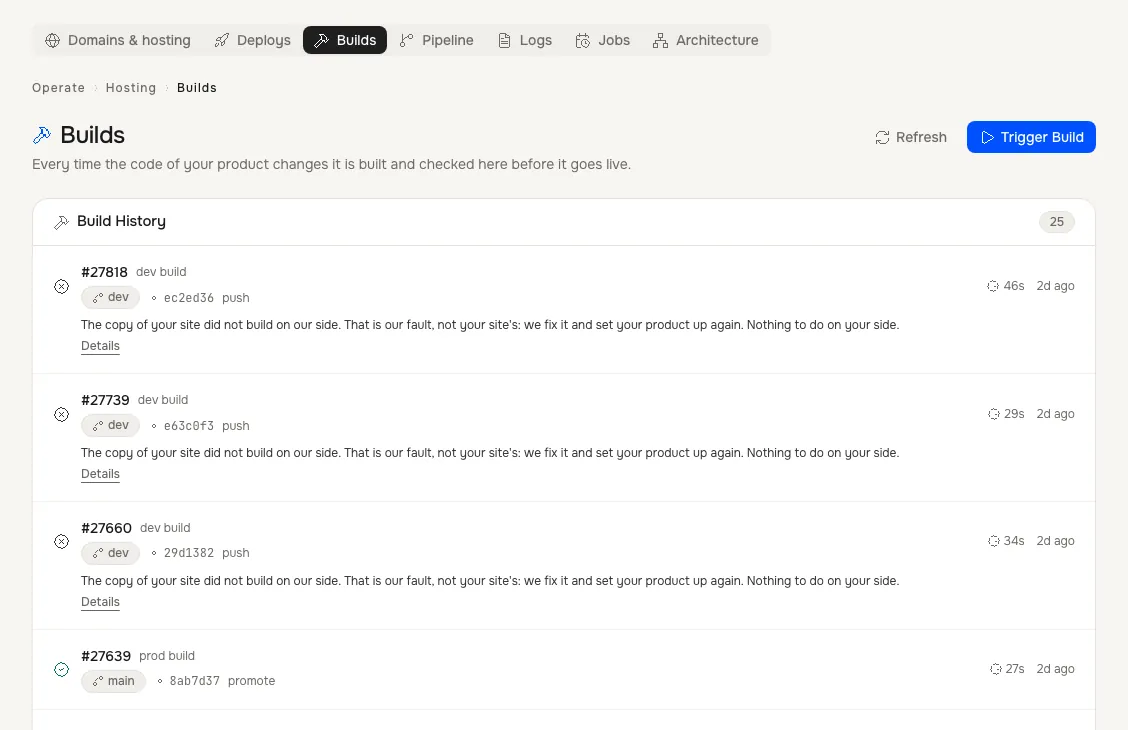
Every time the code of your product changes, it is built and checked before it goes live. Hosting › Builds lists those builds, newest first.
Each row of Build History shows:
- the build number and whether it was a development build or a production build;
- the branch and the short id of the commit;
- what started it, for example a push or a promotion;
- how long it took and when it ran;
- its result.
A build that failed has a line in plain words under it, and Details unfolds the output of the failing step. The line also says whose turn it is. When the cause is on our side it says so, and there is nothing for you to do.
Trigger a build
Trigger Build builds the development copy again from the current code. Use it after you changed a config var, or when a build failed for a reason that has since been fixed. The page confirms with "Build started for the test copy". Refresh reads the list again.
Starting a build is not for viewers.
When a build fails
- Read the line under the build. If it says the problem is on our side, wait: we fix it.
- Otherwise open Details and look for the first error.
- For a change made by a task, the task carries the same failure and usually fixes it by itself in its next pass. See Tasks.
- For a change you made in the editor, fix it in Product › Code editor, or ask the assistant to fix the build error.
- A missing setting is a common cause. Check Config vars.
Hosting › Pipeline
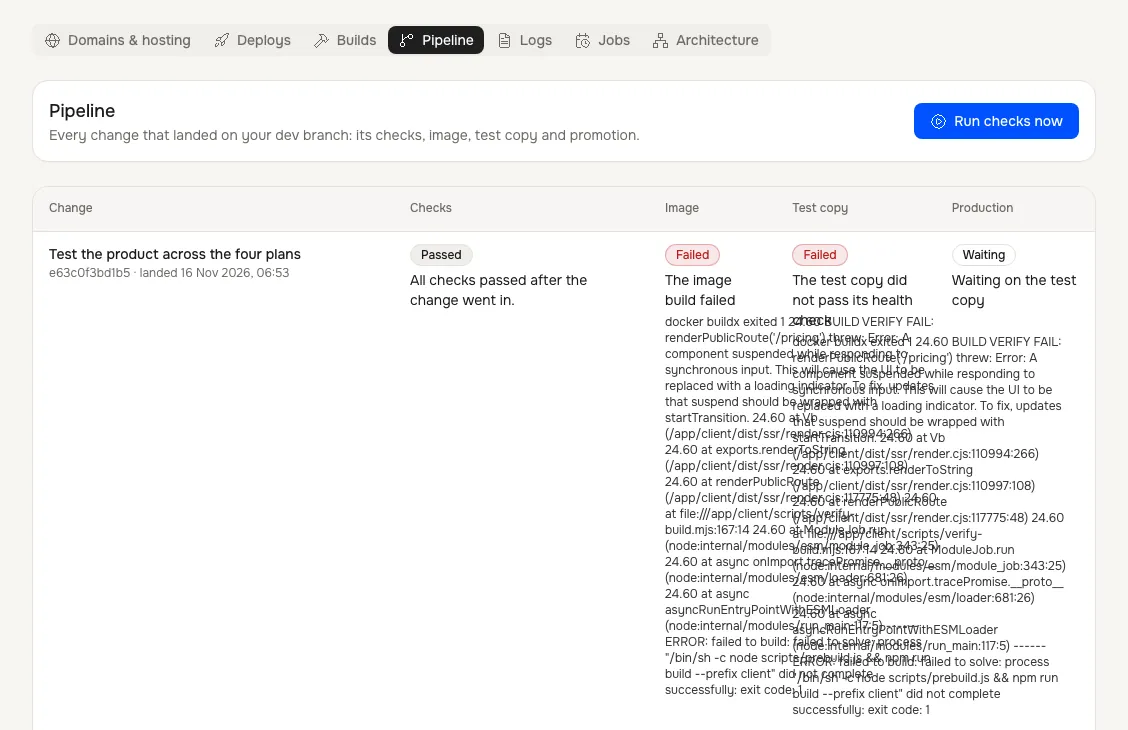
Hosting › Pipeline follows every change that landed on the development branch through four stages. Where Builds shows single builds, Pipeline shows the whole path of one change.
| Column | What it tells you |
|---|---|
| Change | What the change is, its commit and when it landed. |
| Checks | Whether the automatic checks passed after the change went in. |
| Image | Whether the product was built into an image that can run. |
| Test copy | Whether the development copy started with it and passed its health check. |
| Production | Whether the change has been promoted to the live site. |
Each stage shows one word: Queued, Running or Building while it works, Passed, Done, Live or Promoted when it went well, Waiting while it depends on an earlier stage, Not yet when it has not started, Replaced when a newer change took its place, and Failed with the reason under it.
Run checks now
Run checks now queues the checks again for the current head of the development branch. The page confirms which commit they were queued for. Use it when a check failed for a reason outside the change, or after a fix. One run is queued at a time for a product: while one is queued or running, a second press is refused and tells you so. It is not for viewers.
A change shows Promoted in the last column once you have published it. Publishing is done on Hosting › Deploys: see Promoting to production.
Hosting › Logs
Hosting › Logs has two parts: the server log of your product, and under it the access log of the requests it received. Every role can open the page.
Server logs
The server log shows what your product writes while it runs, as it happens.
- Development or Production chooses the environment.
- 15 min, 1 hour, 6 hours and 24 hours choose how far back to look.
- Filter logs... keeps only the lines that contain your word.
- Pause stops the list from moving while you read. Resume to follow it again. Refresh reads it again.
- Each line has its time and its level, such as Info, Warning or Error.
- The notes a product writes while it starts are hidden. Show startup notes shows them.
If nothing appears, the product has written no lines in that time range. Pick a longer range or the other environment. Lines appear while the product is deployed and receives visitors.
Access log
The Access log lists the requests in the chosen time range: time, method, path, status, duration and size.
- Filter by Time range, Status and Method, and by the path with Path starts with and Path contains. Press Search to apply.
- Clear filters shows everything again.
- Download CSV saves the rows on screen as a file.
Use the access log to find the request behind a problem: filter on the failing status, note the time and the path, then look at the server log around that time.
Other places with logs
- The log of one deployment is on Hosting › Deploys. See Following a deployment.
- The build log and the runtime log of the development copy are also in the console of the editor.
- Errors counted over time are on Analytics › App health.
Hosting › Jobs
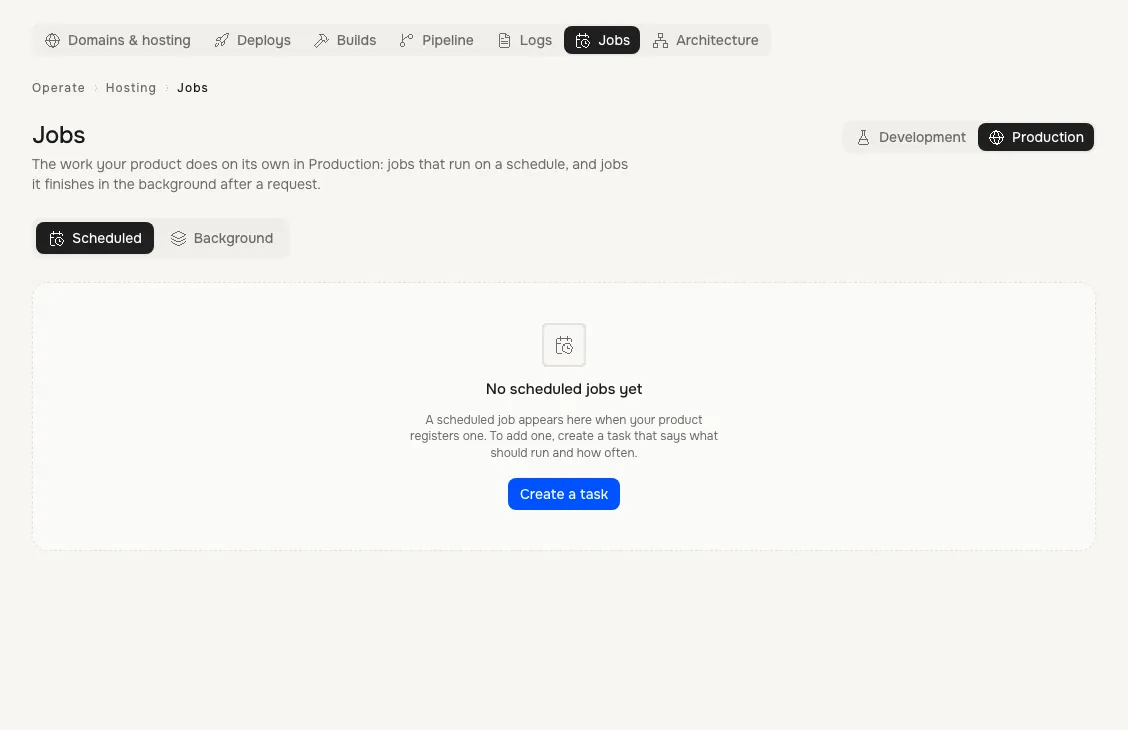
Hosting › Jobs shows the work your product does on its own: jobs that run on a schedule, and jobs it finishes in the background after a request. Pick Development or Production first.
Every role can see the jobs and their runs. Running or changing one needs the member role or above.
Scheduled jobs
The Scheduled tab lists each job with its schedule, its last run and its next run. From the menu of a job:
| Action | What it does |
|---|---|
| Run now | Runs the job once, immediately, outside its schedule. |
| Switch off / on | Stops the schedule without deleting it, or starts it again. |
| Change schedule | Opens the schedule editor. |
| Delete schedule | Removes the schedule after you confirm. |
| Run history | Opens the runs of the job: how each run started, when, how long it took and how it finished. |
In the schedule editor you pick one of the common schedules or write your own: rate(5 minutes) to repeat at an interval, or cron(minute hour day month weekday year) for a time of day. Time zone is optional and takes a name such as Europe/Lisbon. Left empty, the schedule runs in UTC. Save schedule applies it.
The list of runs shows what was recorded and for how long it is kept. A run you start with Run now is always listed.
While an environment is paused, its scheduled jobs do not run and Run now is not available. This is the case when you pause it yourself, and when it is paused because the credits ran out or the plan ended. The jobs start again by themselves when the environment is resumed, and a job you switched off stays off. An environment that has only gone to sleep because nobody visited it keeps running its scheduled jobs.
There is no "new job" button. A scheduled job appears here when your product registers one. To add one, press Create a task and say what should run and how often.
Background jobs
The Background tab lists the jobs your product queued, with their status, when they were queued and started, how long they took and how many attempts they needed. Filter by status to find the failed ones. A job that keeps failing usually has its reason in the server log at the time of the attempt.
Hosting › Config vars
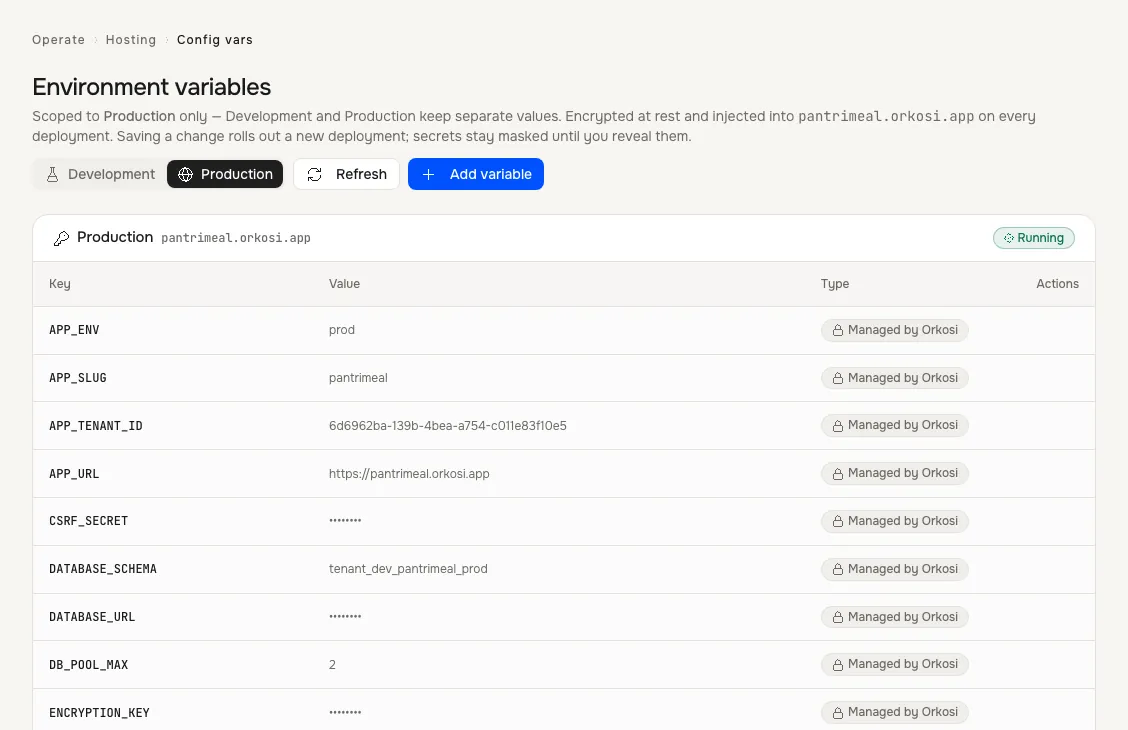
Hosting › Config vars holds the environment variables of your product: settings and secrets such as API keys. Only owners and admins can open this page.
Development and Production keep separate values. Choose the environment with the switch at the top before you read or change anything. Values are encrypted at rest and given to the product on every deployment.
What the table shows
| Column | Meaning |
|---|---|
| Key | The name of the variable. |
| Value | The value. A secret is masked until you press Reveal value. Hide value masks it again. Copy value copies it. |
| Type | Managed by Orkosi, secret or plain. A variable can also be marked required. |
| Actions | Edit and Delete, for the variables that are yours. |
Variables Managed by Orkosi, such as the address of the product and its database connection, are set by the platform. You can read them but not change or delete them.
Add or change a variable
- Choose Development or Production.
- Press Add variable.
- Type the Key: upper-case letters, digits and underscores, not starting with a digit.
- For a product with several components, choose the Component the variable belongs to and where the value comes from: a value you type, another component (resolved at deploy), or a value generated once at the first deploy.
- Type the Value.
- Leave Secret ticked for anything confidential. A secret is encrypted and hidden after saving. Tick Required to refuse a deploy while the value is empty.
- Save.
Saving a change rolls out a new deployment of that environment so the product picks the value up. The page shows the deployment it started, with View log. When no deployment starts, the page tells you the change applies on the next one.
To change a secret, press Edit and type the new value: the stored value is not shown in the form. Remember to set a new variable in both environments if the product needs it in both.
Hosting › Architecture
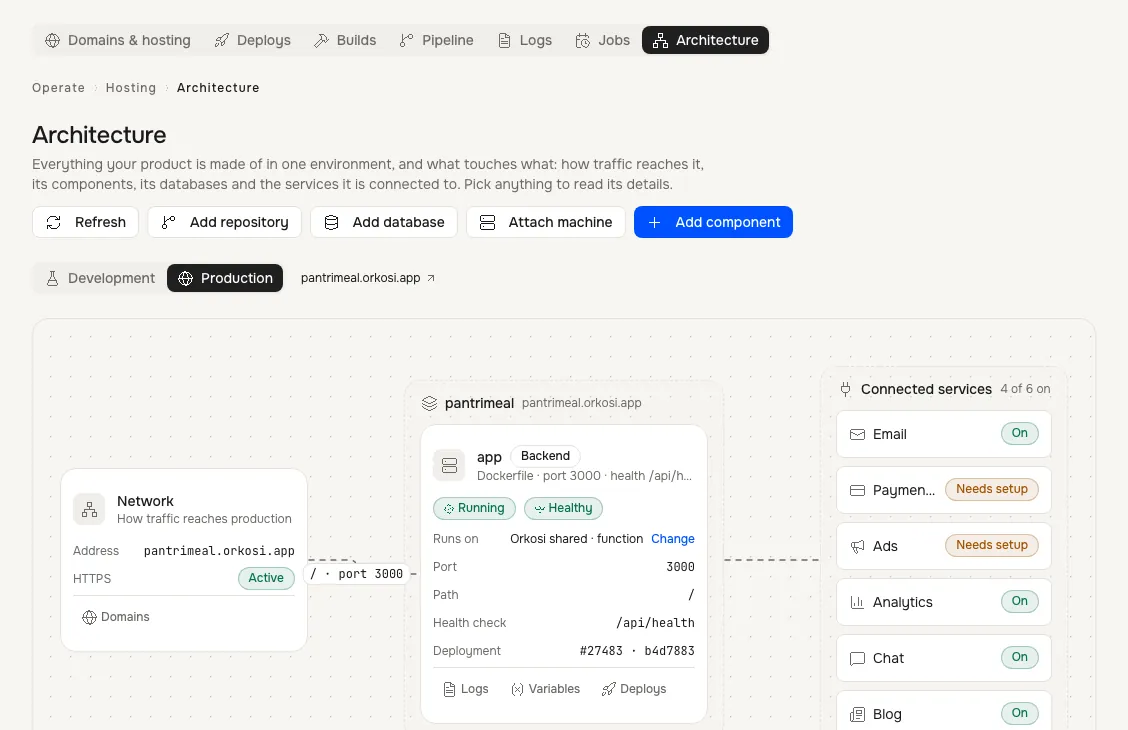
Hosting › Architecture draws everything your product is made of in one environment, and what touches what. Every role can open it. Pick Development or Production, then click anything to read its details on the right.
| Part | What it shows |
|---|---|
| Network | How traffic reaches the product: its address, whether HTTPS is active and its domains. |
| Components | Each part of the product (frontend, backend, background job, scheduled job, static site) with its status, where it runs, its port, its path and its health check, and links to its Logs, Variables and Deploys. |
| Databases | The databases of the product and the component each one is tied to. |
| Connected services | The built-in services, such as e-mail, payments, analytics, chat and the blog, and whether each is on or needs setup. |
Actions
| Action | What it does |
|---|---|
| Add repository | Connects another repository to the product, with its development branch and its production branch. |
| Add component | Adds a part: its name, kind, root folder, port, health path and start command. |
| Add database | Adds a database for an environment, on the shared servers or on a rented one, tied to a component. |
| Attach machine | Puts a component on a machine you rent. |
| Change | On a component, changes where it runs. |
These actions change where your code runs, so they are for owners and admins. Members and viewers can read the page. A rented machine or database is a paid resource. Its cost is shown where you rent it, on Hosting › Machines & databases. See Dedicated database and /pricing.
Most products created by Orkosi have one component and need none of these actions. They matter most for a product started with Bring your code.
The other Hosting pages
- Domains: the addresses of your product and the domains you connect, buy or move here. See Custom domains and Buy a domain.
- Deploys: publish, follow and roll back. See the deployment guide.
- Database and Machines & databases (owner and admin only): see Database.
- Product › Environments shows what runs where in one view. See Environments.