Billing and credits
How credits work, what your plan includes, what tasks, chat and hosting cost, how the plans compare, what happens when credits run out, and where to top up and find invoices.
Everything you do on Orkosi that uses AI is paid for in credits, and hosting is covered by your plan. This page explains the unit, what it buys, how each plan allocates it and what happens when the balance runs out. Billing pages are for the owner and admins of the workspace; only the owner can change the plan or buy credits.
How credits work
- A credit is the unit of your balance. What a task costs and what leaves your balance are always the same number of credits. The value of a credit in money is shown beside your balance on Billing › Credits & usage and with the credit packs below.
- The balance belongs to your workspace and pays for the AI work of every product in it.
- Billing › Credits & usage shows the balance, how it moved, and where the credits went (tasks, the assistant and other uses).
Plan credits vs purchased credits
Two kinds of credits land in the same balance, and neither expires:
| Plan credits | Purchased credits | |
|---|---|---|
| Where they come from | Included in your plan | Credit packs you buy, or automatic top-ups |
| Expire? | Never. Unused credits stay until you use them | Never |
The current prices are on the pricing page.
What each credit buys
Tasks
A task is billed on usage, not a flat fee: the cost of the AI work it took. Two things drive it:
- The AI tier you choose for the task. Higher tiers use stronger, more expensive models and are worth it for hard problems; lower tiers are cheaper and fast for routine changes.
- How much work the task needs. A copy change costs a fraction of a new feature with a data model change and tests.
| AI tier | Name | Best for |
|---|---|---|
| 1 | Quick | Copy, styling, small fixes |
| 2 | Standard | Most features and bug fixes |
| 3 | Quality | Complex features, refactors |
| 4 | Premium | Architecture-level changes, hard debugging |
Which tiers you can pick depends on your plan: the plan table below shows the tiers each plan includes. A tier your plan does not include is shown locked in the New Task form with an "Upgrade to unlock" link.
Every new task shows its estimated cost before it starts, and the Cost column on Home › Tasks shows what each task has cost. See the Tasks guide.
Chat assistant
The current prices are on the pricing page.
See the Chat assistant guide.
Hosting, machines and databases
- Hosting of your product is covered by your plan. What each plan includes is in the plan table below.
- A machine or a dedicated database rented under Hosting › Machines & databases is charged to your credits per day of use. The monthly price is shown before you confirm. See Dedicated database.
- Where buying a domain through Orkosi is offered, its price is shown before you buy. See Buy a domain.
Plans
Pricing is per product: every plan covers one product, and each further product gets its own plan. This table is rendered from the same price list the pricing page, the app and the assistant read (it is never typed by hand):
The current prices are on the pricing page.
AI tiers 1 to 4 are Quick, Standard, Quality and Premium.
The live plan details are always at orkosi.com/pricing, and the rate of every model, hosting unit and service is in the rates on the pricing page.
Change, upgrade or cancel your plan
Open Billing › Plan and choose the Plan tab, or press Change Plan. Before you confirm, a summary shows what changes, what is charged today and from when the new price applies. An upgrade starts at once. A downgrade or a cancellation takes effect when the period you paid for ends. Only the owner can move a product to another plan; admins see the page and cannot change it. Cancelling is open to more people: see the next paragraph.
Cancel subscription at the top of Billing cancels one product's plan or everything: with several products you choose which one. What you cancel stays active until the end of the paid period and is not charged again; Keep on Billing › Products undoes it before then. A product you cancel while the plan goes on is then paused and nothing of it is deleted. When the whole plan ends, your site is paused and visitors see a holding page: pick a plan again inside the restore period and everything comes back, and without a plan the workspace is deleted when that period is over. The cancel window says how many days it is before you confirm. The owner and the admins can cancel a product; only the owner can cancel the whole plan, which is what Everything does and what cancelling the last billed product does. The assistant does the same when you ask it in the chat and confirm.
When credits run out
When your credits run out, work that needs credits waits until you add more. Nothing runs on credit and nothing is lost:
- A new task is saved and put on hold, with the message "Not enough credits. Your task is on hold and starts by itself after you top up." Through the API the same request answers HTTP
402and names the task that is waiting. - A task that is already running and cannot pay for its next step is put on hold in the same way.
- The first tasks of a new product (the ones Orkosi creates when you launch it) are the exception: they keep running until they finish and are not charged while your balance is empty. Together they are never charged more than the setup budget of the product, and on the free trial never more than the trial's credits.
- After you top up, the tasks on hold start again by themselves, in the order they were created.
- A chat message that needs credits is not run; the assistant shows how to top up instead.
Hosting beyond your plan's allowance
Each plan includes an amount of hosting (see the plan table above). Whether use past that allowance is charged, and what a unit costs, is published here from the same price list. The Hosting usage tab of Billing › Plan shows what each product has used.
The current prices are on the pricing page.
Top up credits
To keep working when the balance is low, top up credits in one of two ways.
Credit packs
Buy any time with Buy credits on Billing › Credits & usage. Only a workspace owner or admin can buy credits.
The current prices are on the pricing page.
Auto top-up
Turn on Auto top-up on Billing › Credits & usage and save a card. Orkosi then buys a pack automatically when the balance runs low, so tasks do not stop mid-way. You choose:
- Refill when balance drops below: the balance that triggers a top-up.
- Refill pack: which pack is bought.
- Max top-ups per month: how many automatic top-ups are allowed in a month.
Auto top-up is set on a Billing page, so by the owner or an admin of the workspace. It needs a saved card. It is paused after repeated failed charges; update your card and save to resume. The plan table above shows each plan's spending limit on extra credits.
Where to see everything
Plan
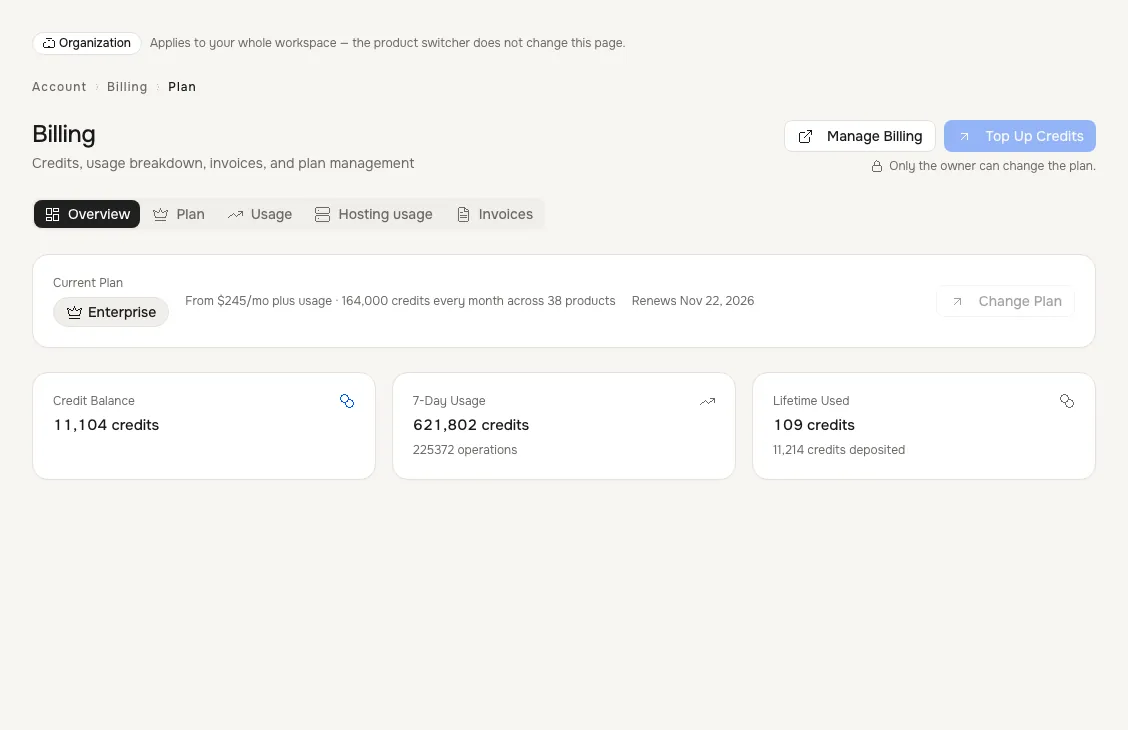
Billing › Plan shows your current plan and when it renews, the credit balance and recent use. Its tabs are Overview, Plan (change, upgrade or cancel), Usage, Hosting usage and Invoices. Manage Billing opens the payment details held by our payment provider, and Top Up Credits buys credits.
Credits & usage
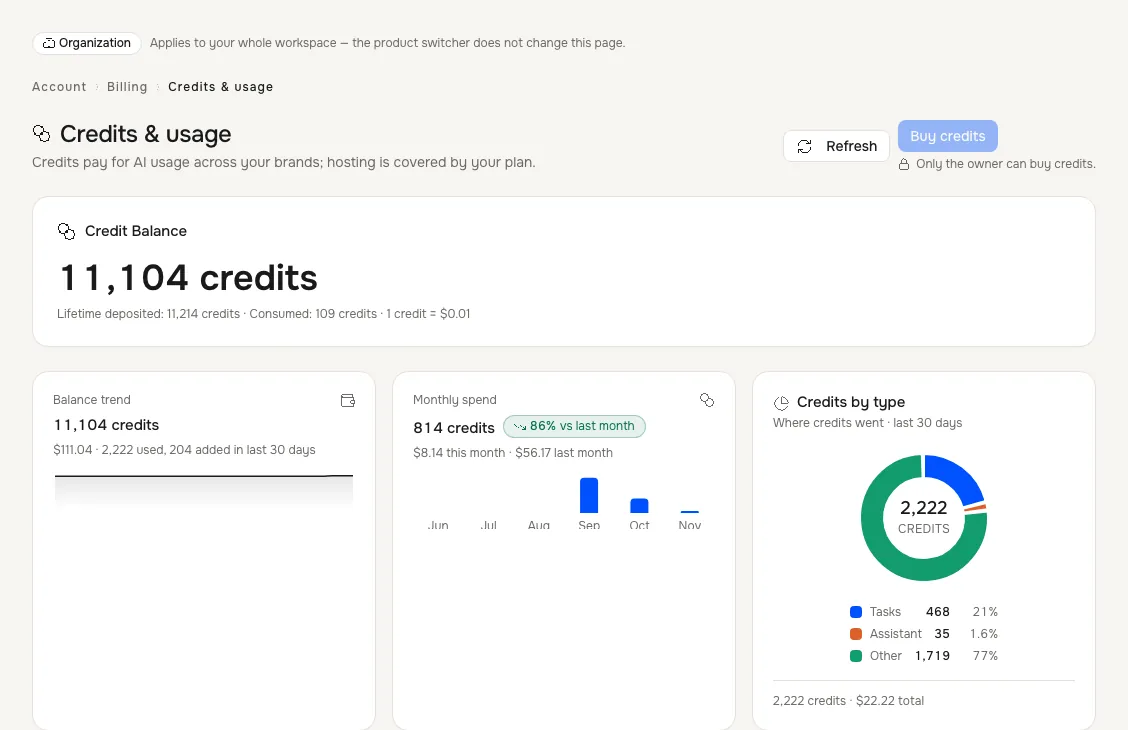
Billing › Credits & usage shows the balance, how much was added and used, the monthly spend, and a breakdown of where credits went. Buy credits and Auto top-up are here.
Invoices
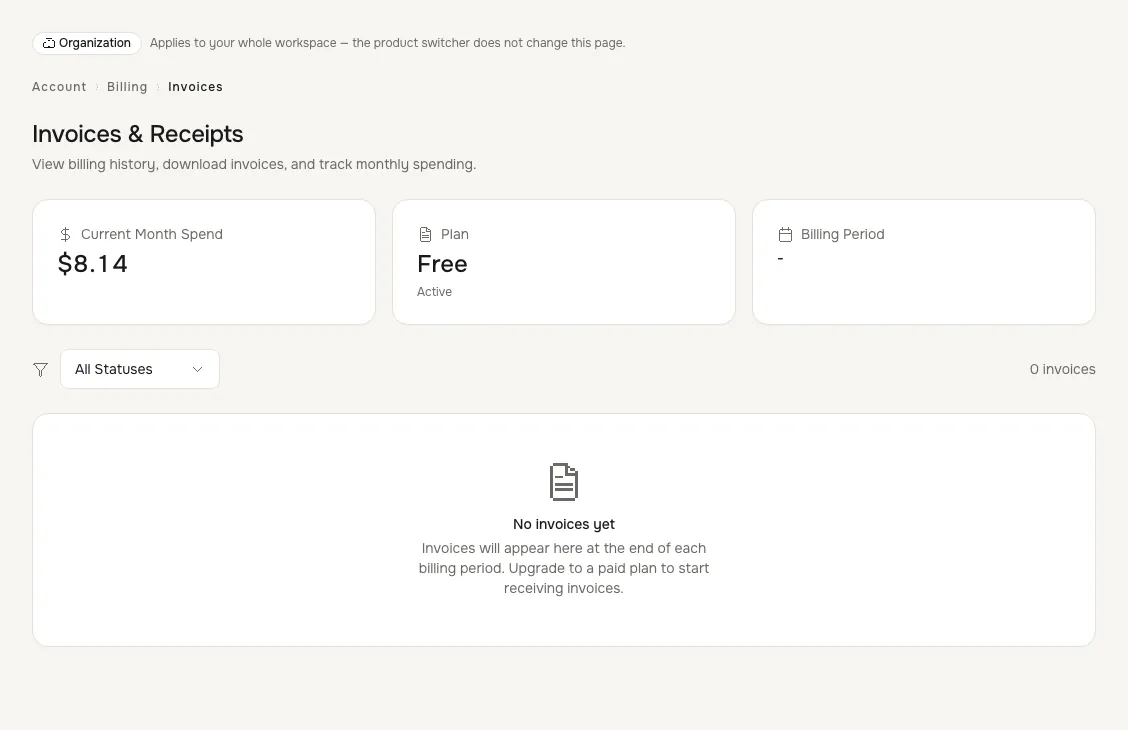
Billing › Invoices lists your invoices and receipts, which you can download, with the spend of the current month.
Elsewhere
- Telegram:
/balancereturns your credit balance and/planyour current plan. See Telegram operations. - API:
GET /api/v1/public/creditsreturns the balance and plan of the workspace. See the Public API.