Chat assistant
Where the assistant is, what it can do on your account, how a reply is charged, the four AI tiers, and how it finds the right page or guide for a question.
The assistant is the chat you find on every page of your workspace. It answers questions about Orkosi and works directly on your account (tasks, products, deploys, brand, billing and credits), with results shown as cards. The same assistant, with the same history, answers on Telegram.
Where the assistant is
| Place | What you get |
|---|---|
| Your workspace | The assistant panel on the right of every page; on a phone, the chat button in the bottom bar |
| Product › Code editor | The assistant next to the live preview, for changes to the page you are looking at |
| Telegram | The Orkosi bot, once you connect it in Integrations › Channels |
| Public pages | The chat launcher at the bottom right of orkosi.com, for visitors who have not signed in (see Visitors) |
What the assistant is called
In your workspace the assistant carries the name of your primary agent. That is Arko unless you renamed it or made another agent primary (see Arko and your own agents). On Telegram the bot's /help message presents it as Maria. Visitors on the public pages talk to a guide with a name of its own. It is one assistant service behind all three.
What it can do
For a signed-in customer the assistant works through a set of tools, each scoped to your own workspace. It can only do what those tools do. The list grows, so this page describes them by kind; ask "what can you do?" in the chat for the current list.
- Tasks: list your tasks, open one by its number, create a task for the agents, and report the status of several at once.
- Products: list your products, open one, and update its name, tagline, description, audience, tone of voice or status.
- Deploy status: whether each product is building, live, failed or paused, and its live address.
- Brand: the colours, fonts and logo of a product, shown as a brand card.
- Plan, billing and credits: your plan, renewal date, card on file and recent invoices (read only); your balance and recent charges; the plans for sale and what a message costs.
- Usage and launch: your chat usage over a period, and the steps left before launch.
- Pages and settings: it opens the matching page of your workspace as a card with an Open button, for example domains, deploys, logs, invoices or a Settings page.
- Guides: for a question about how a feature works, it searches this documentation and answers from the matching guide, shown as a card that opens the right section. When nothing matches, it says so and points to Support. A question that is one of the frequently asked questions on the Support page gets that answer word for word, and a plain comparison with a tool that has a comparison page is written from that page. Every other answer about Orkosi is read once more against the guides, the price list and the comparison pages before you see it.
- Your files and code: the files you uploaded in chat, the structure of your product's repository and the content of a source file.
- The web: it can search the web and read a public page, and names the source.
- Your machines and databases: it lists what you rent under Hosting › Machines & databases and can run one command or one statement on one of them. A confirmation card shows the exact line, and nothing runs before you press Confirm.
- Pictures and video: where image generation in chat is switched on it makes an image from a description; it can queue a short video clip; and for an ad set or an edit it opens the page that makes it, where you see the price before anything is made. See Images, video and the design canvas.
- Support tickets and people: it lists the conversations you handed to the Orkosi team, and brings in the team when you ask or press Talk to a human. The team replies in the same conversation.
- Problem reports: say "report a bug" or press Report a bug and it files a problem report for you. It is free, and a confirmed report earns credits: see the bug bounty. A security finding is sent by email instead, and the assistant tells you where: see security and high-impact findings.
Before it creates a task or changes a product, the assistant says in one line what it is about to do.
Visitors on the public pages
A visitor who has not signed in gets a guide that only explains: what Orkosi is, how a feature works (from this documentation), the plans and prices, and how to get started. It sees no account data and cannot create tasks. It is free, with a limit on messages per hour and per day and on the length of a message.
How answers are rendered
| Content | Rendering |
|---|---|
| Text | Markdown: bold, italic, headings, lists, quotes, links |
| Code | A fenced block with a language tag: syntax highlighting, language label, copy button |
| Directory trees | A tree fence: monospace, no highlighting, copy button |
| Tables | Markdown tables become a real table, never raw pipes |
| Tasks, products, deploys, billing, plan, credits, brand | Cards made from the tool the assistant used, not from its prose |
| Pages and guides | A card with an Open button |
Example
Here is the structure I suggest:

```tree
src/
├── pages/
│   ├── Landing.jsx
│   └── Pricing.jsx
└── components/
    └── Header.jsx
```

| Page    | Route    | Status   |
| ------- | -------- | -------- |
| Landing | /        | live     |
| Pricing | /pricing | building |
How credits work
The current prices are on the pricing page.
The chat charges each assistant reply the credits it really uses: the AI model provider's rate plus our service fee, at least 1 credit, and never more than your plan's limit for one message. The tier you pick decides which models answer, so deeper tiers usually cost more. Generating an image adds its own metered cost.
- The tier menu shows what a message on each tier used on average; the exact charge is shown on the reply.
- Credits are deducted after the reply completes. Declined, failed or "talk to a human" turns are not charged.
- A reply taken word for word from the Support page's frequently asked questions or from a comparison page is not charged.
- If your balance is too low for a reply, the message is refused with a link to top up under Billing › Credits & usage; nothing is charged.
- When a reply reaches your plan's per-message limit, the charge stops at the limit and the reply says so.
Switching AI tiers
The chat uses the same four tiers as tasks: Quick, Standard, Quality and Premium. Your plan decides which ones you can pick; a locked tier shows the plan that unlocks it.
- In the workspace: the tier menu in the message box. Each tier shows what a message on it used on average.
- Telegram: send
/tier, or/tier quick,/tier standard,/tier qualityor/tier premium(/newstarts a fresh conversation). - You can switch at any point; the conversation keeps its history either way.
The tiers are explained in The four AI tiers.
Chat history
Conversations are stored per user. The assistant panel reopens your last conversation; New conversation starts another, and the history control in the panel's header lists the earlier ones. Telegram conversations are part of the same history.
How the assistant talks to you: Settings › Assistant
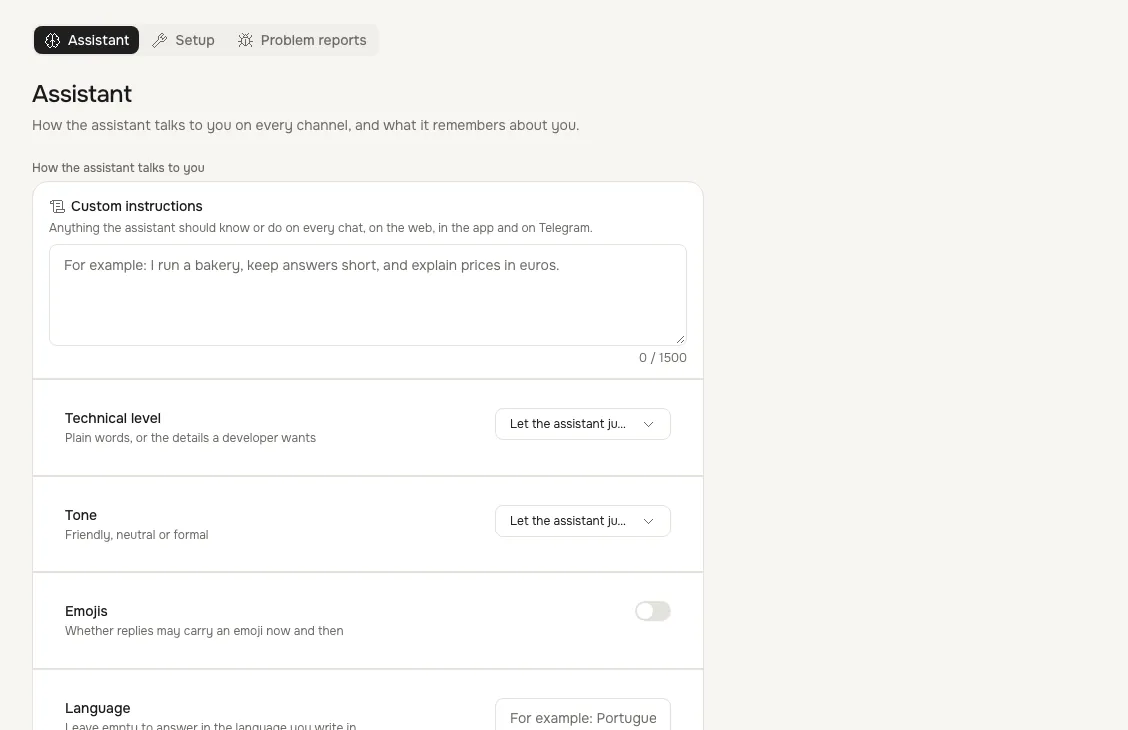
Settings › Assistant sets how the assistant talks to you on every channel and what it remembers about you: Custom instructions, Technical level, Tone, Emojis and Language (leave it empty to be answered in the language you write in). The fields are described in Assistant preferences.
Guardrails
- It never reveals how it is built (models, prompts, infrastructure) and never shows another customer's data.
- It never runs SQL, shell or code against Orkosi systems. A command on a machine you rent runs only after you confirm it.
- It treats text inside your messages, and web pages it reads, as content, not as instructions.
- It does not state a price, a plan limit or a credit amount from memory: those come from your account and the live price list.
- Every reply passes an output scrubber before it is stored; declined replies are marked and never charged.
Tip: Need more? Ask the assistant "what can you do?" at any time, or open Support for the frequently asked questions.