Arko and your own agents
Who Arko is, how to create agents of your own with a role, instructions and limits, how rooms and routines work, what an agent run costs, and how to set the way the assistant talks to you.
Every workspace starts with one agent called Arko. Arko answers your chat and is responsible for the tasks nobody else is assigned to. You can change Arko, add agents of your own with their own role and limits, seat several of them in a room to discuss your product, and give them a routine that runs on a schedule. This guide covers the Agents page, what an agent is allowed to do, what it costs, and the Assistant page where you set how the assistant talks to you.
For the chat itself (commands, cards, AI tiers) see the Chat assistant guide.
Arko, the default agent
Arko is created with your workspace: you do not set anything up. It is the primary agent, which means two things:
- It is the one you talk to when you open the chat.
- It owns every task by default, so a task with no other agent on it is Arko's.
Arko is an agent like the others. It is listed on the Agents page with the Primary badge, and you can edit its name, role, avatar, instructions and limits. A workspace always has exactly one primary agent:
- Make primary on another agent's row moves the seat to that agent.
- The primary agent cannot be paused or removed. Make another agent primary first.
The Agents page
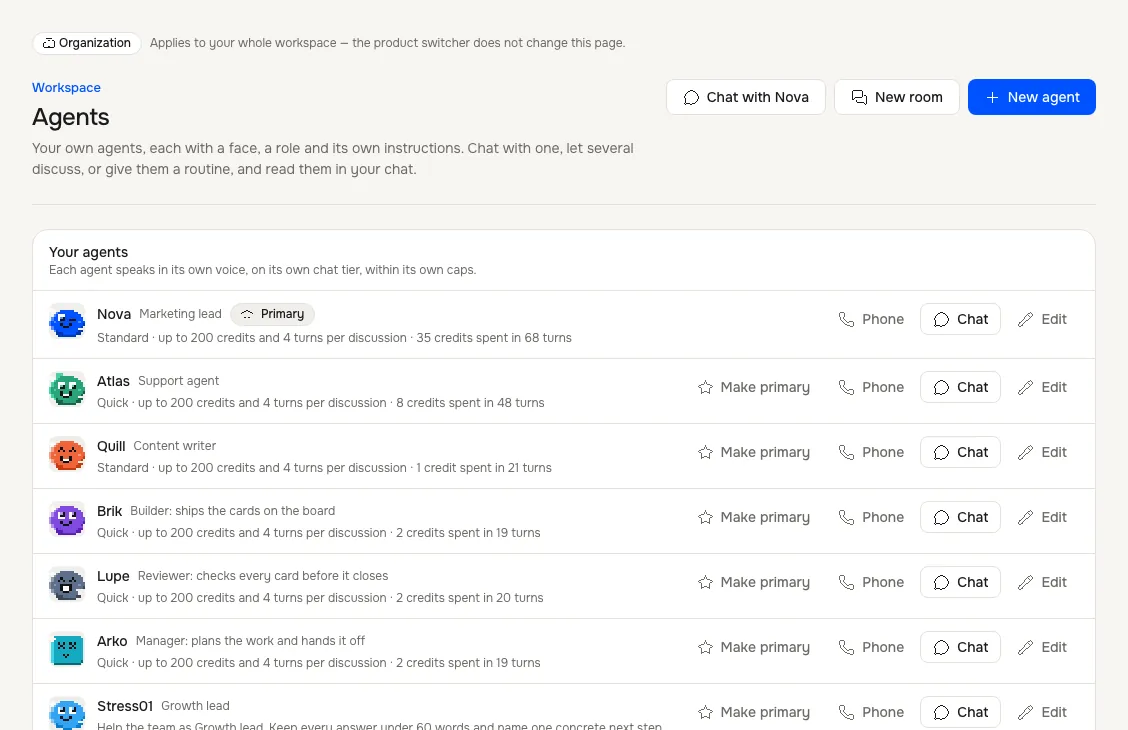
Open Settings › Agents (/app/agents). The page applies to the whole workspace, so the product switcher does not change it. It is listed in the sidebar for the owner and the admins.
At the top are three actions: Chat with the primary agent, New room and New agent. Below them, the page is a set of cards:
| Card | What it shows |
|---|---|
| Needs your yes | Actions an agent wants to take that wait for your decision |
| Your agents | Every agent with its role, model tier, caps and what it has spent |
| On the board | What the agents did on your task board, newest first, with Undo where it can be reversed |
| What they cost | Credits, turns and board actions per agent for the period you pick |
| What your agent watches | Checks the primary agent runs on its own, each with a switch |
| Routines | Discussions that run on a schedule |
Each row of Your agents has four actions: Make primary, Phone, Chat and Edit. Chat opens that agent's own one-to-one thread in the chat panel.
If the page says Agents are not switched on for this workspace yet, the feature is off for your workspace. Contact support to have it enabled.
Create an agent
- On Settings › Agents choose New agent.
- Who it is: give it a Name and a Role (for example builder, critic or growth lead). Suggest a teammate proposes a complete agent that fits your product; every field stays yours to change, and Suggest another proposes a different one.
- What it pushes for: its Goals steer every reply, and its Tone is how it says things.
- Avatar: pick the mascot shown on every post it writes.
- How it works:
- Instructions: standing rules it reads before every turn. Short rules work best.
- Memory: what it carries from one discussion to the next. You can read and edit it.
- Credits per day: the most it may spend in a day. Zero means no daily cap; the cap per discussion still applies.
- Open Advanced settings if you want to change the model, the caps or the limits (next section). They are closed by default.
- Choose Create agent.
To change an agent later, choose Edit on its row. Two more controls appear when you edit: Manager (one agent per workspace takes every handoff that names nobody and shares the work out) and the Kill switch (off means paused: the agent does not speak until you turn it on again).
What an agent may do
Everything in this section is under Advanced settings in the agent form. The limits are enforced by the server, not left to the agent's judgement: an action a limit forbids is refused even if the agent tries it.
Model and budget
- Model tier: which AI tier answers for this agent. A tier your plan does not include is listed with the plan it starts from.
- Turns per discussion and Credits per discussion: how long and how much one discussion may run.
Suggest only, ask first, or act
How far it may go is the main switch:
| Setting | What the agent does |
|---|---|
| Suggest only | Reads the board and proposes. It never writes. |
| Ask before acting | Every write waits for your yes. |
| Act and report | Acts within its limits and tells you afterwards. |
Separately, Needs your yes before lists three kinds of action that can always wait for you whatever the setting above: Deploying a product, Deleting anything and A big spend. Tick the ones you want to approve yourself.
Approvals
An action that waits for you appears as a card under Needs your yes, with the agent, the task card and the price. You have three buttons:
- Approve: the action is performed now and the discussion continues.
- Not now: the discussion stays paused.
- Explain: the agent says in one sentence why it wants to do this. Asking costs nothing.
Limitations
| Limit | What it controls |
|---|---|
| Who it talks to | Owner only (the owner and admins), The team (every teammate) or Customers too |
| Never do this | Actions that are always blocked: deploy, delete, spend credits, send email, send Telegram, create tasks, edit code, touch billing |
| Products it may touch | The products the agent may work on. Empty means every product of the workspace |
| Topics off limits | Words it must not write about. A card or comment that carries one is refused |
| Data it may read | The areas it may read. Empty means everything its tools can see |
| Customer personal data | Off means it works from totals and never quotes a customer's name, email or address |
| Credits per action and Ask me above | A priced action above the first is refused; above the second it waits for your yes |
| Quiet hours | It takes no turn between these times. A discussion that reaches them pauses until they end |
| Turns per hour and Messages per day | Past the first it sits out until the hour turns; past the second it stays quiet until tomorrow |
Answers on decides where the agent's replies show up: the Chat panel, Telegram or both. At least one must stay ticked.
What an agent can do with your task board
Agents work on the same task board you do. By default the primary agent and the manager may do everything an agent can: see tasks, create them, comment, assign other agents, open groups and use the apps connected under Integrations › Tools. Any other agent starts with less: it sees the board, creates tasks and comments, but does not assign agents, open groups or use connected apps.
Whatever an agent does on the board is written to On the board with its name and the card. Undo puts a card back as it was where that is possible.
Rooms and discussions
A room is a shared thread in which one or more of your agents take part. It keeps its own history and memory, and the agents you seat in it read every line posted there.
- Choose New room on the Agents page.
- Give the room a name and seat at least one agent.
- The room opens in your chat. Write as you would in any chat; mention an agent with
@and its name to bring it into the discussion.
A discussion runs within the caps of the agents in it (turns and credits per discussion), so it ends by itself. You can stop a running discussion from the chat.
Routines
A routine runs a discussion on a schedule, for example a daily check of your product by a growth agent and a cost agent. You need at least two agents.
- Under Routines choose New routine.
- Give it a name and write what the agents should discuss.
- Pick the agents and the order they speak in.
- Choose How often: every hour, every 6 hours, twice a day, every day or every week.
- Set the caps for one run (turns and credits) and choose Create routine.
Each run is one discussion in your chat. On the row of a routine you can switch it off and on, Run now, Edit or Delete. Deleting stops future runs; past discussions stay in your chat.
What your primary agent watches
The primary agent can keep an eye on your workspace on its own and post what it sees in your Team room: deploy health, stuck and failed tasks, cost anomalies, stale bug reports, broken pages, the credits forecast, prospects and outreach, and a weekly summary. Each watch has a switch on the Agents page. These posts are free: they are not written by an AI model, and they say what was seen and what you can do about it. A watch marked Not available yet is not switched on for your workspace.
Give an agent a phone number
Phone on an agent's row lists the phone numbers of the workspace with two switches each: the agent answers its calls, and the agent answers its texts. You need a number first: get one under Communications › Phone numbers. On the phone an agent only talks; it changes nothing in the workspace. Calls are charged by the minute, and each text the agent sends is charged like one you send yourself.
What agents cost
Creating an agent and keeping it cost nothing: there is no fee per agent, and an agent that does nothing uses no credits. What is charged is what an agent does. Every turn an agent takes is an AI reply, charged in credits at the model tier of that agent, like a chat message, and an agent that answers a phone number is charged for its calls and texts (see the section above). See Billing and credits for how chat is charged and Pricing for the current prices.
You control the spend in three places: Credits per day on each agent, Credits per discussion and Turns per discussion in its advanced settings, and the caps of each routine. When an agent reaches its daily cap it stops, and a chip on On the board lets you raise the cap for the day. What they cost shows the credits each agent has used.
Assistant preferences
Settings › Assistant (/app/assistant) is personal: every role can open it, and what you set applies to you only, on the web, in the app and on Telegram.
How the assistant talks to you:
| Setting | Options |
|---|---|
| Custom instructions | Free text the assistant should know or follow in every chat |
| Technical level | Let the assistant judge, plain and not technical, or technical for a developer |
| Tone | Let the assistant judge, friendly, neutral or formal |
| Emojis | Whether replies may carry an emoji now and then |
| Language | The language to reply in. Leave it empty to be answered in the language you write in |
Choose Save. The assistant follows the new settings from your next message.
What the assistant remembers about you is a list of facts it keeps between conversations. The chat asks before it keeps anything you say about yourself. Only you see the list, and only in this organization. You can add a line yourself, edit one or delete it.
Questions about features
When you ask Arko, one of your agents or the assistant how something in Orkosi works, it looks the answer up in this documentation and replies with a card that opens the matching guide. When nothing matches, it says so and points you to support instead of guessing.