Custom domains
Serve your product from a domain you own. Connect the domain, prove you own it, create the DNS records and let Orkosi issue and renew the certificate.
Your production environment is always reachable at https://<name>.orkosi.app. You can also serve it from a domain you own, such as app.acme.com or acme.com. Orkosi issues and renews the certificate; you create a few DNS records.
How many custom domains you can connect is part of your plan: see the pricing page. The page shows how many of your domains are used. Connecting, checking and removing a domain is for the owner and admins of the workspace; every role can see the list.
Connect a domain
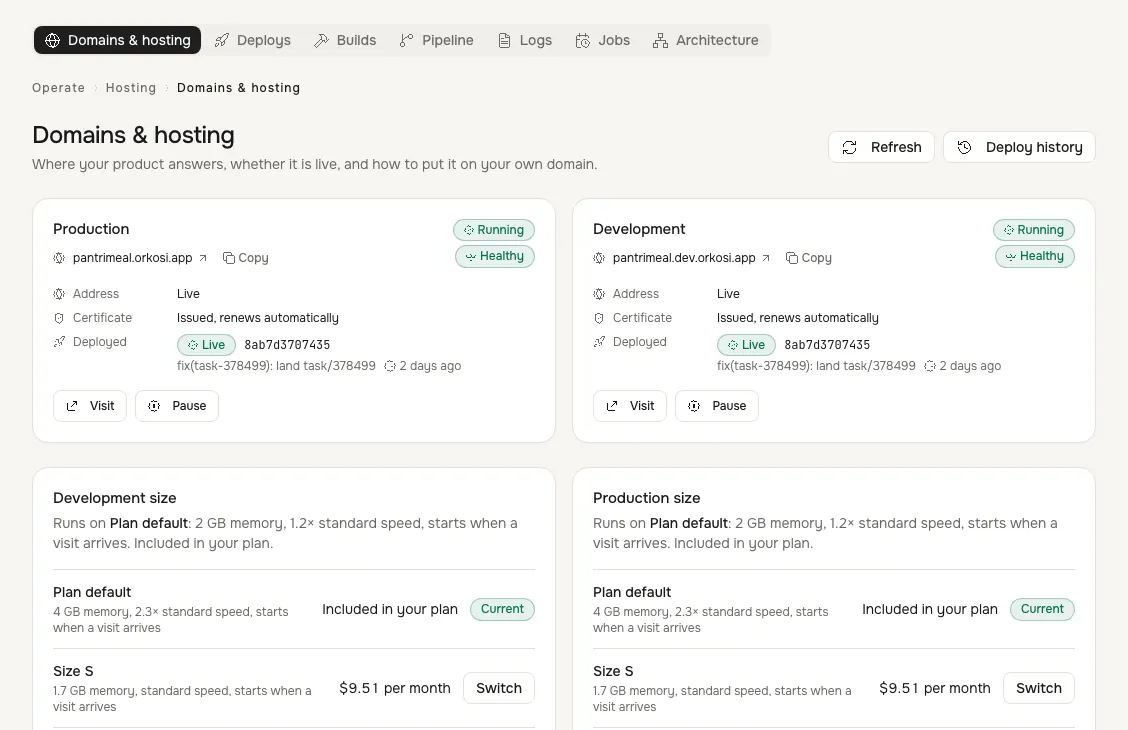
- Open Hosting › Domains and find Custom domains.
- Press Connect domain and type the Domain name exactly as visitors will type it:
app.acme.comfor a subdomain,acme.comfor the root of your domain. - Under Who manages the DNS? choose one:
- Keep my DNS provider: the domain stays with your current provider and you add the records Orkosi shows you.
- Use Orkosi nameservers: you set four nameservers once at your registrar and Orkosi manages every record.
- Leave Also connect the development build ticked if you want
dev.<your domain>to show the development version of your app. That address counts as a second domain on your plan; untick the box to use only one. - Press Connect.
The domain appears in the list with the records to create and a sentence saying what to do next.
If you do not have a domain yet, see Buy a domain. If your workspace already has one, bought here or moved here, you do not type it again: see Use a domain you already have.
Prove you own the domain
The first record is always a TXT record that proves the domain is yours. Create it at your current DNS provider with the name and value shown on the domain card. Nothing else is set up before this record answers. Orkosi checks every minute.
Once the TXT record is found, Orkosi requests the certificate and shows the remaining records.
DNS records with your own provider
With Keep my DNS provider, create the records listed on the domain card at your DNS provider. Copy the names and values from the card: they are specific to your domain.
| Record | What it does |
|---|---|
| TXT | Proves you own the domain |
| CNAME (validation) | Lets the certificate be issued and renewed |
| CNAME (the domain) | Points the domain at the connect target shown on the card |
Orkosi gives you names to point at and never an IP address, so there is no A record to create.
Root domain (apex)
DNS does not allow a CNAME at the root of a zone such as acme.com. Use your provider's ALIAS, ANAME or CNAME flattening feature for the root, pointing at the same target. A root domain also answers on www. If your provider offers none of these, use Orkosi nameservers, which handle the root for you.
Orkosi nameservers
With Use Orkosi nameservers, the domain card shows four nameservers after the ownership record is found. Replace the nameservers at your registrar with those four. Orkosi then creates and manages every record.
Warning: Switching nameservers moves every record of the domain, including the ones for your company email. Orkosi copies the records it can find (email, sender records, website address) before it shows you the nameservers, but records on other subdomains are not copied. Open DNS records on the domain card, check the list and add anything missing before you switch, or email and sites on those names stop working.
After the switch, DNS records on the domain card is where you add or change records for that domain.
Certificate (SSL/TLS)
The certificate is free, issued by AWS Certificate Manager and renewed automatically. Nothing is installed on your side.
- It is requested after the ownership record is found, and is usually issued within 5 to 30 minutes of the validation record being visible.
- Keep the validation CNAME in place. Renewal depends on it.
Steps and statuses
Each domain card shows four steps: Ownership check, SSL certificate, Connection to hosting and Domain pointing at Orkosi. Under each step is its state: Done, In progress, Waiting or Failed. The badge beside the domain shows its overall status:
| Status | Meaning |
|---|---|
| Waiting for DNS | The records, or the nameservers, are not visible yet |
| Verifying | A DNS record is visible and the certificate has not been issued yet |
| Verified | The certificate is issued and the domain is being connected to hosting |
| Live | Your app is served on this domain with SSL |
| Removing | The domain is being removed and its certificate and records cleaned up |
| Failed | The certificate failed or the records were not found in time. The card says why |
Orkosi checks a new domain every minute for the first hour and less often after that. The round arrow on the card checks DNS, the certificate and hosting immediately. You are notified when the domain goes live, and by email if it fails.
A domain that is verified before the app has been deployed goes live by itself once the app is deployed. Until a domain is live, https://<name>.orkosi.app keeps working; both addresses serve the same production environment.
Troubleshooting DNS
Check what the world sees. From a terminal, using the names shown on the domain card:
dig +short TXT _orkosi-verify.app.acme.com   # should print the value from the card
dig +short CNAME app.acme.com                # should print the connect target from the card
If dig shows the right values but the status has not changed, press the round arrow on the card to check now.
Common causes of a stuck domain
- The record was created at the wrong level. For
app.acme.commost providers want the nameapp, notapp.acme.com. Some want the full name with a trailing dot. Check your provider's convention. - A proxy is in front of the record. If your DNS provider proxies traffic, turn the proxy off for the Orkosi records so the real CNAME is visible.
- An existing A or AAAA record on the same name. A CNAME cannot share a name with other records. Remove the old records first.
- CAA records. If your zone has CAA records, they must allow Amazon to issue certificates, or the certificate step does not complete.
- Validation record deleted. Removing the validation CNAME after the certificate was issued breaks renewal. Recreate it from the domain card.
- Propagation. A nameserver change can take hours to be seen everywhere. A record change inside an existing zone is usually visible within minutes.
A domain on Verifying has at least one record visible and is waiting for its certificate, which is usually issued within 5 to 30 minutes. When it stays there for hours, a record is still missing or hidden: the card says how many are missing. Go through the causes above, then press the round arrow.
If a domain stays stuck, write to support@orkosi.com with the domain name.
E-mail from the same domain
Connecting a domain to a product puts your site on it and changes nothing about e-mail. Sending campaigns from an address on that domain is set separately on Email › Sender, with DNS records of its own: see Email. The two do not depend on each other, so you can do them in either order or at the same time, and the sender address does not wait for the domain to be live. With Orkosi nameservers, mind the warning under Orkosi nameservers: switching moves every record of the domain, including the ones for your company email.
Remove a domain
Press the bin icon (Remove domain) on the domain card. Orkosi removes the domain from hosting and cleans up its certificate and the records it created. If the domain used Orkosi nameservers, change the nameservers at your registrar back to your own DNS provider.